Build report templates for your units
Make the report forms units fill in on duty, with your own fields, required boxes, drop-down lists and links to people and vehicles on file. Load the starter templates, and switch diagrams on or off.
Report templates are the forms units fill in when they write a report in the CAD, like an incident report or a use of force report. You decide what each form asks for, in what order, and which boxes have to be filled in before it can be submitted. A template can be for one kind of unit or for every unit.
A new CAD has no templates. You can load the starter ones and edit them, or build your own from scratch.
Before you start#
You need the Set up the CAD: call types, statuses, penal code, designs and AOP permission.
Open the report templates#
- Open your control panel and click CAD settings in the sidebar.
- Click Records & courts along the top, then Report templates.
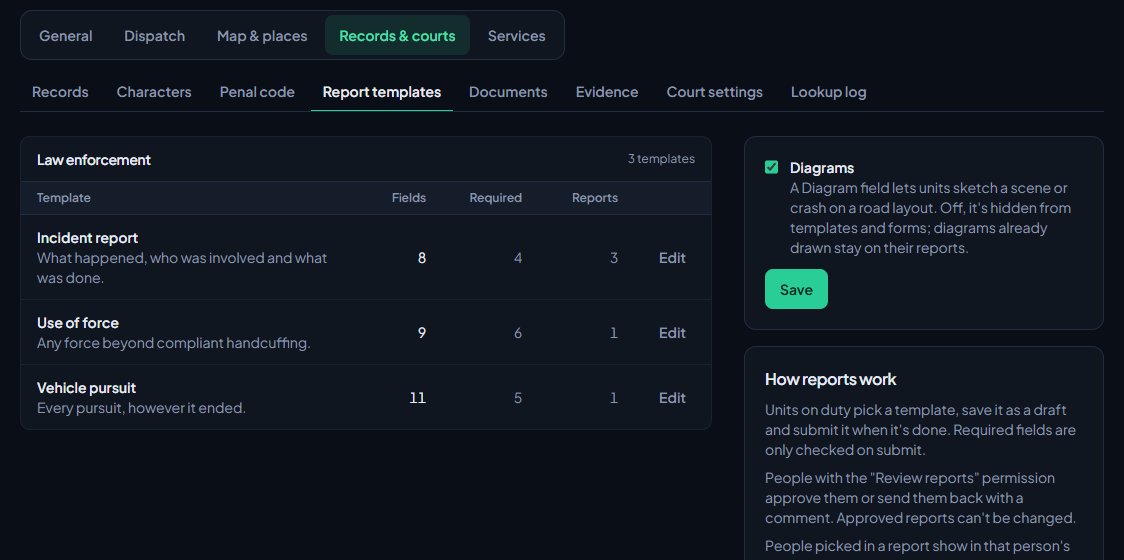
Templates are grouped by who they're for. Each row shows how many fields it has, how many are required and how many reports have been written with it.
Load the starter templates#
The Starter templates box on the right lists four law enforcement templates: Incident report, Use of force, Vehicle pursuit and Commercial vehicle contract.
- On an empty list, click Load starter templates to add them all.
- Once you have templates, click Add next to any starter you don't have yet. Ones you already have say Added.
Commercial vehicle contract is for commercial vehicle enforcement. It records the carrier (a business on file, or its name), DOT and MC numbers, the driver and their commercial licence, the vehicle and trailer, the contract type and term, its start and expiry dates, and whether the carrier is in good standing. Edit the contract types to match your server.
Create a template#
- Click New template at the top right.
- Under Template on the right, type a Name, like Incident report.
- Pick who it's For: Every unit, Law enforcement, Fire or EMS. Units see the templates for their kind and the ones for every unit.
- Add a Description if you like. It shows under the name in the template list.
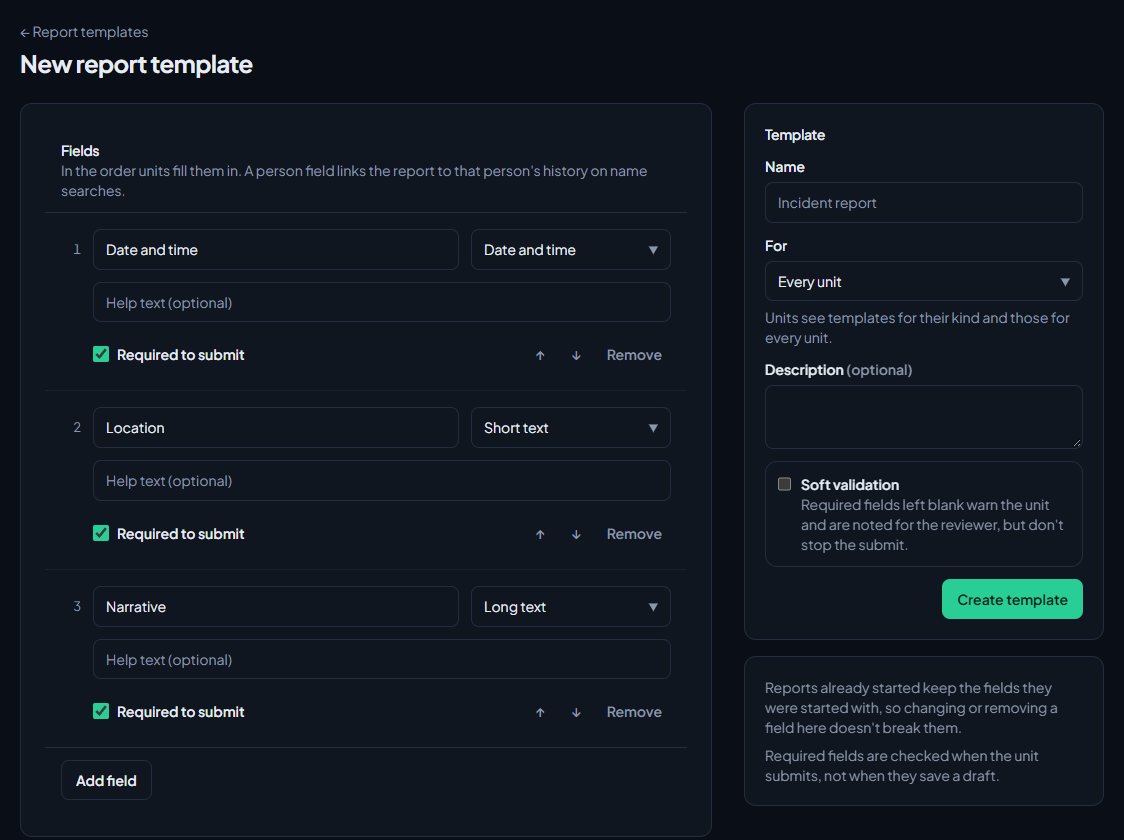
- Set up the fields on the left. A new template starts with Date and time, Location and Narrative, which you can change or remove.
- Click Create template.
Set up the fields#
For each field:
- Type the Label units will see.
- Pick the field type.
- Add Help text if the field needs explaining.
- Tick Required to submit if it has to be filled in.
Click Add field to add another. Use the up and down arrows to change the order, and Remove to take a field out.
| Field type | What units fill in |
|---|---|
| Short text | One line of text. |
| Long text | A paragraph, like a narrative. |
| Number | A number, like a speed or distance. |
| Date and time | A date and a time. |
| Pick from a list | One of the options you type, one per line. |
| Tick box | Yes or no. |
| Person on file | A character from the CAD. The report then shows in that person's history on name searches. |
| Vehicle on file | A vehicle from the CAD. |
| Business on file | A registered business. |
| Diagram | A sketch of a scene or crash on a road layout. Only offered while diagrams are switched on. |
Soft validation#
Tick Soft validation if you'd rather not block units. Required fields left blank then warn the unit and are noted for the reviewer, but don't stop them submitting.
Edit or delete a template#
- Click Edit next to the template.
- Make your changes and click Save template.
To delete it, click Delete template at the bottom of the edit page and confirm. Reports already written with it are kept.
Use the up and down arrows next to a template to change its place in its group. Units see the templates in this order.
Every report keeps a copy of the fields it was started with. Changing or removing a field doesn't change or break reports that are already started or submitted.
Diagrams and Improve wording#
The box on the right of the Report templates page has the report-wide switches. Click Save after changing them.
- Diagrams: when off, the Diagram field type is hidden from the template editor and from report forms. Diagrams already drawn stay on their reports.
- Improve wording: if you see this switch, it adds a button on long text fields that fixes grammar and spelling. Only that field's text is sent, and the writer compares the two versions and picks one. It isn't offered on patient care reports. The box shows how many times it's been used this month out of your allowance.
How reports work once a template exists#
Units on duty pick a template, save it as a draft and submit it when it's done. Required fields are only checked when they submit, not when they save a draft. People with the Review reports: approve them or send them back permission then approve the report or send it back with a comment. Approved reports can't be changed.
For the unit's side, send your officers Write a report and send it for review. For reviewers, see Review and approve reports.
Fire and patient care reports have their own built-in forms. See Write fire and patient care reports.
Rules and limits#
- A template can have up to 40 fields.
- A list field can have up to 50 options.
- Labels can be up to 80 characters, and help text up to 200.
Something not working?#
It says "Every field needs a label." One of your fields has an empty label. Fill it in, or click Remove on that field.
It says something like: Give "Incident type" at least one option. A Pick from a list field has no options. Type at least one option, one per line.
It says "You already have report templates. The starter set only loads when there are none." The whole set only loads on an empty list. Click Add next to each starter you want instead.
It says "You already have a template with that name." You have a template called the same as that starter. Rename yours first if you want both.
Units can't find a template. Check who it's For. A Fire template doesn't show for police units. Set it to Every unit if everyone should use it.
There's no Diagram option in the field type list. Diagrams are switched off. Tick Diagrams on the Report templates page and click Save.
See also
Write a report and send it for review
Start a report from one of your community's templates or straight from a call, fill it in, save it as a draft, submit it and fix it if it comes back.
Review and approve reports
Approve reports or send them back with a comment, from the control panel or on duty, plus citations, warnings and arrests that wait for approval.
Turn CAD features on and off
Switch off the parts of the CAD your community doesn't use, from the DMV and courts to ride-alongs and Signal 100, and set the options that go with them, like quiet call closing, warrant approval and alert tones.
Set up the CAD for your community
Install the CAD, set up the departments that sign on to it, give your staff access, and work through the CAD settings in the order that gets you running fastest.
Can't find what you need?
Open a ticket in our Discord and someone from the team will help. Found a bug, or missing a feature? Tell us on the feedback board.