Write citations, written warnings and arrests
File a citation, warning or arrest on a person's record, add charges and see the totals, attach a booking photo, serve warrants, set caution flags and send a record to court.
Citations, written warnings and arrests are the records that go on a civilian's file. They carry the charges from your community's penal code, add up fines, jail time and licence points, and show on every name search after that. They're separate from reports, which are longer write-ups built from your community's templates.
This article covers writing each one, what changes between them, and what happens when your community makes them wait for a supervisor.
Before you start#
You need to be on duty as a police unit. Dispatchers, fire and EMS can't write these, and nor can riders on a read-only ride-along.
The charges come from your community's penal code. See Build your penal code.
Open a form#
The quickest way is from the person's record. Run their name, open their record and click Citation, Warning, Arrest or Warrant. The person is filled in for you.
You can also start a blank form and pick the person inside it:
| Design | Where |
|---|---|
| Modern | New record in the tabs, then Citation, Written warning or Arrest report |
| Classic | Actions in the top bar, then Citation, Written warning or Arrest report |
| Realistic | Forms on the toolbar, then Citation, Written Warning or Arrest Report on the left. New Citation, New Written Warning, New Arrest and New Warrant are also on the Tools menu, and on the quick bar while you're in Forms |
Warrants use the same form, and are covered in Request, approve and serve warrants.
Fill it in#
-
Subject: if the person isn't filled in, search by name or date of birth, click Find and pick them. Click Change to pick someone else.
-
Charges: pick each charge from Add a charge…. Charges are grouped by category. Click the × next to one to remove it. You can add up to 20.
-
Location, your community's postal box, and Date and time (Location of arrest and Date and time of arrest on an arrest). If you're on a call, the location and postal are filled in from it. Leave the date and time empty if it is happening now.
-
Vehicle plate: shown when your community's paperwork has a vehicle section. If the plate matches a vehicle on file, its details show under Vehicle on file. Plates are up to 8 letters and numbers, spaces and dashes aside.
-
Any extra boxes your community prints, such as Approx. speed, Posted speed, Measured by, Direction of travel, Identified by, or a Court date on citations.
-
Notes, or Narrative on an arrest.
-
Click the button at the bottom: File citation, File warning or File arrest report in Modern and Classic, and File Citation, File Written Warning or File Arrest Report in Realistic.
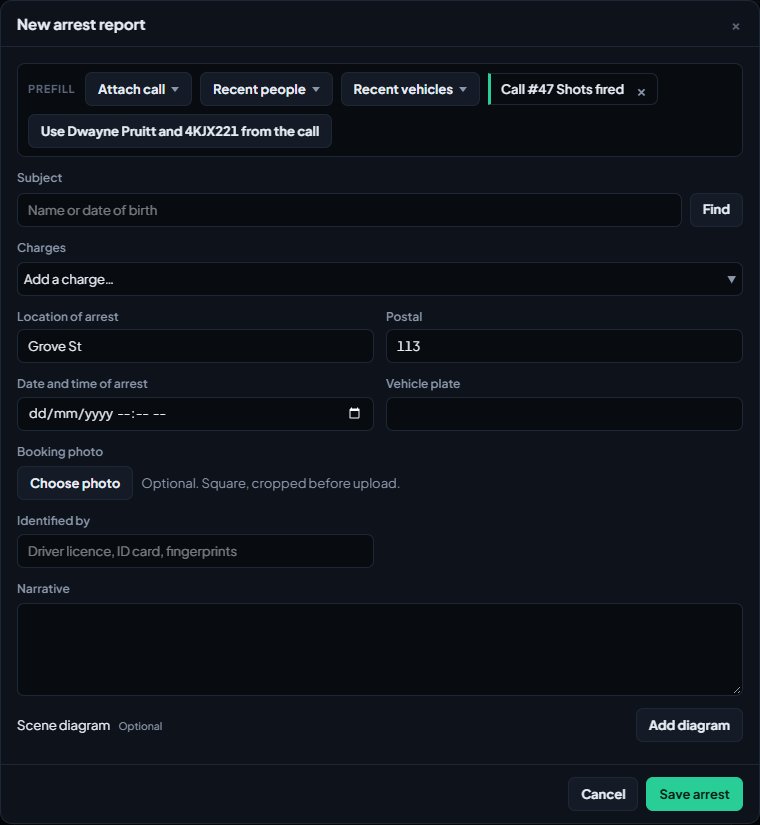
The prefill bar at the top of the form lets you attach a call, or pick people and plates you've searched in the last 24 hours, to fill the form in for you. Citations and arrests can also carry a scene diagram, if your community uses them.
What each type adds up to#
As you add charges, the total underneath updates.
| Type | Fine | Jail | Points | Required |
|---|---|---|---|---|
| Citation | Yes | No | Yes | At least one charge |
| Written warning | No | No | No | A charge, or notes saying what it's for |
| Arrest | Yes | Yes, in months | Yes | At least one charge and a narrative |
Each record gets a reference: C- for citations, W- for warnings and A- for arrests, like A-0031. You'll see a message like "Arrest A-0031 saved."
If your community sets a points limit, a person whose points reach it has their driver licence suspended automatically.
Booking photos#
If your community has Photo uploads switched on, arrest forms have a Booking photo box.
- Click Choose photo and pick an image.
- Crop it to a square when asked.
- File the arrest. The photo is saved with it.
To add or replace a photo on an arrest that's already filed, open the person's record and find the arrest in their history. In Modern, click Add booking photo or Replace booking photo under it. Classic and Realistic have the same option in the history and BOOKING PHOTOS sections. Photos must be JPG, PNG or WebP, under 4 MB.
A mugshot taken in game with /mugshot is also added to the person's arrest if it was written in the 6 hours before and has no booking photo. See Check the mugshot log.
Serve a warrant with an arrest#
If the person has an active warrant, the arrest form shows Serve warrants with a tick box for each one. Ticking a warrant adds its charges to the arrest. When the arrest is on the person's record, the ticked warrants are marked served.
Clicking Serve on a warrant from the person's record opens an arrest form with that warrant already ticked.
If your community makes arrests wait for approval, a warrant ticked on an arrest that's waiting can't be ticked on another arrest. It no longer shows under Serve warrants, so it can only be served once.
Mark a citation or warning as served#
Once you've handed the person their copy, click Mark served, then confirm. It's on the citation or warning in the person's record after a name search (the hand icon in Classic, Mark Served in Realistic), and on the document. The paper is stamped with your name and the time.
Set caution flags#
Caution flags, like Armed & dangerous, warn the next officer who runs that person or plate. Your community sets the list.
- On a person: open their record and click a flag under Caution flags to set it. Click it again to clear it.
- On a vehicle: run the plate and click a flag under Vehicle flags.
Every flag you set or clear is saved in your community's activity log with your callsign. You can't set flags on a civilian marked as deceased.
Send a record to court#
If your community uses the Courts module, arrests and citations can go to court. On the person's record:
- Modern: under Court, click Send to court next to the record.
- Classic: click Send to court next to the record in the history.
- Realistic: click Court followed by the record's reference, then confirm.
A court case opens for a judge to run. See Run a court case.
When records need approval#
Your community can make some or all of these record types wait for a supervisor. Ask your CAD admins which ones, or look for the message when you file: "sent for approval." instead of "saved."
While a record waits:
- It isn't on the person's record yet. No points are added, no warrants are served, and it can't go to court.
- You'll find it in your reports under Your records waiting for approval, with its status.
If a supervisor returns it, the status changes to Returned with their comment. Click Fix and resend, make the changes in the same form, and file it again. Once approved, it's on the person's record as normal. See Review and approve reports.
Something not working?#
I don't see Citation, Warning or Arrest. Only police units on duty can write records. If you're riding along read-only, the buttons are hidden.
It says "Pick who this is for." Search for the subject and pick them first.
It says "Add at least one charge." or "Write the narrative." Citations and arrests need a charge, and arrests need a narrative.
It says "Add a charge or say what the warning is for." A written warning needs either a charge or some notes.
It says a warrant "is already on an arrest waiting for approval." Another arrest will serve that warrant once it's approved. Leave it off this arrest.
It says "Plates are 8 letters and numbers at most." Check the plate. Spaces and dashes don't count.
It says "That date is in the future." Check the Date and time box, or leave it empty.
It says "One of those charges is no longer in the penal code." A charge was removed while your form was open. Remove it and pick it again from the list.
It says the person "is deceased." Nothing new can go on the record of a civilian marked as deceased.
It says "That record is still waiting for approval." when sending to court. The record has to be approved first.
It says "Upload a JPG, PNG or WebP image." or "Keep photos under 4 MB." Pick a different image, or make it smaller.
See also
Run name, plate and serial lookups
Search people, plates, firearm serials and businesses while on duty, read what comes back, and know which units can search what.
Request, approve and serve warrants
Police request arrest and search warrants from the CAD, approvers sign or deny them in the control panel or the court docket, and officers serve them with an arrest.
Review and approve reports
Approve reports or send them back with a comment, from the control panel or on duty, plus citations, warnings and arrests that wait for approval.
Build your penal code
Set up the charges officers pick on citations, arrests and warrants, with fines, jail time and licence points. Load the starter penal code, add your own charges or import them from a spreadsheet.
Write a report and send it for review
Start a report from one of your community's templates or straight from a call, fill it in, save it as a draft, submit it and fix it if it comes back.
Run a court case
Set up courts for your community, send arrests, citations and warrants to court, and run a case as a judge: hearing, plea, verdicts, sentence and fines.
Can't find what you need?
Open a ticket in our Discord and someone from the team will help. Found a bug, or missing a feature? Tell us on the feedback board.