Request, approve and serve warrants
Police request arrest and search warrants from the CAD, approvers sign or deny them in the control panel or the court docket, and officers serve them with an arrest.
A warrant tells every officer that someone is wanted, or that a place or property can be searched. Officers request warrants from the CAD. Depending on your community's settings, a warrant is either active straight away or waits for someone to approve it first, the way a judge would sign one off.
Before you start#
- To request a warrant, you need to be on duty as a police unit.
- To approve warrants in the control panel, you need a role with Approve or deny warrants officers request.
- To sign warrants as a judge in the CAD, you need Sit as a judge: run court cases and expunge records, with the Courts module on.
Whether warrants need approval is set in the CAD settings, under Warrants, with Warrants need approval. Off, a warrant is active as soon as it's requested.
Request a warrant#
-
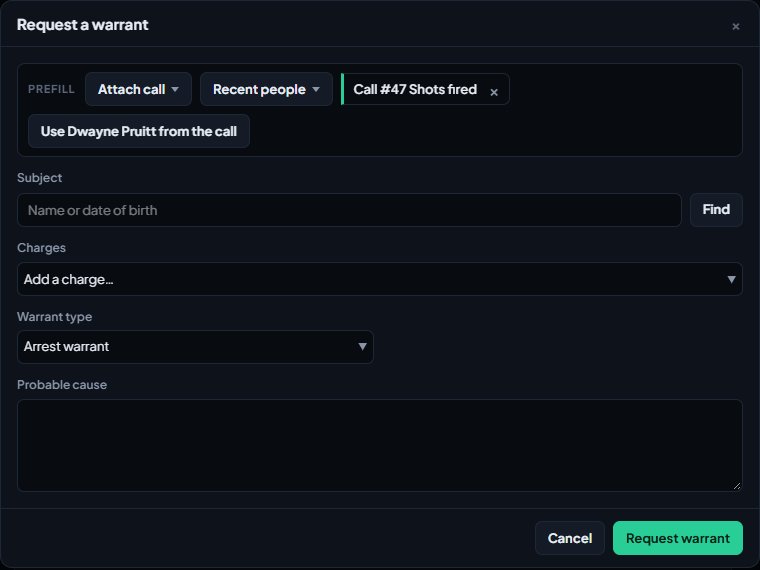
Open the warrant form:
- From a person's record after a name search, click Warrant.
- Or use New record then Warrant (Modern), Actions then Warrant (Classic), or New Warrant under Forms or the Tools menu (Realistic).
-
If the subject isn't filled in, search for them and pick them.
-
Choose the Warrant type: Arrest warrant or Search warrant.
-
For a search warrant, describe the Place or property to search: the address, vehicle or items, as the warrant should describe them.
-
Add the charges from the Add a charge… list. You can add up to 20.
-
Write the Probable cause: why the warrant is needed.
-
Click Request warrant.
You'll see "Warrant WR-0003 sent for approval." if it needs approval, or "Warrant WR-0003 is active." if it doesn't.
Approve or deny a warrant#
In the control panel#
- Open your control panel and click Warrants under CAD in the sidebar.
- Waiting for approval lists each pending warrant with the subject, type, who requested it, the charges and the probable cause. Click the warrant number to read it as a document.
- Click Approve, or Deny and confirm.
Your name goes on the warrant as the person who signed it. Recent on the right shows the last 25 warrants that aren't waiting, with their status.
As a judge in the CAD#
Judges see Warrants waiting at the top of the Court docket in the civilian panel. Click Sign or Deny and confirm. Signing makes the warrant active straight away. See Run a court case.
Warrants a prosecutor applies for always wait for approval, even if your community has approval switched off. See Prosecution, defence and plea bargains.
How warrants show to officers#
When an officer runs the person's name:
- An active warrant puts a Warrant tag next to their name and a box on their record, like "Active arrest warrant · WR-0003", with the charges and who requested it.
- A pending warrant shows on their record as waiting for approval, but doesn't add the Warrant tag.
- Plate and serial searches show a Warrant tag on the registered owner.
Serve a warrant#
- Run the person's name and open their record.
- Click Serve on the active warrant (Serve WR-0003 in Realistic).
- An arrest report opens with the warrant ticked under Serve warrants and its charges added.
- Finish the arrest report and file it.
The warrant is marked served once the arrest is on the person's record. If your community makes arrests wait for approval, that's when a supervisor approves the arrest. You can also tick warrants to serve on any arrest report for that person.
Cancel a warrant#
Police can click Cancel on a pending or active warrant on the person's record (Cancel followed by the warrant's reference in Realistic), then confirm. The warrant stays on file as cancelled.
Send a warrant to court#
If your community uses the Courts module, the Court section of the person's record has Send to court next to each warrant. See Run a court case.
Warrant statuses#
| Status | Meaning |
|---|---|
| Pending approval | Waiting for someone to approve or deny it |
| Active | Live. Shows on name searches |
| Served | Served with an arrest |
| Cancelled | Cancelled by an officer |
| Denied | Turned down by the approver |
Something not working?#
It says "Pick who the warrant is for." Search for the subject and pick them before requesting.
It says "Add at least one charge." or "Say why the warrant is needed." Every warrant needs at least one charge and the probable cause.
It says "Describe the place or property to search." Search warrants need the place or property filled in.
It says the person "is deceased." You can't request a warrant for a civilian marked as deceased.
It says "That warrant has already been decided." Someone else approved or denied it first. Refresh the page to see the latest.
I can't see Warrants in the control panel. Your role needs the Approve or deny warrants officers request permission.
See also
Run name, plate and serial lookups
Search people, plates, firearm serials and businesses while on duty, read what comes back, and know which units can search what.
Review and approve reports
Approve reports or send them back with a comment, from the control panel or on duty, plus citations, warnings and arrests that wait for approval.
Run a court case
Set up courts for your community, send arrests, citations and warrants to court, and run a case as a judge: hearing, plea, verdicts, sentence and fines.
Prosecution, defence and plea bargains
Give members the prosecutor and defence desks, take cases, make and answer plea offers, have a judge approve them, and let prosecutors apply for warrants.
Can't find what you need?
Open a ticket in our Discord and someone from the team will help. Found a bug, or missing a feature? Tell us on the feedback board.