Work a call as a police, fire or EMS unit
Set your status, attach yourself to calls, add notes, link people and vehicles, open your own calls and clear them when you're done.
Once you're on duty, your screen shows your status, the call you're on and every other open call. Dispatch can send you to calls, but you can also attach yourself, open your own calls and keep the call's timeline up to date as things happen.
This article covers everything you do on a call as a unit. If you're dispatching, see Create calls and dispatch units to them.
Before you start#
Sign on as a police, fire or EMS unit first. See Go on duty in the CAD.
Set your status#
Your status tells dispatch whether you're free. Your community sets the list of statuses and their codes.
- Modern: click a status under My status.
- Classic: pick it from the status box in the bar along the top.
- Realistic: pick it from the status box on the right of the quick bar.
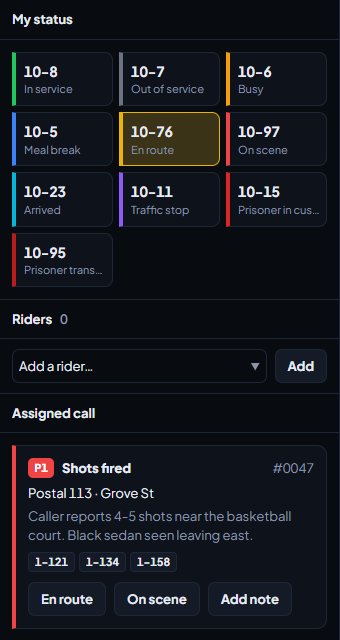
If you signed on out of service, put yourself in service when you're ready. In Realistic, ONDT on the quick bar does it in one click.
Some statuses have a check timer. If you stay on one too long, dispatch is prompted to check on you. Changing your status resets the timer.
Attach yourself to a call#
- Find the call. In Modern it's under Other calls. In Classic it's in Active 911 Calls. In Realistic it's in the calls grid.
- Attach yourself:
- Modern: select the call and click Assign me.
- Classic: click the person icon on the call (Assign yourself), or open the call and click Assign me.
- Realistic: select the call, then click Assign Self on the toolbar, or Primary Unit if you're taking the lead. A call has one primary unit, so Primary Unit takes over from whoever was primary before.
You can only be on one call at a time. Attaching yourself to a new call takes you off the old one.
Your call stays at the top of your screen: the Assigned call card in Modern, highlighted in Classic, and first in the grid in Realistic. In Realistic, My Call opens it.
Go en route and on scene#
Change your status to your en route or on scene status as you go. In Modern, the En route and On scene buttons on your assigned call do it in one click. The call's status follows, and the times are logged for response time stats, so it's worth doing every time.
Add notes#
Notes go on the call's timeline with your callsign, so dispatch and the other units see them straight away.
- Modern: click Add note on your assigned call, type it and click Add.
- Classic: open the call, type in the note box and click Add note.
- Realistic: open the call, type under Add a Note and click Add Note, or press Ctrl+Enter.
You can also change the call's details. Click Edit call (Modern and Classic) or Edit Call (Realistic). As a unit you can only change the details text, and only on a call you're attached to. Dispatch changes the rest.
Link people, vehicles and businesses#
Linking someone to a call keeps a record of who was involved.
-
Open the call.
-
Pick Person, Vehicle or Business. In Realistic, click the button for the one you want.
-
Pick their role: Suspect, Victim, Witness, Driver, Owner or Premises.
-
Search for them and click Search or Find.
-
Click Link as suspect (or whichever role you picked) next to the right result.
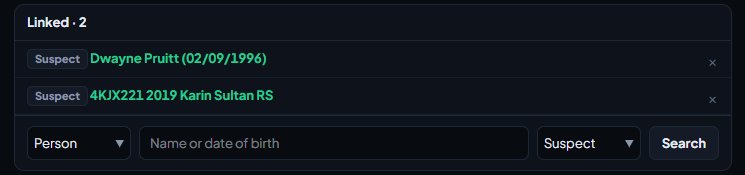
Click a linked name to open their record or run the plate. Fire and EMS units can link people but not vehicles or businesses.
Request a tow#
Police units can ask for a tow, if your community uses towing. On the call, click Request tow (Request Tow in Realistic), fill in the plate, location and reason, and click Request tow. You can also request one from a plate search.
Open your own call#
For a traffic stop or anything you come across yourself:
- Click New call (Modern), 911 Call or New (Classic), or New Call (Realistic, or press F1).
- Fill in the call type, priority and location.
- Leave Assign me to this call (Assign myself in Realistic) ticked to put yourself on it.
- Click Create call.
Set your 10-20 (Realistic)#
In Realistic, click 10-20 on the quick bar, type where you are and click Set. Your location shows in the units grid and is used if you press panic. Click Clear to remove it.
Leave or clear a call#
- Leave the call if you're done but the call carries on: Leave call (Modern and Classic) or Leave Call (Realistic).
- Clear the call if it's finished: Close call (Modern, with an optional disposition), Clear call (Classic) or Clear Call then Confirm Clear (Realistic). Every unit on it is cleared.
You can only clear a call you're attached to.
Your transaction log (Realistic)#
Click TXLog on the quick bar to see the last 12 hours of the board: everything written to call timelines, and broadcasts. Click your callsign on the left to see only what you did, including your searches.
In game#
If your community uses the LonexOne FiveM resource, you can work calls from the game too. By default, /comment adds a note to your call, /cr sets your GPS to it, /updatecoords moves the call to where you are, and /quickcad opens a call where you stand. See Every in-game command.
Something not working?#
I can't see Edit call on a call. You can only edit calls you're attached to. Attach yourself first, or ask dispatch to change it.
The buttons are missing or it says "Riders can only watch this unit's screen." You're riding along with another unit in read-only mode. See Ride along with another unit.
It says "Type at least two characters." Searches for people, vehicles and businesses need at least two characters.
I can't link a vehicle or business. Only police and dispatch can search plates and businesses. The Business option also needs your community's Businesses module.
See also
Go on duty in the CAD
Sign on with your department and callsign, skip the panel screen with a default, go off duty, and fix the messages that stop you signing on.
Create calls and dispatch units to them
Open a call, attach units, change priority and details, then clear it with a disposition. Also covers merging duplicates and reopening a call that closed too early.
Run name, plate and serial lookups
Search people, plates, firearm serials and businesses while on duty, read what comes back, and know which units can search what.
Write a report and send it for review
Start a report from one of your community's templates or straight from a call, fill it in, save it as a draft, submit it and fix it if it comes back.
Can't find what you need?
Open a ticket in our Discord and someone from the team will help. Found a bug, or missing a feature? Tell us on the feedback board.