Create a civilian character
How members make a civilian character in the CAD, add licences, vehicles and firearms, and what staff control, like how many characters each member can have.
Civilian characters are the people your members play when they're not on duty. Each one has a file in the CAD with their details, licences, vehicles and firearms. When an officer runs a name, plate or serial, this is what comes back.
This article covers how members create and look after their characters, so you can send it to them, and the settings staff use to control it.
Before you start#
- The CAD module needs to be installed.
- Anyone who is a member of your community can create characters. They don't need to be in a department.
- You can't use the Civilian panel while you're on duty. Go off duty first.
Create a character#
-
Go to the community website and click Open CAD.
-
On the Select a panel screen, click Civilian.
-
Click New character. If you already have characters, click New at the top of the list.
-
Fill in the First name, Last name and Date of birth. These are the only boxes you have to fill in.
-
Add anything else you want officers to see: Gender, Height, Weight, Address, Phone and a Description.
-
Click Save.
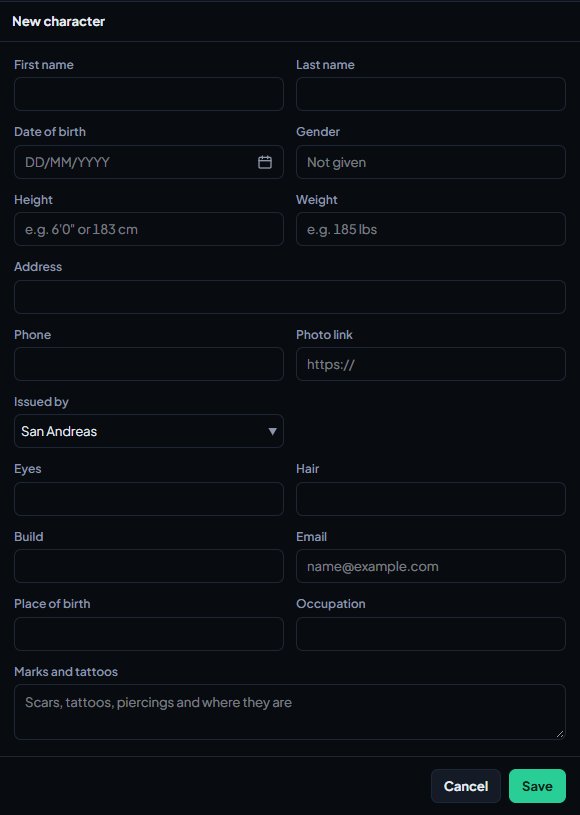
Your character is added to the list on the left. If your community uses ID numbers, the character is given one straight away, for example an SSN.
Depending on your community's settings, you may also see boxes like Eyes, Hair, Build, Place of birth, Occupation or Marks and tattoos, and an Issued by box for where the character's ID comes from.
If you have more than one character, click the one you're playing in the list. That's the one shown when you use /showid in game.
Add a photo#
- Open your character.
- Click Add photo and pick a JPG, PNG or WebP image under 4 MB.
- Crop it to a square and confirm.
The photo saves straight away and shows on your character's file for officers. To change it, click Change photo. To take it off, click Remove photo. You can also paste an https:// link to an image in Photo link when you edit the character.
Add licences#
Under Licences you'll see every licence type your community uses, like a driver licence or firearm licence.
If your community lets civilians manage their own licences, pick a status from the list next to each one: Valid, Suspended, Revoked or Expired. Pick None to remove it. If your community uses licence restrictions, click a restriction code under the licence to add it, and click it again to take it off.
If your community has a DMV, licences show as None and you'll see Apply at the DMV instead. See Get licences, registrations and plates from the DMV.
Register a vehicle#
- Under Vehicles, click Register vehicle.
- Fill in the Plate. Plates are 2 to 8 letters and numbers, and no two vehicles can share one.
- Fill in the Model, and the Make, Colour and Year if you want.
- Set the Registration and Insurance: Valid, Expired or None.
- Tick Reported stolen if the vehicle has been stolen.
- Click Save.
To change or remove a vehicle, click Edit next to it. Click Remove to delete it.
Register the car you're driving in game#
If your server runs the LonexOne FiveM resource, get in the driver's seat and type /registervehicle, or the short version /regveh. The plate, make, model and colour are read from the car, and it's registered with a valid registration and insurance.
- If you have one character, it goes to them.
- If you have more than one, it goes to the one you last opened in the CAD. To pick another, add their name after the command, like
/registervehicle Dale Rourkeor/regveh Dale Rourke. - If your community uses a DMV, it sends the DMV an application for that car instead.
- If the plate is already one of your character's cars, the make, model and colour are updated.
Department vehicles can't be registered, and neither can a plate that belongs to someone else. If your community brings vehicles across from its game framework, the command is turned off, because vehicles you buy in game are registered for you.
Register a firearm#
- Under Firearms, click Register firearm.
- Fill in the Serial number, using letters, numbers and dashes.
- Fill in the Type, for example "Pistol".
- Tick Reported stolen if it's been stolen.
- Click Save.
Delete a character#
- Open the character and click Edit.
- Click Delete and confirm.
This deletes the character's vehicles, firearms and licences too. A character with police records or warrants can't be deleted, so nobody can wipe their record.
What staff control#
These settings are in your control panel under CAD settings. You need the Set up the CAD: call types, statuses, penal code, designs and AOP permission.
| Setting | Where | What it does |
|---|---|---|
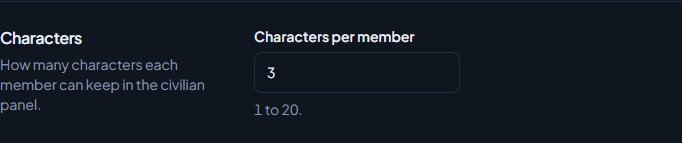
| Characters per member | General, Settings | How many characters each member can have, from 1 to 20. It's 3 to start with. |
| Civilians manage their own licences and registration (no DMV) | General, Settings | On, civilians set their own licences and plates. Off, they apply to the DMV. |
| ID numbers, Photo uploads, Medical profiles and others | Records & courts, Records | Turn parts of the character file on or off. |
| Extra details, like eye colour or occupation | Records & courts, Records | Choose which extra boxes civilians see. |
Staff can see every character in the community under Records & courts, then Characters. Search by name or ID number, and filter by Living or Deceased. See Medical records and marking someone deceased.
Something not working?#
The New button is greyed out. You've reached the most characters your community allows. The number is shown at the top of the list, for example "3 of 3". Delete one, or ask staff to raise the limit.
It says "Another vehicle already has that plate." Plates are unique across the whole community. Pick a different one.
It says "Plates are 2 to 8 letters and numbers." Shorten the plate, or add a character if it's only one long.
It says "This character has police records, so it can't be deleted." Characters with records or warrants stay on file. Ask staff if you think a record is wrong.
It says "New vehicles are registered by the DMV here. Apply for a registration instead." Your community uses a DMV. Open Applications and apply for a registration.
/registervehicle says "Pick a character in the CAD first, or add their name after the command." You have more than one character and haven't opened one in the CAD yet. Open the one you want, or type their name after the command.
/registervehicle says the plate is already registered to someone else. Another character has a car with that plate. Change the plate in game, or ask the DMV or staff if the car is yours.
It says "You need a valid firearm licence to register a firearm." Your community asks for a licence before you can register a firearm. Get the licence first.
My licence says "Suspended by the police" and I can't change it. A suspension made by the police or a court can only be lifted by them.
I can't change anything on my character. The character has been marked deceased, which locks the file. Staff can reverse it if it was a mistake.
See also
Get licences, registrations and plates from the DMV
Turn on the DMV so civilians apply for licences and registrations, and work the DMV desk: issue or deny applications, renew, suspend, re-plate and transfer vehicles.
Medical records and marking someone deceased
How civilians fill in a medical profile, what fire and EMS see on a name search, the medical history built from patient care reports, and how to mark a character deceased or bring them back.
Register businesses, aircraft, boats and property
How civilians register businesses and hire staff, register aircraft, boats and serial-numbered property, and how the DMV licenses them when your community uses one.
Edit the lists officers and civilians pick from
Change the caution flags, vehicle flags, licence types, restrictions, field interview reasons, registry types, evidence types and detail suggestions used across the CAD, plus the ID number and region settings on the Records page.
Can't find what you need?
Open a ticket in our Discord and someone from the team will help. Found a bug, or missing a feature? Tell us on the feedback board.