Brand your site: logo, colours and home page
Set your community's name, logo, favicon and accent colour, choose how your home page looks to visitors, and add your Discord invite and social links.
Your community site picks up its look from one settings page: your name, logo and accent colour, the banner and heading on your home page, and the links to your Discord and socials. Getting these right is the quickest way to make the site feel like yours.
Everything here is on the Branding & content page in your control panel, and changes go live as soon as you save.
Before you start#
You need to be the owner, or have a role with the Edit the community site: pages, navigation and branding permission.
Open the branding settings#
- Open your control panel.
- In the sidebar, under Modules, click Community Site, then Branding & content.
The card on the right shows your logo, name, tagline and accent colour as they're saved now. When you're done with any of the sections below, click Save changes at the bottom. You'll see Saved.
Name, logo and colour#
The Identity section covers what appears in your site's header, the browser tab and link previews.
| Setting | What it does |
|---|---|
| Community name | Your community's name everywhere on the site and in the control panel. Up to 100 characters. |
| Tagline | A short line about your community, shown on your home page. Up to 160 characters. |
| Accent colour | The colour used for buttons, links and highlights across your site. Pick one with the colour box or type a hex code like #29cd96. |
| Logo | Shown at the top left of every page. A PNG, JPG or WebP file up to 5 MB. Square and wide logos both work. |
| Favicon | The small icon in the browser tab. Use a square image, up to 5 MB. It's shrunk to 256 pixels for you. |
| Logo size in the header | How tall the logo is, from 24 to 72 pixels. The Preview next to it shows it to scale. |
| Show the community name next to the logo | Turn this off if your logo already has your name in it. |
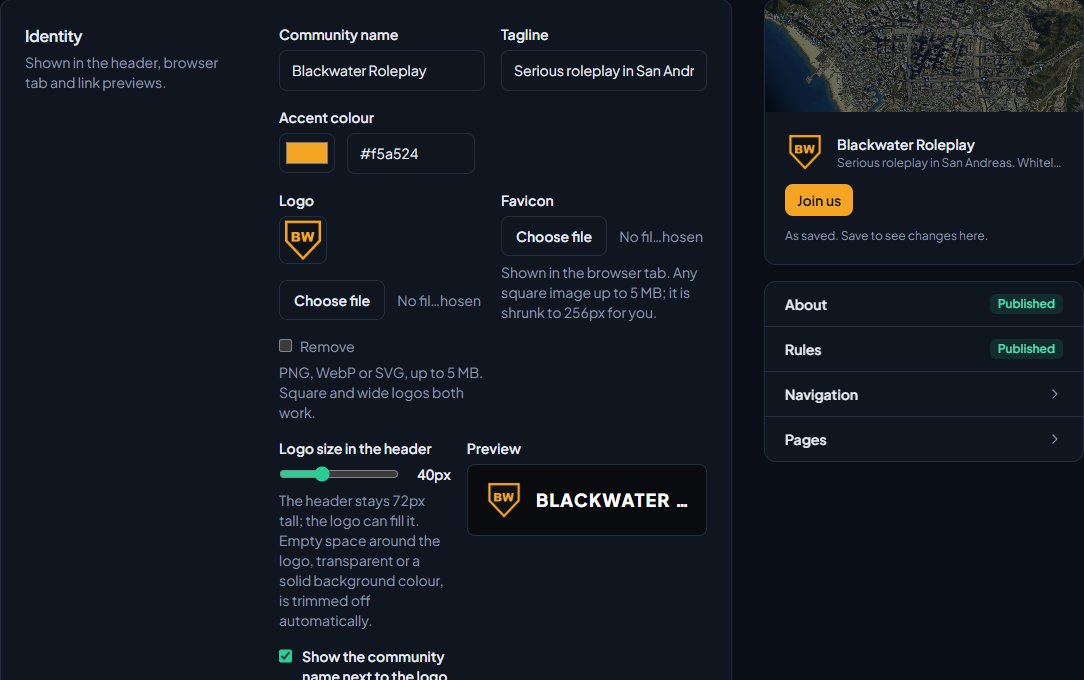
When you choose a logo or favicon, a Crop image box opens. Drag the box to crop, or click Trim empty space to snap it to the artwork. Click Use crop to keep your crop, or Use original to upload the image as it is. Empty space around a logo is trimmed off when you save, whether it's transparent or a solid colour.
To take a logo, favicon or banner off, tick Remove next to it and save.
Your home page#
The Home page section sets the top of your home page and the text under it.
| Setting | What it does |
|---|---|
| Heading | The big line at the top. Leave it blank to use your community name. |
| Join us button link | Where the Join us button goes. It shows in the classic layout and in the Questions? box beside your pages. It has to be a full web address starting with https://. Leave it blank to send people to your Rules page. |
| Server connect link | Shown for information. It comes from your main server under Status & servers. |
| Show "Getting started" cards to visitors | Cards for joining your Discord, connecting to the server and reading the rules. Each card only shows if you have that thing set up. |
| Banner image | The picture behind the heading. Wide images work best, 1920 by 600 pixels or larger, up to 5 MB. |
| Text | Anything you want under the top of the page, such as a welcome message. You can use Markdown for headings, bold text, lists and links. |
What visitors see first#
The Visitor hero section is what people see at the top of your home page before they sign in. Once a member signs in, they get their own welcome instead, with their name and departments.
Under Layout, pick one of two designs:
- Classic, left aligned: your heading and tagline on the left, with Join us, Join Discord and Connect to server buttons. Once you have 10 or more members, it also shows your member count.
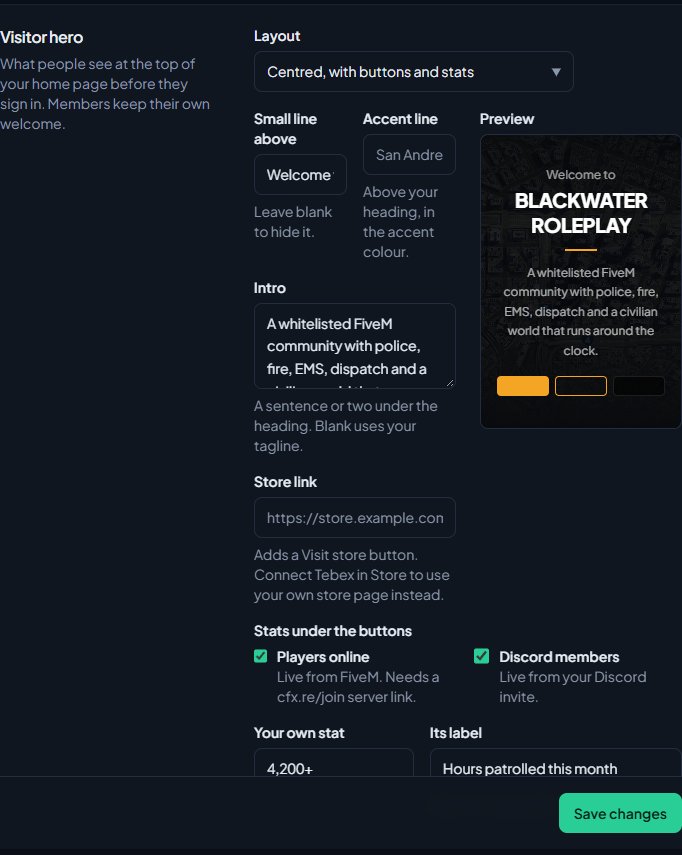
- Centred, with buttons and stats: a bigger centred heading with Join server, Visit store and Discord buttons, and stats underneath. The Preview follows what you type.
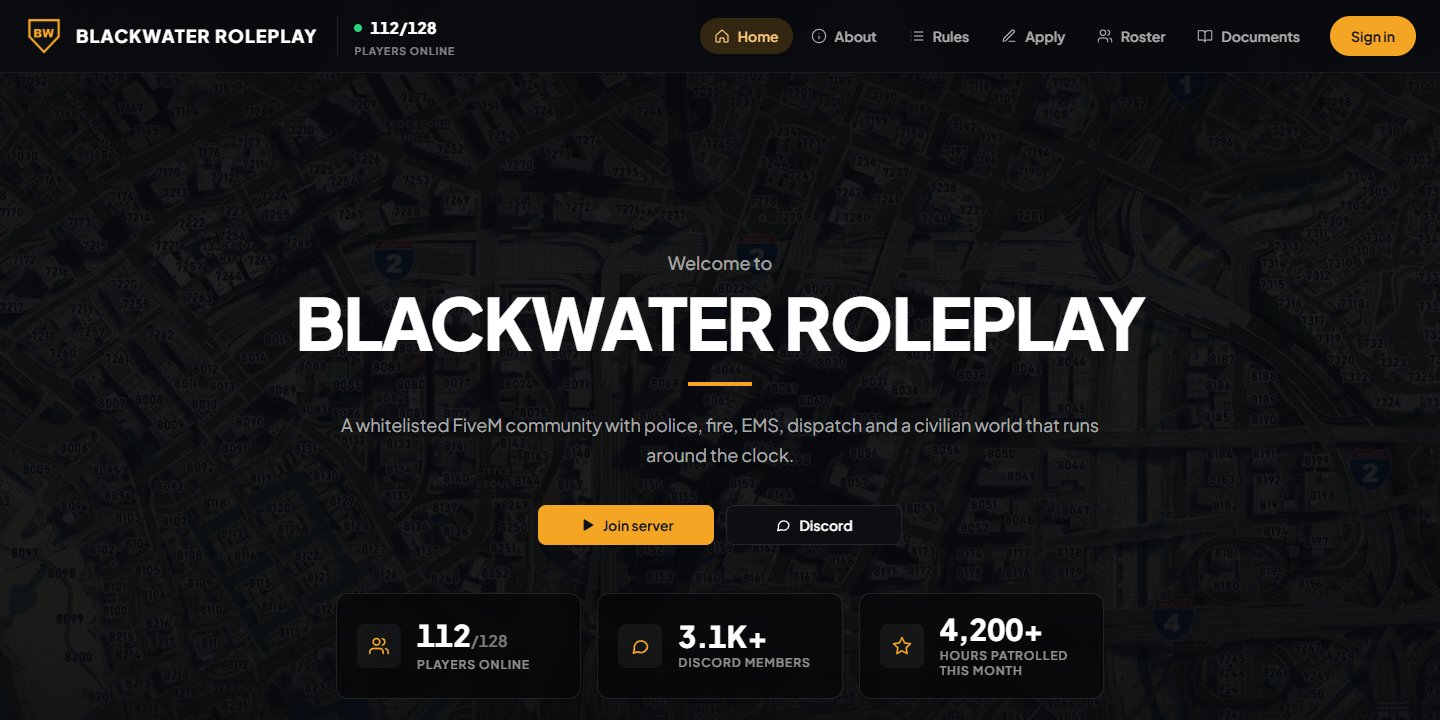
The centred layout uses these extra settings:
| Setting | What it does |
|---|---|
| Small line above | A short line over the heading, like "Welcome to". Leave it blank to hide it. |
| Accent line | A line above your heading in your accent colour, like "San Andreas". |
| Intro | A sentence or two under the heading. Leave it blank to use your tagline. |
| Store link | Adds a Visit store button. If you connect Tebex under Store, your own store page is used instead. |
| Players online | Shows how many people are on your server. Needs the LonexOne FiveM resource on your main server, or a cfx.re/join server link. |
| Discord members | Shows how many people are in your Discord, from your invite link. |
| Your own stat and Its label | Any figure you like, such as "24/7" and "Active staff". Fill in both for it to show. |
Discord and social links#
In the Links section:
- Discord invite is used for the Join Discord buttons and card on your home page, the Questions? box beside your pages, and your site's footer.
- YouTube, TikTok, X / Twitter, Twitch, Instagram and Website links show in your site's footer. Leave any you don't use blank.
- Footer text replaces the line at the very bottom of every page. Leave it blank for a copyright line with your community name.
Every link here has to start with https://.
Something not working?#
It says "Use a PNG, JPG or WebP file." The file isn't one we can use as an image. Use a PNG, JPG or WebP file. SVG files aren't accepted, so save your logo as a PNG first.
It says "Use a full address starting with https://." Links have to be full web addresses starting with https://, for example https://discord.gg/yourserver. To send people to one of your own pages, use its full address, like https://yourcommunity.lonexone.com/rules.
It says "Add a label for your stat, or clear its figure." Your own stat needs both a figure and a label. Fill in the other box, or clear both.
My new logo isn't showing. Make sure you clicked Save changes after choosing it. Then refresh your site. If it still shows the old one, your browser may be holding on to it, so try a private window.
The Join us button is missing. It shows in the classic layout and in the Questions? box beside your pages, and only when you've set a Join us button link or have a published Rules page that everyone can see at /rules.
The Players online stat is missing. It needs your main server to run the LonexOne FiveM resource, or its connect link to be a cfx.re/join link. Check it under Status & servers.
The player count shows a dash instead of a number. We couldn't read your server, usually because it's offline. If the server is up, install the LonexOne FiveM resource: it reports the player count itself, even for servers that aren't on the FiveM server list.
See also
Change your site's menu
Choose the links in your community site's header, put them in order, give them icons, move some into the Links menu and turn one into a button.
Build a page with the page editor
Create pages for your community site, write and format them, add images and tables, choose who can see them, and publish your changes when they're ready.
Set up SEO and social links
Control how your site looks in Google and in link previews on Discord and X, hide it from search engines if you're private, and add your social links to the footer.
Use your own domain name
Put your community site on a domain you own, like sunnysiderp.com, by adding two DNS records. Covers making it your main address and removing it again.
Can't find what you need?
Open a ticket in our Discord and someone from the team will help. Found a bug, or missing a feature? Tell us on the feedback board.