Use your own domain name
Put your community site on a domain you own, like sunnysiderp.com, by adding two DNS records. Covers making it your main address and removing it again.
Every community site starts at an address like yourcommunity.lonexone.com. If you own a domain name, such as sunnysiderp.com or play.sunnysiderp.com, you can put your site on it instead. It's included in your plan.
You add the domain in your control panel, add two records where you manage the domain's DNS, and we check them. Once they're right, we set up a security certificate and the domain goes live. Your lonexone.com address keeps working and sends people to your own domain.
Before you start#
- You need to be the owner, or have a role with the Edit the community site: pages, navigation and branding permission.
- You need a domain you own, and access to its DNS settings. That's usually where you bought the domain (such as Namecheap or GoDaddy), or Cloudflare if you use it.
Add your domain#
-
Open your control panel.
-
In the sidebar, under Modules, click Community Site, then Domain, SEO & links.
-
Under Add a domain, type your domain in Domain, for example sunnysiderp.com or play.sunnysiderp.com.
-
Leave Make it the main address once it's live ticked if you want your site to move to this domain. Untick it if you only want the domain to work alongside your lonexone.com address.
-
Click Add domain.
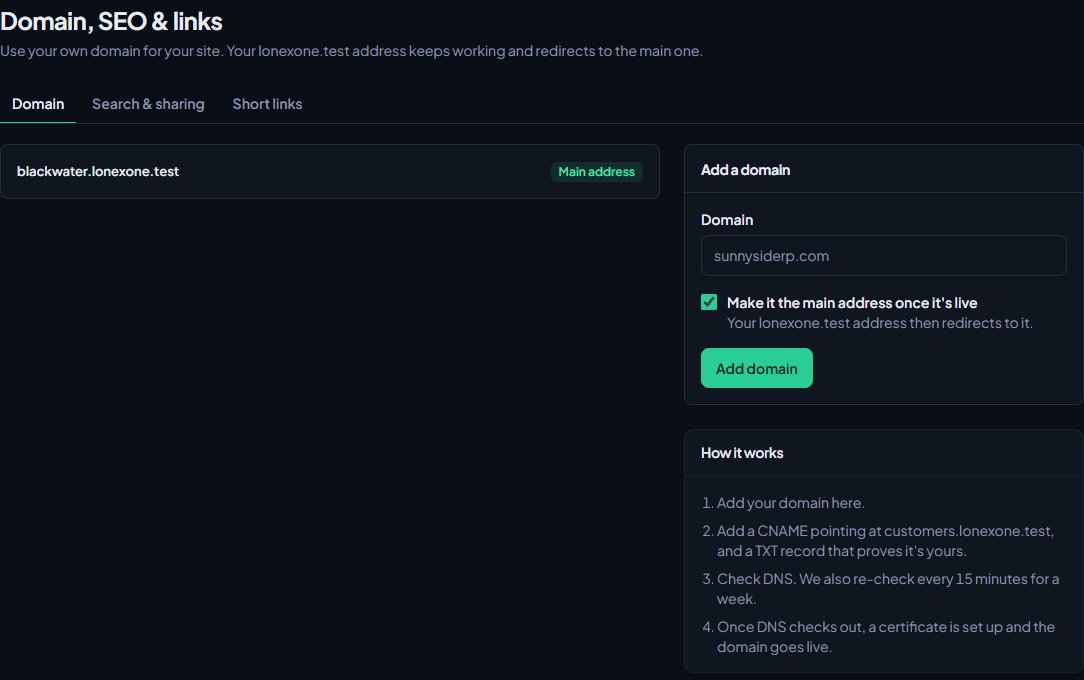
You'll see Domain added. Add the DNS records below, then check. Your domain now shows with the status Waiting for DNS, and a table of the two records to add.
Add the DNS records#
Sign in wherever you manage your domain's DNS and add both records exactly as the table shows:
| Type | Name | Value |
|---|---|---|
| CNAME | Your domain, for example play.sunnysiderp.com | The address shown in your control panel, such as customers.lonexone.com |
| TXT | _lonexone followed by your domain, for example _lonexone.play.sunnysiderp.com | lonexone-verify= followed by your own code |
The CNAME sends visitors to us. The TXT record proves the domain is yours. Copy the TXT value from your control panel, because the code is different for every domain.
If you use Cloudflare, set the CNAME to DNS only (the grey cloud), not Proxied (the orange cloud). With the orange cloud on, the check can't see that your domain points at us.
A root domain like example.com#
Most DNS providers don't allow a CNAME on a root domain. If yours supports CNAME flattening (Cloudflare does), add the CNAME as normal and it will work. If it doesn't, use a subdomain like play.example.com or www.example.com instead.
Check the records#
- Go back to Domain, SEO & links.
- Click Check DNS under your domain.
New records can take up to an hour to show. You don't have to keep clicking: we check again every 15 minutes for a week after you add the domain.
When both records are right, the status changes to Setting up SSL and you'll see DNS checks out. We're setting up the certificate for followed by your domain. The box under your domain says how long it should take: usually a few minutes, or usually within a day if our team needs to finish it by hand. When it's done, the status changes to Live.
When your domain goes live#
- Each owner of the community gets a Discord message from the LonexOne bot saying the domain is live.
- If you ticked Make it the main address once it's live, it gets the Main address tag. Your lonexone.com address, and any other domain you've added, redirect to it.
- Members sign in on your domain as normal.
- Links you share, your sitemap and your link previews all use the main address.
Change your main address#
- Go to Domain, SEO & links.
- Under the domain you want, click Make main address. It only shows on domains that are live.
- Confirm.
You'll see a message that the domain is now the main address and other addresses redirect to it. To go back to your lonexone.com address, click Make main address under that one instead.
Remove a domain#
- Go to Domain, SEO & links.
- Under the domain, click Remove.
- Confirm.
If it was your main address, your lonexone.com address becomes the main address again straight away. You can then delete the DNS records at your DNS provider. Your lonexone.com address can't be removed.
Limits#
- You can add up to 3 domains of your own.
- A domain can only be used by one community.
- Each address is added on its own. If you want both sunnysiderp.com and www.sunnysiderp.com, add both.
Something not working?#
See Fix a custom domain that isn't working for every error message and what to do about it.
See also
Fix a custom domain that isn't working
What each domain status and error message means, why the DNS check fails, and what to do when your domain is stuck waiting for DNS or SSL.
Set up SEO and social links
Control how your site looks in Google and in link previews on Discord and X, hide it from search engines if you're private, and add your social links to the footer.
Brand your site: logo, colours and home page
Set your community's name, logo, favicon and accent colour, choose how your home page looks to visitors, and add your Discord invite and social links.
Claim your community and go live
Open your claim link, set your community name and billing email, pay the first invoice and land in your control panel.
Can't find what you need?
Open a ticket in our Discord and someone from the team will help. Found a bug, or missing a feature? Tell us on the feedback board.