Show your staff on the team page
Build a public team page in groups like Owners and Moderators, filled by hand or from Discord roles, with positions, short bios, names and departments.
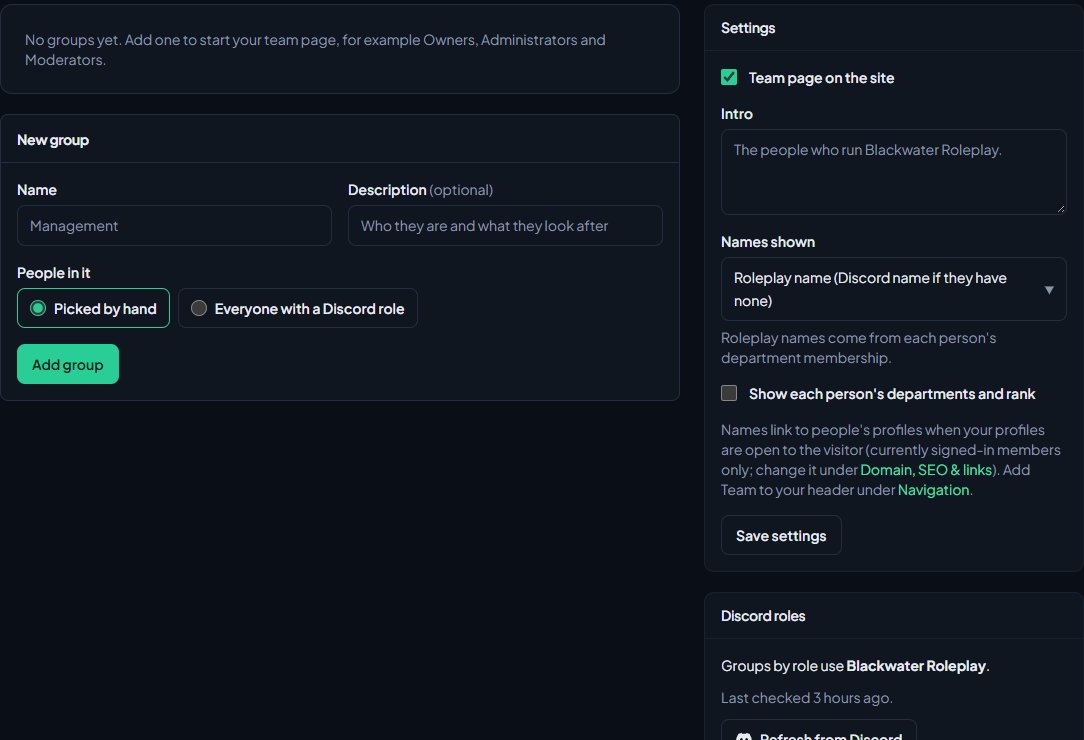
The team page shows visitors who runs your community. You split it into groups, like Owners, Administrators and Moderators, and each group is filled either by picking people yourself or automatically from a Discord role. When someone gets or loses the role in Discord, the team page follows.
Before you start#
- The Community Site module needs to be installed.
- You need to be the owner or an administrator, or have a role with Edit the community site: pages, navigation and branding.
- To fill a group from Discord roles, your main Discord server needs to be connected with the LonexOne bot in it. See Connect your Discord server.
Turn on the team page#
-
Open your control panel and click Team page in the left sidebar, under Community Site.
-
Under Settings on the right, tick Team page on the site. It's on by default.
-
Optionally write an Intro (up to 300 characters) for the top of the page.
-
Choose Names shown (see below).
-
Tick Show each person's departments and rank if you want those under each name.
-
Click Save settings.
The page is at your site's address with /team on the end. To add it to your header, open Navigation, click Add link, choose Built-in page and then Team, and click Save navigation.
| Names shown | What visitors see |
|---|---|
| Roleplay name (Discord name if they have none) | The name from their department membership. |
| Discord name | Their Discord display name. |
| Both: roleplay name with the Discord name under it | Both, one under the other. |
Add a group#
- Under New group, type a Name, like "Management".
- Optionally add a Description, like who they are and what they look after.
- Under People in it, choose one:
- Picked by hand: you add people yourself.
- Everyone with a Discord role: tick one or more roles. Anyone with any of them is in the group.
- Click Add group.
Use the up and down arrows on a group to change the order. Put your most senior group first.
On your site, each person only shows once, in the highest group they're in. If your owner is in both Management and Staff, they appear under Management only. In the control panel you see them in every group they're in.
Add people by hand#
- On a Picked by hand group, choose someone from Add someone…. Only members of your community are listed.
- Optionally type their Position, like "Head of Staff".
- Click Add.
Groups filled from Discord roles#
People in a role group show once they've signed in to your site with Discord. LonexOne checks everyone's roles in your main Discord server once a day. To check now, click Refresh from Discord under Discord roles on the right. It takes a minute or so, then refresh the page. Last checked shows when it last happened.
You can't add or remove people from a role group by hand. Change their roles in Discord instead.
Add a position and bio#
This works for anyone in any group.
- Click the person in the group to open them.
- Type their Position, like "Head of Staff", and an optional short Bio (up to 300 characters).
- Set the Order number. Lower numbers come first.
- Tick Hide from the team page if you want to keep them off it without taking them out of the group.
- Click Save.
Hidden people are shown faded in the control panel with "Hidden" after their position.
To take someone out of a hand-picked group, open them and click Remove. In a role group the button is Clear details, which only clears their position and bio, because Discord decides who's in it.
Change or delete a group#
- Click Edit group under the group's name.
- Change what you need and click Save group, or click Delete group and confirm.
Deleting a group only takes it off the team page. Nobody loses any access.
Names and profile links#
Each name on the team page links to that person's profile when your profiles are open to the visitor. Profiles are set under Domain, SEO & links. See What members see on their profile.
Groups with nobody in them aren't shown on the site.
Something not working?#
"Pick at least one Discord role." You chose Everyone with a Discord role without ticking a role.
A role group says "Nobody with those roles has signed in yet, or roles haven't been checked." The people with that role haven't signed in to your site yet, or roles haven't been checked since they did. Click Refresh from Discord and wait a minute.
"Connect your main Discord server with the bot in it first." You clicked Refresh from Discord, but your main server isn't connected or the bot isn't in it. Check Discord servers in the sidebar.
"Couldn't load your Discord roles. Try again in a minute." LonexOne couldn't reach Discord to list your roles. Try again shortly.
"Pick a member of the community." The person you picked isn't a member. They become one the first time they sign in on your site.
Someone isn't showing in a group. Check they're not ticked Hide from the team page, and that they're not already showing in a higher group.
The team page says "Page not found". Team page on the site is turned off. Tick it and click Save settings.
See also
What members see on their profile
For staff helping members: what a member profile shows, where it comes from, what members can edit or hide, who can see it, and where members find their own pages.
Change your site's menu
Choose the links in your community site's header, put them in order, give them icons, move some into the Links menu and turn one into a button.
Connect your Discord server
Add the LonexOne bot to your main Discord server, put its role in the right place, and fix the messages you might see while connecting.
Link Discord roles to departments and ranks
Give people Discord roles automatically for their department, rank, division, status, certifications and community roles, and take them away when that changes.
Can't find what you need?
Open a ticket in our Discord and someone from the team will help. Found a bug, or missing a feature? Tell us on the feedback board.