Issue and revoke discipline
Give warnings, strikes, suspensions and terminations, choose when they expire and whether the member sees them, revoke them, and set up automatic actions like suspending at three strikes.
Discipline records keep track of warnings, strikes, suspensions and terminations in each department. A suspension takes away the member's duty access and Discord roles until the date you set, and a termination removes them from the department. Records can expire on their own, and you can set rules that act when someone builds up too many.
Discipline records also feed into other parts of LonexOne: ranks can require a clean record before promotion, and applicants with a suspension or termination on record are flagged to reviewers.
Before you start#
- The Department Panel module needs to be installed.
- To see records, you need View discipline records. To issue and revoke them, and to set up automatic actions, you need Issue and revoke discipline.
- If your permission is limited to one department, you can only see records in that department, and only issue or revoke them for people ranked below you.
The types of discipline#
| Type | What it does |
|---|---|
| Verbal warning | A record only. |
| Written warning | A record only. |
| Strike | A record only. Active strikes are counted next to the person on the Discipline page. |
| Suspension | Sets their status to Suspended until the date you pick, then puts them back to their old status. |
| Termination | Removes them from the department straight away. |
Any record can carry Discord roles or nickname tags if you've linked them in your Discord settings, so their roles are checked every time you issue or revoke one.
Issue discipline#
You issue discipline from the person's profile.
-
Open People in the left sidebar and click the person's name. You can also click their name on the Discipline page.
-
Scroll to the Discipline card and click Issue discipline.
-
Pick where it's Issued in: their department, or one of their divisions for division discipline.
-
Pick the Type.
-
Write the Reason. It's required, and the member sees it if the record is visible to them.
-
Choose when it Expires: Never, In 30 days, In 60 days, In 90 days, or On a date (then pick the Expiry date).
-
For a suspension, pick the Suspended until date. It has to be after today.
-
Choose whether to tick Show it to them on the community site.
-
Choose whether to tick Let them know.
-
Click Issue discipline.
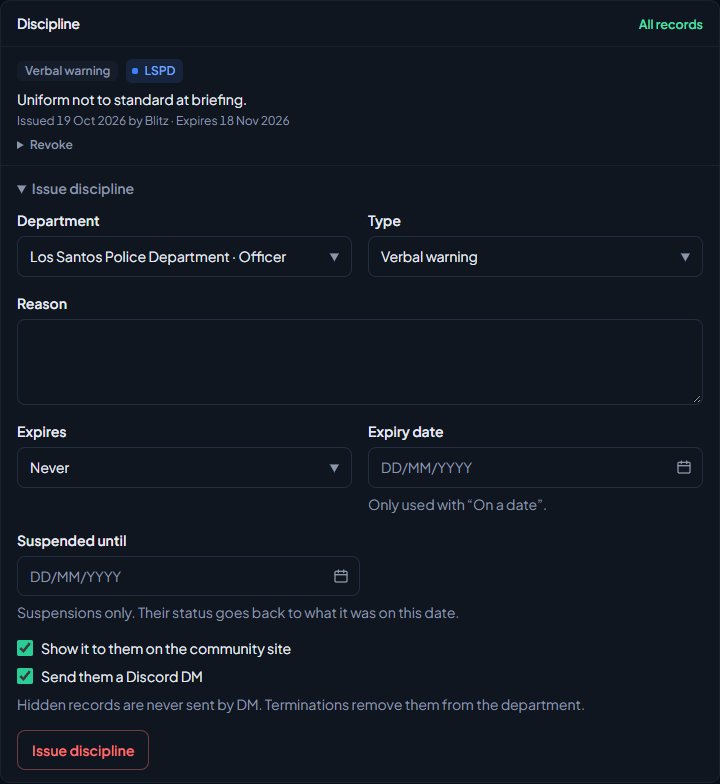
You'll see a message like Strike issued in LSPD.
A termination removes them from the department as soon as you issue it, and their callsign, divisions and fleet assignments go with it. Revoking the termination later puts them back with their old status and callsign, if nobody has taken it since. Their divisions and fleet assignments don't come back, so set those again.
Division discipline is separate from the department's. A division can't suspend anyone, a division termination only takes them out of the division, and division records never count towards the department's automatic actions. See Run a division with its own ranks.
What the member sees#
- With Show it to them on the community site ticked, the record appears on the Discipline page in their member area.
- With Let them know ticked as well, they're told about it, with the reason, by the channels they've chosen for Discipline notifications: on the site, by email or by Discord DM.
- Hidden records are never sent to them. They show as Hidden from member in the control panel.
Expiry#
A record counts as active until its expiry date, or forever if it never expires. Expired records stay on their profile, marked Expired, but they no longer count towards automatic actions or the clean-record requirement on ranks.
The expiry date and the suspension date are separate. A suspension ends on its Suspended until date whatever you set for Expires, and the record itself can stay active for longer.
Revoke a record#
Revoke a record if it was given by mistake or overturned on appeal.
- Open the person's profile and find the record under Discipline.
- Click Revoke under it.
- Type the reason. It's required.
- Click Revoke followed by the type, for example Revoke strike.
Revoked records stay on their profile with who revoked them, when and why, but no longer count. Revoking a suspension that's still running lifts it and puts them back to their old status, unless another suspension is still holding them. Revoking a termination puts them back in the department, unless something has changed their membership since.
The Discipline page#
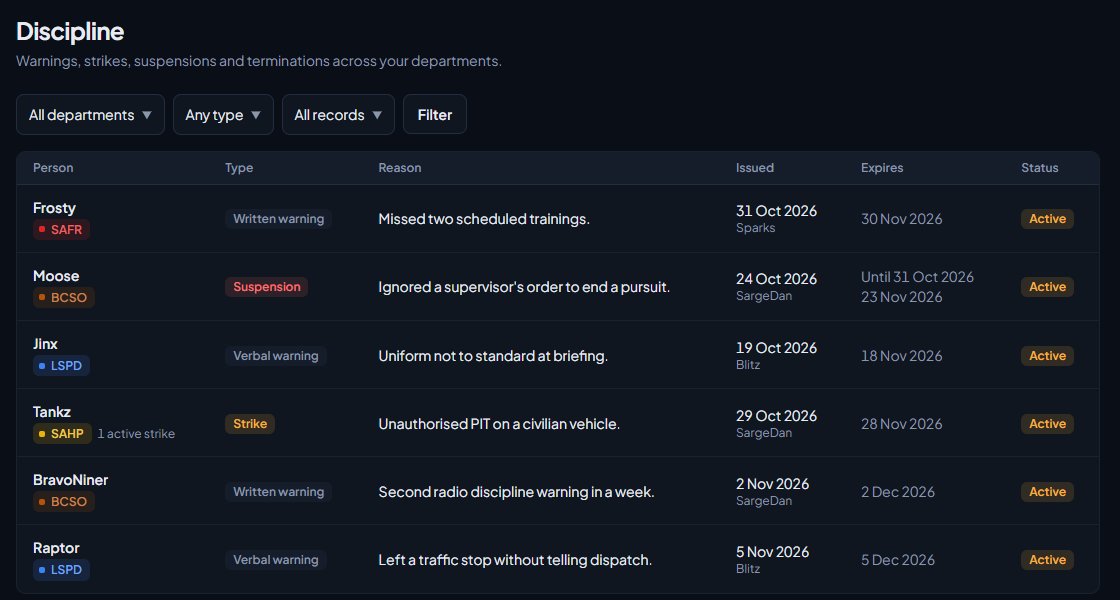
Click Discipline under Department Panel in the sidebar to see every record across the departments you can see, newest first. Filter by department, by type, or show Active only. Each row shows the person and their active strike count, the type, reason, who issued it and when, when it expires, and its status: Active, Expired or Revoked.
Automatic actions#
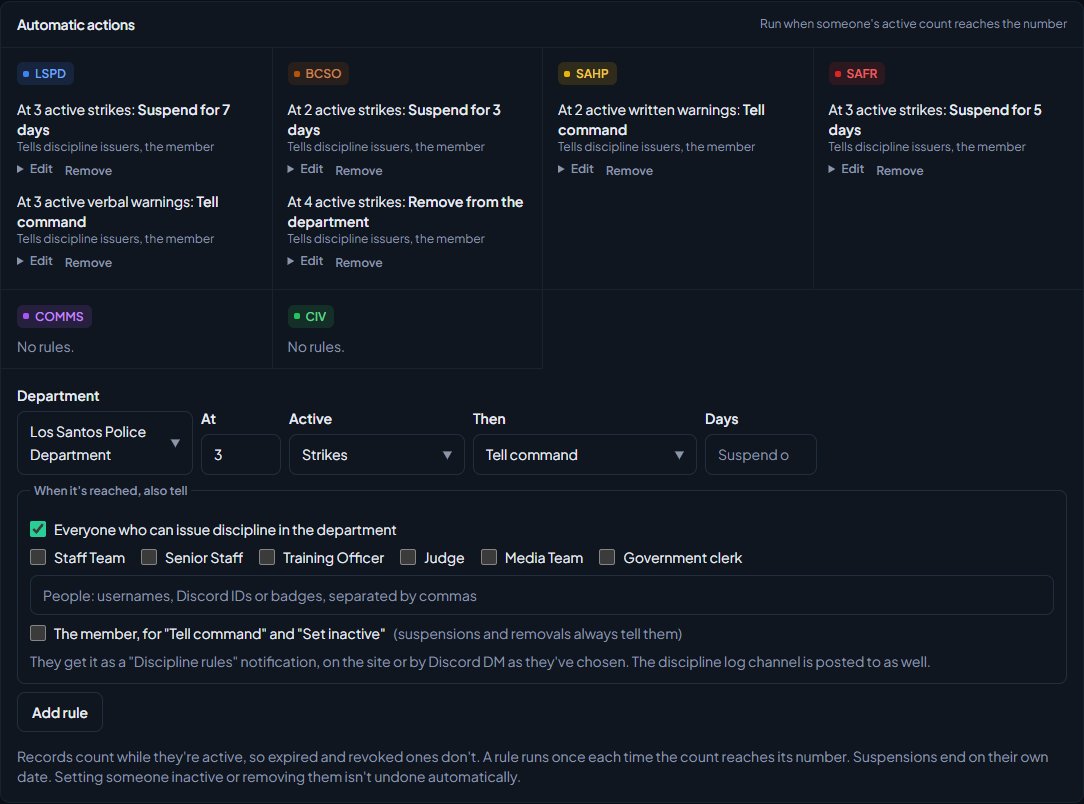
At the bottom of the Discipline page, Automatic actions lets you set rules like At 3 active strikes: Suspend for 7 days. You need Issue and revoke discipline in the department.
-
Pick the Department.
-
Under At, type the number, from 1 to 50.
-
Under Active, pick what to count: verbal warnings, written warnings, strikes or suspensions.
-
Under Then, pick the action:
- Tell command: nothing changes for the member, but the people you choose are told.
- Suspend: issues an automatic suspension. Fill in Days.
- Set inactive: sets their status to Inactive.
- Remove from the department: issues an automatic termination.
-
Under When it's reached, also tell, choose who hears about it: Everyone who can issue discipline in the department, any of your roles, or named people (usernames, Discord IDs or badge numbers, separated by commas).
-
Tick The member if you want them told for Tell command and Set inactive. Suspensions and removals always tell them.
-
Click Add rule.
People told about a rule get a Discipline rules notification, on the site or by Discord DM as they've chosen. It's also posted to your discipline log channel, if you have one.
How rules behave:
- A rule runs when someone's active count lands exactly on its number, each time it does.
- Only records you issue by hand are counted. Records a rule creates never set off another rule.
- Each department can have one rule for each number of each type, so you can't have two rules for 3 strikes.
- Suspensions end on their own date. Inactive and removals aren't undone automatically.
Click Edit next to a rule to change it, or Remove to delete it.
Something not working?#
"Give a reason." or "Give a reason for revoking it." Both issuing and revoking need a reason.
"Pick the date the suspension ends." Suspensions need a Suspended until date after today.
"Pick the date it expires." You chose On a date under Expires but didn't pick the date.
"That department already has a rule for this count." Edit the existing rule instead of adding a second one.
"Nobody in this community is called sam." A name in the people box didn't match anyone. Use their username, Discord ID or badge number.
The suspension ended but they're still suspended. Suspensions are lifted every hour, so give it up to an hour. If another suspension is still running, they stay suspended until that one ends too.
I can't see Issue discipline on their profile. You need Issue and revoke discipline over that person. With department-level access you can only discipline people ranked below you.
See also
Change a member's status
What Active, In training, Leave of absence, Suspended and Inactive each mean, how to change someone's status, and which statuses LonexOne changes for you.
Approve leave requests
How members ask for leave of absence, how to approve or deny it, how leave starts and ends on its own, ending leave early, and seeing who's away on the leave calendar.
See who's ready for promotion
Use the Promotions page to find everyone who meets the requirements for their next rank, and everyone one requirement away, then promote them from the list.
Post logs to Discord channels
Choose which Discord channel each event goes to, give departments their own channels, filter and colour CAD posts, and send a test message.
Choose what members are notified about
Pick which notifications go out on the site, by email and by Discord DM for each kind of update, see what members can turn off themselves, and check for Discord DMs that didn't arrive.
Can't find what you need?
Open a ticket in our Discord and someone from the team will help. Found a bug, or missing a feature? Tell us on the feedback board.