Choose a layout, style and background
Pick one of six layouts, a dark, light or glass style and your colour, then set a slideshow of your own pictures or a YouTube video behind it all.
The Look and Background sections of the loading screen editor decide how the whole screen feels: where everything sits, what colour it is and what's moving behind it. You can change them as often as you like. Nothing reaches players until you publish.
Before you start#
You need to be the owner, or have a role with the Edit and publish the loading screen permission.
Pick a layout#
- Open your control panel and click Loading screen in the sidebar.
- Under Look, pick a Layout.
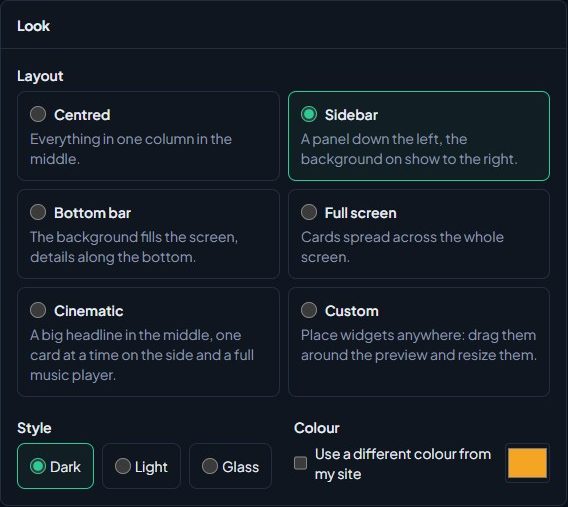
| Layout | What it looks like |
|---|---|
| Centred | Everything in one column in the middle. |
| Sidebar | A panel down the left, the background on show to the right. |
| Bottom bar | The background fills the screen, details along the bottom. |
| Full screen | Cards spread across the whole screen. |
| Cinematic | A big headline in the middle, one card at a time on the side and a full music player. |
| Custom | Place widgets anywhere: drag them around the preview and resize them. |
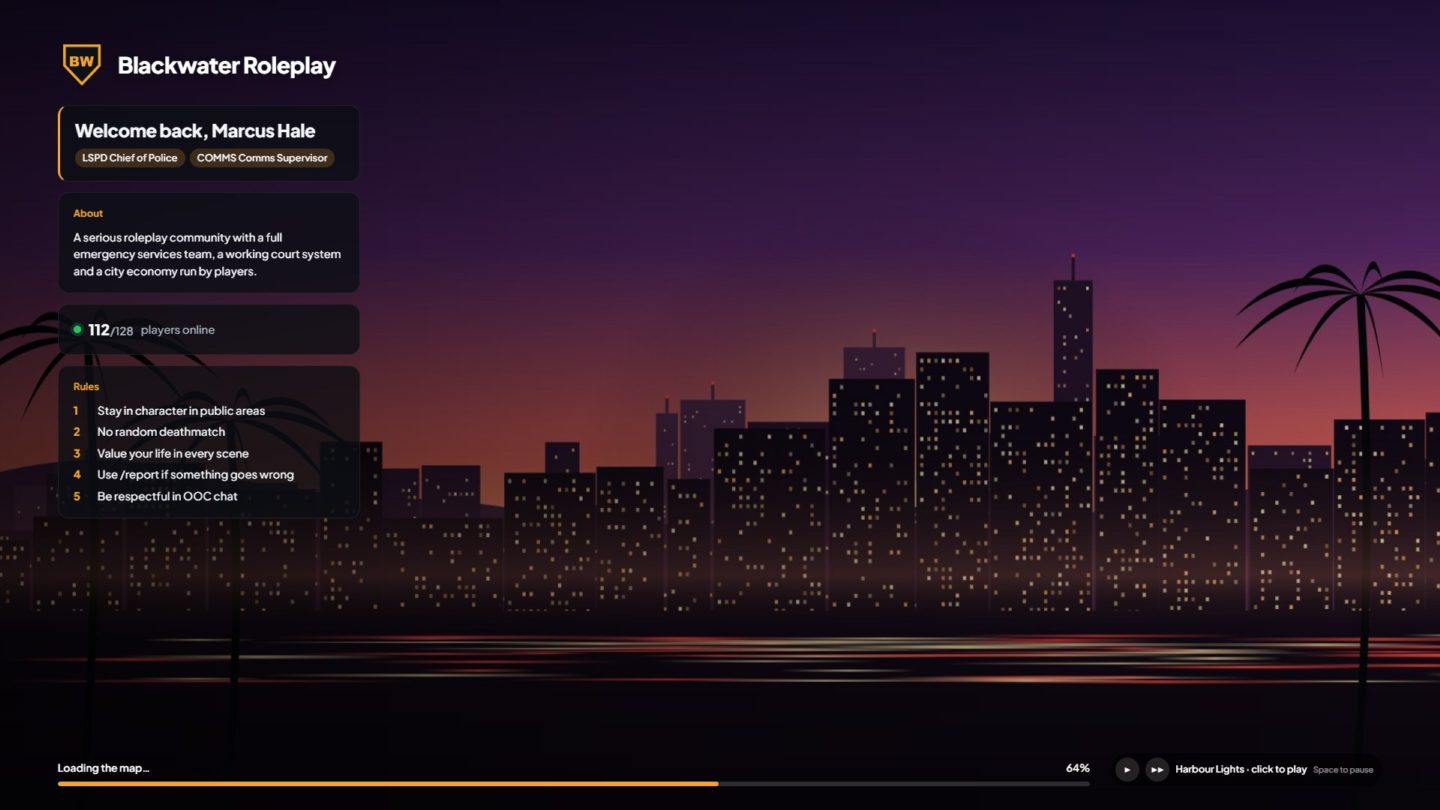
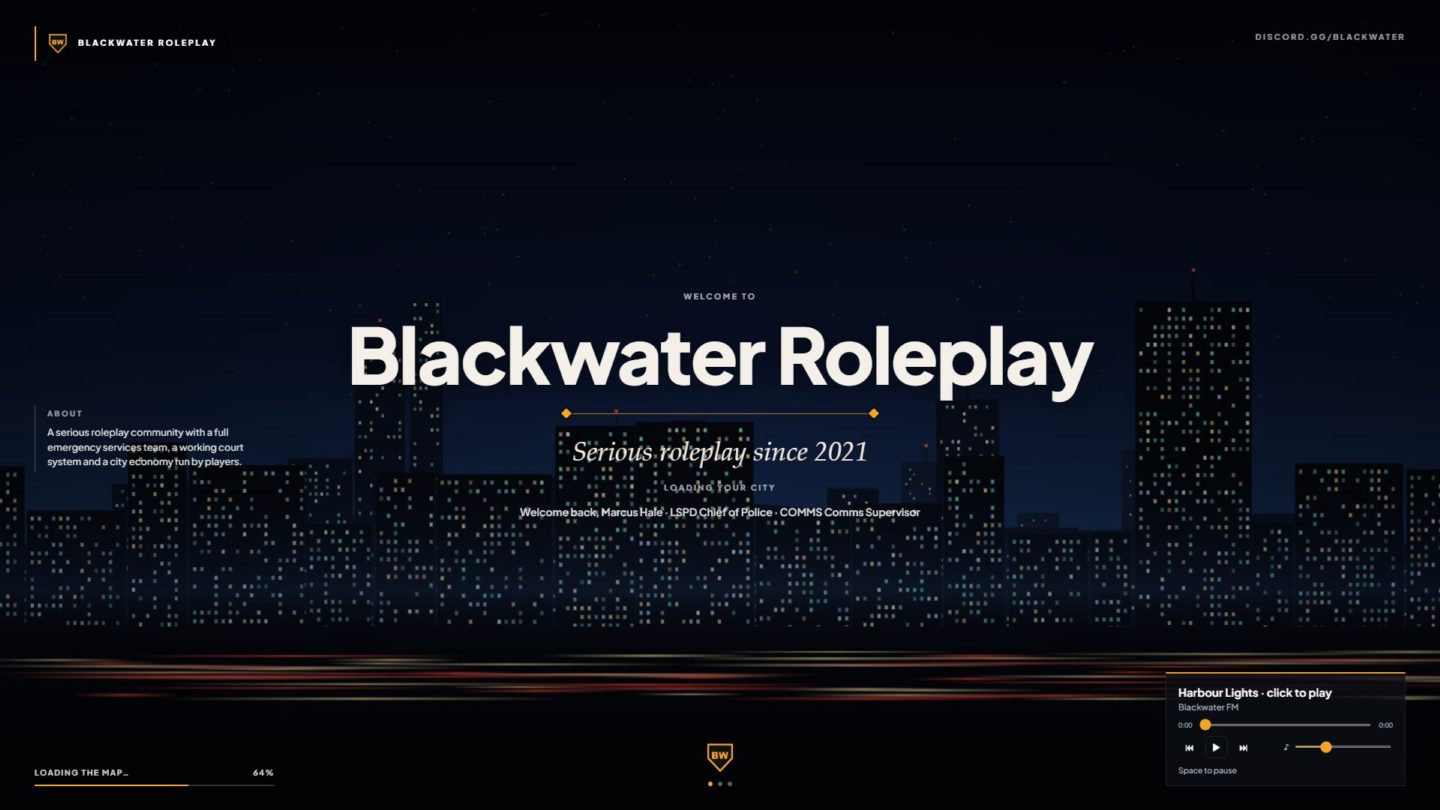
The first four use the blocks you tick under What it shows, in that order. Cinematic and Custom have their own sections, covered below and in Design a custom loading screen.
Pick a style and colour#
- Under Style, pick Dark, Light or Glass. Glass gives the cards a frosted, see-through look over your background.
- The screen uses your site's accent colour. To use a different one, tick Use a different colour from my site and pick a colour.
The colour is used for the loading bar, highlights and the music player.
Write the Cinematic text#
Pick Cinematic and a Cinematic text section appears.
| Field | Where it shows |
|---|---|
| Headline | The big line in the middle. Left empty, it says "Welcome to" your community. |
| Small text above | A short line above the headline, like "Season 4 is live". |
| Tagline | In italics under the headline. |
| Small text below | A short line under the tagline. |
| Top right corner | Small text in the corner, like your Discord invite. |
Each can be up to 80 characters. Leave any of them empty to hide it. The blocks you tick under What it shows take turns in a card on the left, and the player's welcome shows under the headline.
Set the background#
Under Background, choose Image slideshow or YouTube video.
Image slideshow#
- Click Add images and choose your pictures. You can pick several at once.
- To take one out, click Remove on its corner.
- Move the Change picture every slider to set how long each picture stays, from 3 to 60 seconds.
You can add up to 10 images, each up to 8 MB, as JPG, PNG, WebP or GIF. Wide 1920 × 1080 pictures look best.
YouTube video#
- Copy the video's link from YouTube.
- Paste it into YouTube link.
Normal links, short youtu.be links, Shorts and live links all work. The video plays muted, on a loop, with no controls or subtitles, and players can't pause it. Add music in the Music section if you want sound.
Darken the background#
Move Darken the background to put a dark layer over your pictures or video, from 0% to 90%. It makes text easier to read over a busy background. 45% is the starting point.
Rules and limits#
- Up to 10 background images, 8 MB each.
- You can't upload a video file. Put it on YouTube and use YouTube video instead.
- Pictures you remove are deleted from our storage about an hour later, once they're in neither your draft nor your published screen.
Something not working?#
It says "Images can be up to 8 MB." Make the picture smaller, or save it as JPG or WebP, which keep big pictures small.
It says "That list is full. Remove one first." You already have 10 images. Remove one before adding another.
The YouTube video doesn't play. Check the link opens the right video on YouTube. Some videos don't allow being shown on other sites; their owner has turned off embedding. Pick a different video.
My Cinematic text isn't showing. Check the layout is set to Cinematic. The other layouts don't use that text.
See also
Set up your loading screen
Install the Mechanics module, design the screen players see while they join your server, publish it and add the lonexone_loadscreen resource to your game server.
Add music, rules and links to your loading screen
Upload music, choose which blocks show and in what order (welcome, player count, rules, staff, news, tips, keybinds and links) and write the text that fills them.
Design a custom loading screen
Use the Custom layout to place text, your logo, pictures, content cards, a loading bar and a music player anywhere on the screen, then drag, resize and style each one.
Can't find what you need?
Open a ticket in our Discord and someone from the team will help. Found a bug, or missing a feature? Tell us on the feedback board.