Add music, rules and links to your loading screen
Upload music, choose which blocks show and in what order (welcome, player count, rules, staff, news, tips, keybinds and links) and write the text that fills them.
A loading screen is a good place to tell new players what they need to know before they spawn: your rules, the keys that matter and where to find your Discord. Returning players get a welcome, the latest news and some music while they wait.
This article covers the Music, What it shows and Text sections of the loading screen editor. Some blocks fill themselves from the rest of LonexOne, so you only have to write the rest once.
Before you start#
You need to be the owner, or have a role with the Edit and publish the loading screen permission.
Add music#
- Open your control panel and click Loading screen in the sidebar.
- Under Music, click Add music and choose your files. You can pick several at once.
- Each track gets a Track name, taken from the file name. Change it if you like, and add the Artist if you want it shown.
- Tick Shuffle to play the tracks in a random order.
- Move Volume to set how loud the music starts, from 0% to 100%. It starts at 30%.
You can add up to 5 tracks, each up to 15 MB, as MP3, OGG, M4A or WAV. Only use music you have the rights to play. To take a track out, click Remove next to it.
Music starts by itself when the screen opens. Players can press Space to pause it, and the left and right arrow keys to skip between tracks. The Cinematic layout has a full player with previous, next, a position bar and a volume slider. The other layouts show the track name with pause and next buttons.
Choose what the screen shows#
Under What it shows, tick the blocks you want and use the arrows to change the order. The order is the order they appear on the screen.
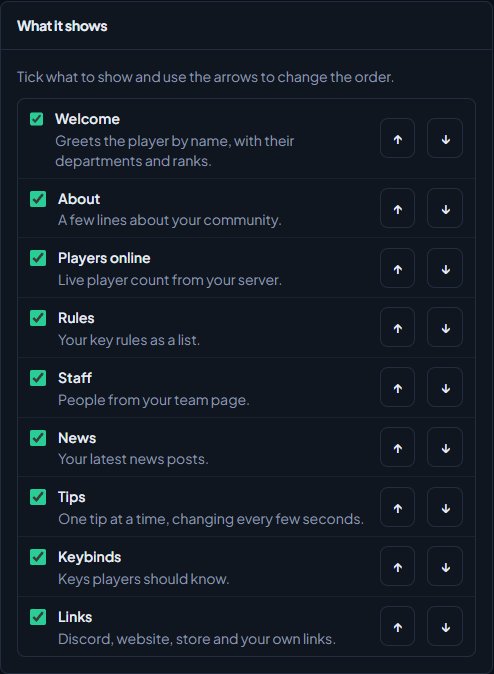
| Block | What it shows | Where it comes from |
|---|---|---|
| Welcome | Greets the player by name, with their departments and ranks. | The player joining. See Set up your loading screen. |
| About | A few lines about your community. | About under Text. |
| Players online | Live player count from your server. | Your main game server's Connect link on the status page. |
| Rules | Your key rules as a list. | Rules under Text. |
| Staff | People from your team page. | Your community site's team page, up to 12 people. |
| News | Your latest news posts. | Your 3 latest news posts that everyone can read, pinned posts first. |
| Tips | One tip at a time, changing every few seconds. | Tips under Text. |
| Keybinds | Keys players should know. | Keybinds under Text. |
| Links | Discord, website, store and your own links. | Your site's social links and store, then Extra links under Text. |
Welcome, About, Players online and Links start ticked. A ticked block with nothing in it doesn't show, so you won't get an empty card.
Staff and News need the Community Site module, and News needs news switched on for your site. Players online needs the LonexOne FiveM resource on your main server, or a connect link with cfx.re/join/ in it. See Run a status page for your game servers.
Write the text#
Fill in the Text section for the blocks you've ticked.
| Field | How to write it | Limit |
|---|---|---|
| About | A few lines about your community. | 1,000 characters |
| Rules | One rule per line. | 20 rules, 200 characters each |
| Tips | One tip per line. They take turns on the screen. | 20 tips, 200 characters each |
| Keybinds | One per line: the key, an equals sign, then what it does. For example F1 = Open your phone. |
20 keys |
| Extra links | One per line: the name, a bar, then the address. For example Forums | https://example.com/forums. |
20 links |
Your Discord, socials and store from your site settings show in Links already, so only add what's missing. Extra links need a full address starting with https:// or http://. Lines that don't fit the pattern are left out. Links shows up to 12 links in all.
Something not working?#
It says "Music files can be up to 15 MB." Save the track as MP3 at a lower quality. A 4-minute song at 192 kbps is under 6 MB.
It says "That list is full. Remove one first." You already have 5 tracks. Remove one before adding another.
The music doesn't play in the preview. Browsers block sound until you click, so the track name says "click to play". Click the play button in the preview. In game, music plays by itself.
The player count doesn't show.
Check your main game server on the status page has a Connect link with cfx.re/join/ in it. If the block says "Server offline", the count couldn't be read from FiveM.
A keybind or link I added isn't showing.
Check the line has the = (keybinds) or | (links) in it, and that the link starts with https://.
Staff shows nobody. The block uses your community site's team page. See Show your staff on the team page.
See also
Set up your loading screen
Install the Mechanics module, design the screen players see while they join your server, publish it and add the lonexone_loadscreen resource to your game server.
Choose a layout, style and background
Pick one of six layouts, a dark, light or glass style and your colour, then set a slideshow of your own pictures or a YouTube video behind it all.
Design a custom loading screen
Use the Custom layout to place text, your logo, pictures, content cards, a loading bar and a music player anywhere on the screen, then drag, resize and style each one.
Show your staff on the team page
Build a public team page in groups like Owners and Moderators, filled by hand or from Discord roles, with positions, short bios, names and departments.
Can't find what you need?
Open a ticket in our Discord and someone from the team will help. Found a bug, or missing a feature? Tell us on the feedback board.