Set up your loading screen
Install the Mechanics module, design the screen players see while they join your server, publish it and add the lonexone_loadscreen resource to your game server.
The loading screen is what players look at while FiveM loads your server. With the Mechanics module you design it in your control panel instead of editing HTML in a resource. It can show your logo, a slideshow or a YouTube video, music, your rules, your staff, your latest news and a live player count, and it greets each player by name.
Changes go live without restarting anything. You edit a draft, check it in the preview, and publish when it's ready. Players see the published version the next time they join.
Before you start#
- You need to be the owner, or have a role with the Edit and publish the loading screen permission.
- Your game server needs a server key. If you already use the LonexOne FiveM resource, you have one. If not, see Connect your game server.
Install the module#
- Open your control panel and click Install modules in the sidebar.
- Find Mechanics and click Install.
Loading screen and Spawn selector links appear under Mechanics in the sidebar.
Design the screen#
- Click Loading screen in the sidebar.
- Work down the sections on the left: Look, Background, Music, What it shows and Text.
- Watch the preview on the right. It updates as you go and plays a pretend loading bar, so you can see the whole screen in motion.
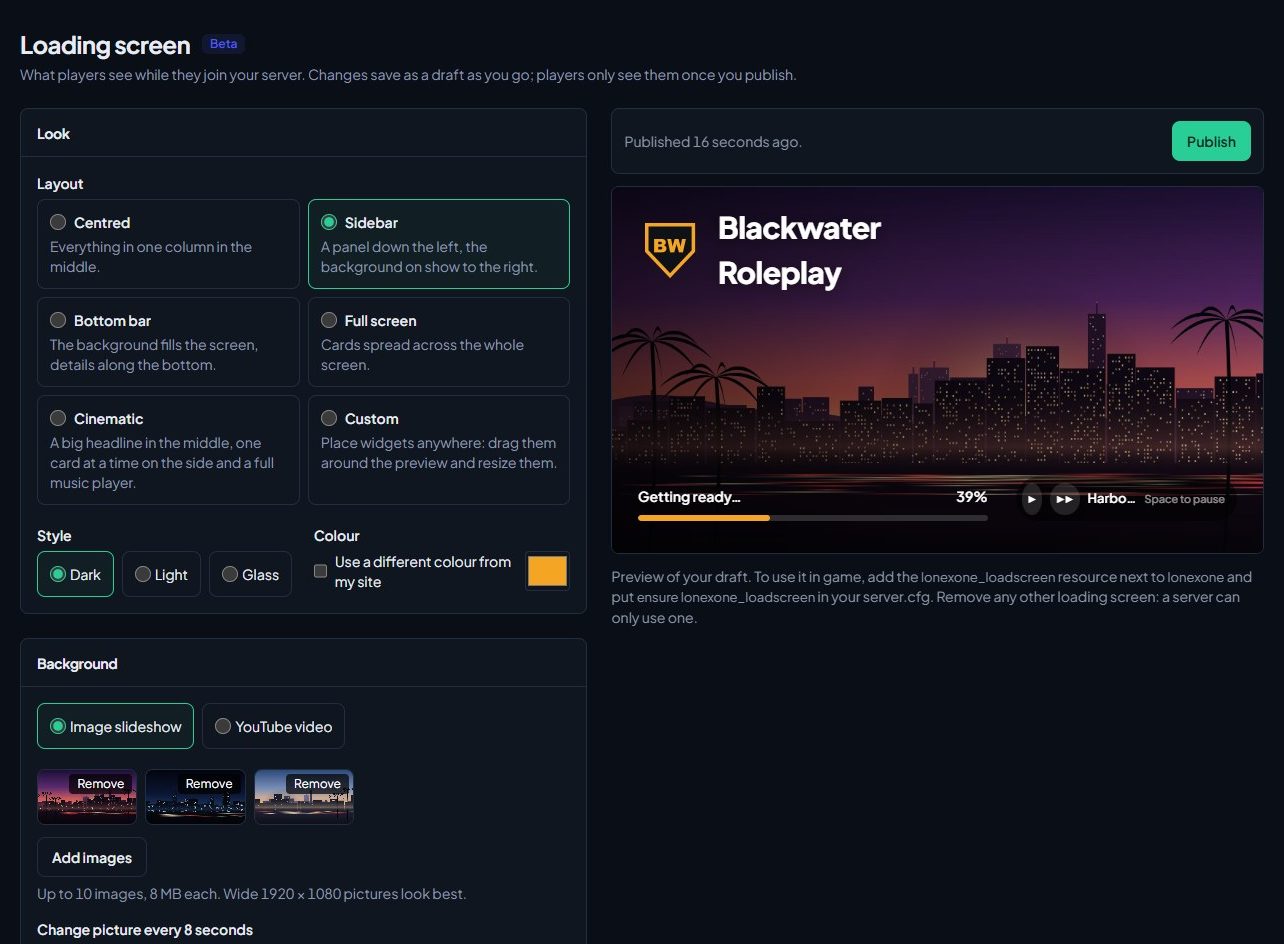
Every change saves to your draft by itself, a moment after you stop typing. The box above the preview says where you are:
| Message | What it means |
|---|---|
| Not published yet. | Players haven't seen any of it. |
| Draft saved. Players won't see it until you publish. | Your changes are saved, but the game still shows the last published version. |
| Saved. Matches what players see. | Your draft and the published screen are the same. |
| Couldn't save. Check your connection; your changes are still here. | The save didn't reach us. Don't close the page; it tries again with your next change. |
For what each section does, see Choose a layout, style and background and Add music, rules and links to your loading screen.
Publish it#
- Check the preview one last time.
- Click Publish, next to the preview.
You'll see "Published. Players see it the next time they join." Players already in the server aren't affected.
To see exactly what's published, open your community site's address followed by /loading-screen, for example blackwater.lonexone.com/loading-screen. It shows the published screen, not your draft.
Add the resource to your game server#
The screen reaches the game through a small resource called lonexone_loadscreen. It sits alongside the main lonexone resource and uses the same server key.
-
Download
lonexone_loadscreenfrom Keymaster, the same place you got thelonexoneresource. See Install the LonexOne FiveM resource. -
Put the
lonexone_loadscreenfolder in your server'sresourcesfolder. -
Remove any other loading screen resource. A server can only use one.
-
Make sure your
server.cfgsets your server key:set lonexone_key "lx_..." -
Add this line to
server.cfg:ensure lonexone_loadscreen -
Restart your server.
You only do this once. From now on, publishing in the control panel is enough.
What players see#
As each player connects, the server asks LonexOne for your loading screen, and the game shows it with a loading bar that follows the real progress.
If the Welcome block is on, the screen greets the player. When their Discord is linked in FiveM and they've signed in to your community site with the same Discord account, it says "Welcome back" with their roleplay name, and their departments and ranks. Otherwise it uses their FiveM name, or says "Welcome to" your community.
Music starts by itself. Players can press Space to pause it.
Something not working?#
Players see a plain screen with "Loading…" and a green bar. That's the fallback. It shows when the resource couldn't get your screen. Check that:
- you've clicked Publish at least once
- the Mechanics module is installed
lonexone_keyis set inserver.cfg, and is the key from your community- LonexOne answered within 4 seconds. If it was slow, the next player gets your screen as normal.
The server console says "lonexone_key is not set in server.cfg, so players get the plain loading screen."
Add set lonexone_key "lx_..." to server.cfg, above the ensure lines, and restart the server.
Players still see my old loading screen.
Another loading screen resource is still running. Remove it from resources and from server.cfg.
My changes don't show in game. They're probably still a draft. If the box says "You have changes players can't see yet.", click Publish.
The welcome doesn't show a player's name and ranks. The player needs Discord linked in FiveM (Settings, then Connections), and to have signed in to your community site with that same Discord account.
Opening /loading-screen on my site says page not found. Nothing has been published yet, or the module isn't installed.
See also
Choose a layout, style and background
Pick one of six layouts, a dark, light or glass style and your colour, then set a slideshow of your own pictures or a YouTube video behind it all.
Add music, rules and links to your loading screen
Upload music, choose which blocks show and in what order (welcome, player count, rules, staff, news, tips, keybinds and links) and write the text that fills them.
Design a custom loading screen
Use the Custom layout to place text, your logo, pictures, content cards, a loading bar and a music player anywhere on the screen, then drag, resize and style each one.
Connect your game server with a server key
Add your game server in Status & servers, make its server key, put it in server.cfg, check it's connected, and choose the in-game duty rules.
Can't find what you need?
Open a ticket in our Discord and someone from the team will help. Found a bug, or missing a feature? Tell us on the feedback board.