Design a custom loading screen
Use the Custom layout to place text, your logo, pictures, content cards, a loading bar and a music player anywhere on the screen, then drag, resize and style each one.
The ready-made layouts place everything for you. If you want the screen to look exactly your way, the Custom layout lets you build it from widgets: pieces like a headline, your logo, a picture or a loading bar, each dragged to where you want it on the preview.
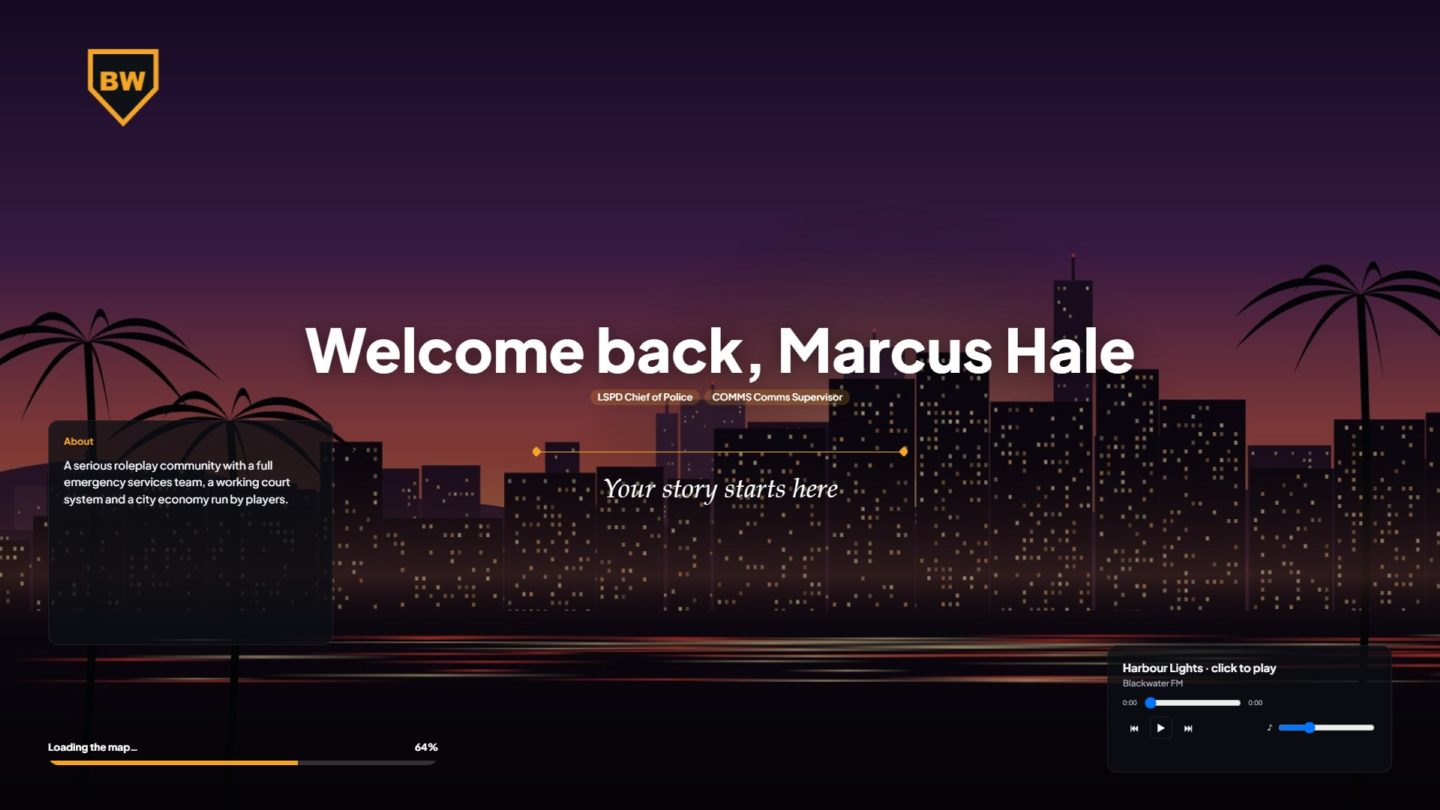
The screen is designed at 1920 × 1080. In game it's scaled to fit each player's screen, and centred if their screen is a different shape.
Before you start#
You need to be the owner, or have a role with the Edit and publish the loading screen permission.
Switch to Custom#
- Open your control panel and click Loading screen in the sidebar.
- Under Look, pick Custom.
A Custom design section appears. The first time, you start from a ready-made design with your logo, a welcome, a tagline, a rotating card, a loading bar and a music player, so you have something to rearrange.
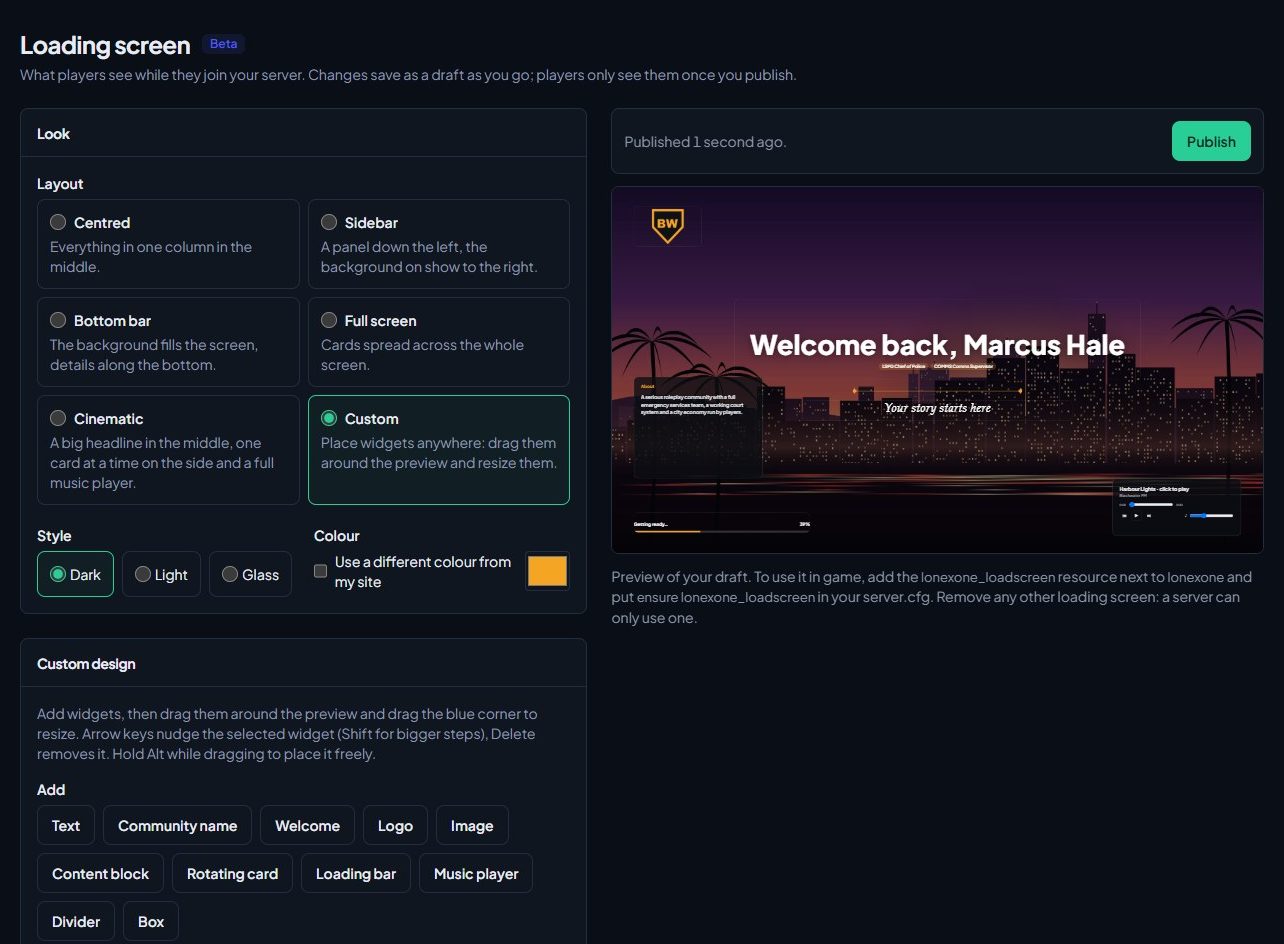
Your background, music and the text you write under Text still apply. The order under What it shows doesn't, because you place everything yourself.
Add a widget#
Under Add, click the widget you want. It appears on the preview, ready to move.
| Widget | What it is |
|---|---|
| Text | Your own words, up to 300 characters. |
| Community name | Your community's name. |
| Welcome | "Welcome back" and the player's name, with their departments and ranks if you like. When we don't know who's joining, it says "Welcome to" your community. |
| Logo | Your site logo, or your name if you have no logo. |
| Image | A picture you upload, up to 8 MB. |
| Content block | One block, like your rules, staff or links. |
| Rotating card | Several blocks taking turns in one card. |
| Loading bar | Shows how far the game has loaded, with what it's doing. |
| Music player | Controls for your music. You can only have one. |
| Divider | A line to split things up. |
| Box | A plain card to put behind other widgets. |
You can have up to 40 widgets.
Move and resize widgets#
- Move: drag the widget on the preview. It snaps to a small grid and to the middle of the screen. Hold Alt while dragging to place it freely.
- Resize: drag the blue corner.
- Nudge: select it, then use the arrow keys. Hold Shift to move it further.
- Remove: select it and press Delete.
To set an exact place and size, use Left, Top, Width and Height in the selected widget's settings.
Style a widget#
Click a widget on the preview, or in the Layers list, to show its settings under Selected widget.
| Setting | What it does |
|---|---|
| Font, Size, Weight, Align, Letter spacing, Italic, Capitals | How text looks, for Text, Community name, Welcome and the Loading bar. |
| Colour | Tick Own to pick a colour instead of the style's own. |
| Background | None, Card, Glass or Solid colour behind the widget. |
| Rounded corners | How round the corners are. |
| See-through | How much the background shows through the widget. |
| Style | For the Loading bar (Thick bar or Thin line), Music player (Full player or Compact) and Divider (Line with diamonds or Plain line). |
| Fit | For Logo and Image: Show all of it or Fill the box. |
Some widgets have their own settings:
- Image: click Upload an image, or Change image to swap it.
- Content block: pick what it Shows, then fill in its text under Text.
- Rotating card: tick the blocks it Takes turns showing.
- Welcome: untick Show their departments and ranks to show just the name.
Click Duplicate to copy a widget with all its settings, or Delete to remove it.
Put widgets in front or behind#
The Layers list shows every widget. The top of the list is in front. Use the arrows next to a widget to bring it forward or send it back, for example to put text in front of a Box.
Publish it#
Your design saves to the draft as you go, like everything else in the editor. Click Publish when you're happy. See Set up your loading screen.
Widgets that show live details only get them when the matching block is ticked under What it shows. Keep Welcome ticked for the player's name, and tick Players online, Staff, News or Links if a Content block or Rotating card uses them.
Something not working?#
The Welcome widget says "Welcome to" instead of the player's name. Tick Welcome under What it shows. In the preview it greets you, as if you were joining.
A Content block or Rotating card is empty. Fill in that block's text under Text. For Players online, Staff, News or Links, also tick the block under What it shows.
I can't add a second music player. There can only be one, so two don't play over each other. Music still plays with no player at all, and players can still press Space to pause it.
It says "Images can be up to 8 MB." Make the picture smaller, or save it as JPG or WebP.
The arrow keys scroll the page instead of moving the widget. Click the widget on the preview first, so the preview has focus.
See also
Set up your loading screen
Install the Mechanics module, design the screen players see while they join your server, publish it and add the lonexone_loadscreen resource to your game server.
Choose a layout, style and background
Pick one of six layouts, a dark, light or glass style and your colour, then set a slideshow of your own pictures or a YouTube video behind it all.
Add music, rules and links to your loading screen
Upload music, choose which blocks show and in what order (welcome, player count, rules, staff, news, tips, keybinds and links) and write the text that fills them.
Can't find what you need?
Open a ticket in our Discord and someone from the team will help. Found a bug, or missing a feature? Tell us on the feedback board.