Search the control panel and pin favourites
Jump to any person, department, page, setting or help article with Ctrl K, search your community site, and pin the pages you use most to the top of your sidebar.
Once you've installed a few modules, the sidebar gets long. There are two quick ways around it: search, which finds people, pages and settings as you type, and favourites, which keep the pages you use most at the top of the sidebar. Your community site has search too, so members can find pages, news and documents without digging through the menu.
Search the control panel#
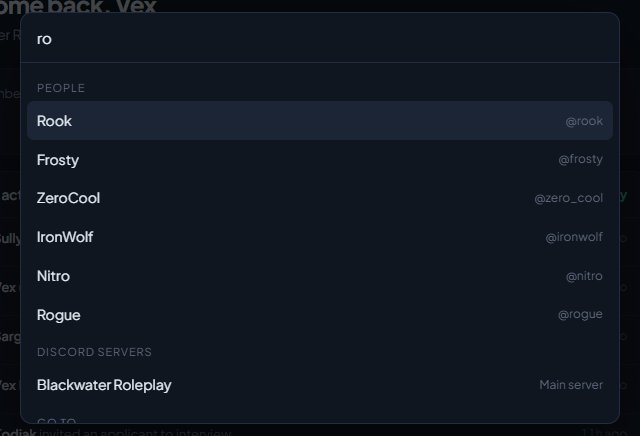
- Click Search people, pages, settings in the top bar, or press Ctrl K (Cmd K on a Mac) from anywhere in the control panel. You can also press / when you're not typing in a box.
- Start typing. Results show up as you type, grouped by type. People, departments and other records need at least two letters.
- Use the up and down arrow keys to pick a result and press Enter to open it, or click it.
- Press Escape to close search without going anywhere.
What search finds#
| Group | What's in it |
|---|---|
| People | Members by Discord username, display name, callsign or badge number. You can also paste someone's Discord ID. |
| Departments | Departments by name or short name, like LSPD. |
| Ranks & divisions | Ranks and divisions, with the department they're in. If you can edit the department, they open straight in their editor. |
| Site pages, News, Events | Pages, news posts and events on your community site, drafts included. Each opens in its editor. |
| Documents | Documents you can edit. Department documents only show for people who can edit that department's documents. |
| Discord servers | Your connected Discord servers, opening their role links. |
| Go to | Pages of the control panel, like Roster or CAD: Reports. |
| Help articles | Articles in this help centre that match. |
Go to also knows what's on each page, not just its name. Type nickname format and it offers Discord servers, or invoice and the owner gets Billing.
Search only shows what you have permission to see, and nothing from modules that are switched off. If you can't open the People page, people won't show up in your results either.
Open search without typing anything to see every control panel page you can go to.
Search your community site#
Every page of your community site has a search button with a magnifying glass at the top right, next to Sign in or the account menu. Ctrl K, Cmd K and / open it there too.
It finds:
- published pages
- news posts that are already out
- events
- documents
- sections of the site that are switched on, like Events, Suggestions or Apply
Visitors who aren't signed in only see public things. Members also see members-only pages, news and events, and the documents their department, rank or roles let them read. Drafts, scheduled news and hidden documents never show.
CAD records aren't searchable from either search. Looking someone up in the CAD needs you to be on duty, so lookups stay in the CAD itself.
Pin a page to your favourites#
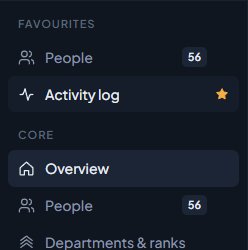
- In the sidebar, move your mouse over the page you want to pin.
- Click the star that appears at the right of it.
The page now shows under Favourites at the top of your sidebar, above Core. Pages from modules keep their module's icon, so you can tell them apart.
To unpin a page, move your mouse over it and click the star again. You can do this from the page under Favourites or from where it usually sits in the sidebar.
Good to know#
- You can pin up to 12 pages.
- Favourites are yours. Other staff members have their own.
- Favourites are kept for each community separately. Pinning Roster in one community doesn't pin it in another.
- If you lose permission for a page, or its module is removed, it quietly drops off your favourites.
Something not working?#
It says "You can pin up to 12 pages. Unpin one first." You've hit the limit. Unpin a page you don't use as much, then try again.
I can't see the star. The star only shows when your mouse is over a page in the sidebar, so pinning works best on a computer. Once a page is pinned, its star stays lit.
Search can't find someone. Search looks at Discord usernames, display names, callsigns and badge numbers, not in-game names. Try their Discord name, or paste their Discord ID. You also need to be able to open the People page or manage the roster.
It says "Too many searches. Wait a moment and try again." Search allows 60 searches a minute for each person. Wait a few seconds and type again.
A page or document doesn't show up on the community site. Check it's published. Members-only pages need the visitor to be signed in, and department documents only show for people who can read them.
See also
Find your way around the control panel
A tour of the control panel: the Overview page, the sidebar, the community switcher, search and your account menu, and why staff see different pages.
Switch between communities
Run more than one community from the same account, and move between their control panels in one click.
Can't find what you need?
Open a ticket in our Discord and someone from the team will help. Found a bug, or missing a feature? Tell us on the feedback board.