Set up banking, cards and loans
Turn on banking in the CAD, set your bank name, currency, account types and duty pay, and run the bank desk: accounts, adjustments, cards and loan decisions.
Banking gives every character, and every registered business, somewhere to keep their money. Accounts have a statement, transfers between account numbers, debit cards and loans. You can also pay members for their time on duty, and let characters pay their fines from their account.
Every movement of money is a line on the statement that can't be edited afterwards, and every staff action is kept in the bank's activity list.
Before you start#
- To set up banking, you need the Set up the CAD: call types, statuses, penal code, designs and AOP permission.
- Bank staff need a role with the Work the bank desk: open accounts, make adjustments, issue cards and decide loans permission.
- Banking is off to start with.
Turn banking on#
- Open your control panel and click CAD settings in the left sidebar.
- Under Modules, tick Banking.
- Click Save settings.
Set up the bank#
-
In CAD settings, click Services along the top, then Banking.
-
Fill in the Bank name, for example "Fleeca Bank". This is what civilians see.
-
Set the Currency, the Symbol and the Decimal places.
-
Turn on the parts you want. See the table below.
-
Set the Highest loan rate (% a year), the Longest loan (repayments) and the Shortest paid shift (minutes). Set Missed repayments before a loan defaults if you want loans to default. Leave it blank or at 0 and loans never default.
-
Click Save settings.
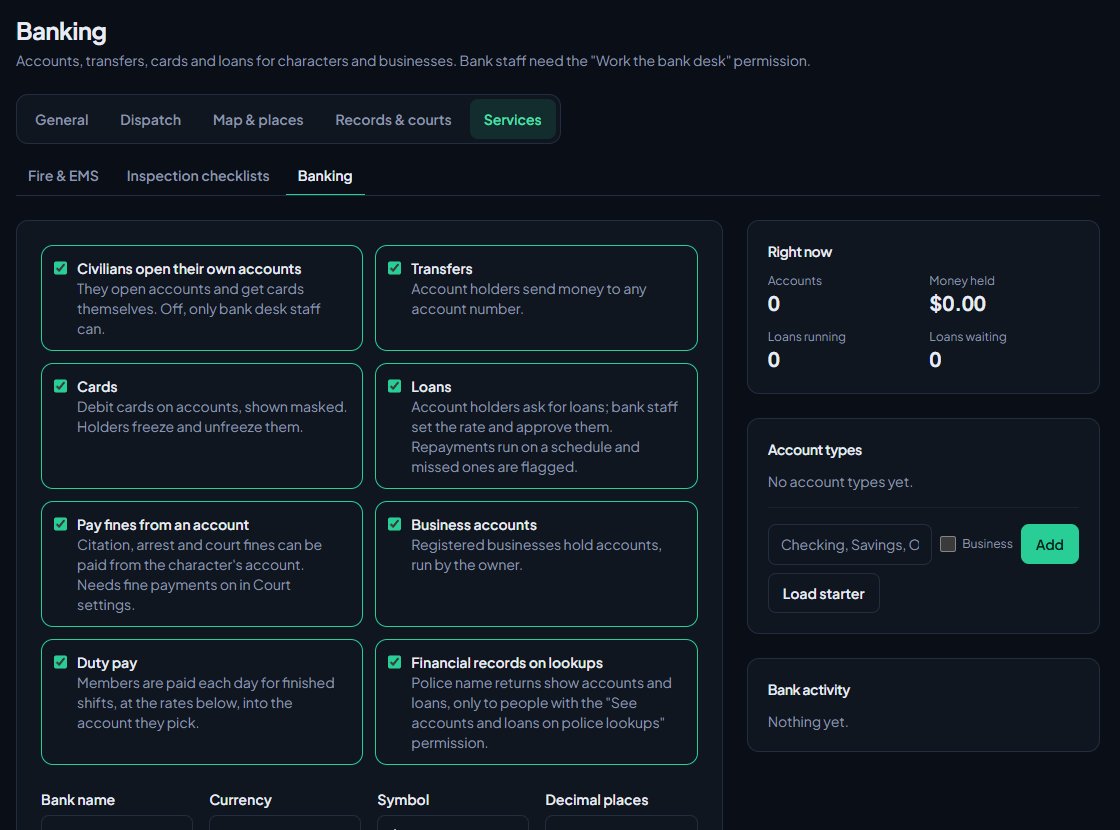
Pick your decimal places before anyone opens an account. Once an account exists, it can't be changed.
| Switch | What it does |
|---|---|
| Civilians open their own accounts | Civilians open accounts and get cards themselves. Off, only bank desk staff can. |
| Transfers | Account holders send money to any account number. |
| Cards | Debit cards on accounts, shown masked. Holders freeze and unfreeze them. |
| Loans | Account holders ask for loans, and bank staff set the rate and approve them. |
| Pay fines from an account | Citation, arrest and court fines can be paid from the character's account. Also needs fine payments on in Court settings. |
| Business accounts | Registered businesses hold accounts, run by the owner. |
| Duty pay | Members are paid each day for finished shifts, at the rates you set. |
| Financial records on lookups | Police name returns show accounts and loans, only to people with the See accounts and loans on police lookups, when the bank settings allow it permission. |
Add account types#
Under Account types, click Load starter to add Checking, Savings and Business. To add your own, type a name, tick Business if it's for businesses, and click Add. Removing a type doesn't affect accounts already open with it.
Pay members for time on duty#
- Turn on Duty pay and save.
- Under Duty pay rates, pick a Department.
- Pick a Rank, or leave it blank to set the rate for the whole department.
- Enter the amount Per hour and click Set rate.
Once a day, every finished shift from the last 7 days that's longer than the shortest paid shift is paid at the member's rank rate, or their department's rate if their rank has none. Each shift is only ever paid once. The money goes into the account the member picked with Pay into this one, or their first character's first open account. Members without an account aren't paid until they open one.
What civilians can do#
In the Civilian panel, the bank is a section named after your bank. There, civilians can:
- Open an account for one of their characters, or a business they own, with Open an account.
- See the Statement and Balance.
- Send money with Send money, using the other account's number.
- Get a New card, and Freeze, Unfreeze or Cancel cards.
- Ask for a loan under Ask for a loan, with the amount, number of repayments, weekly or monthly, and what it's for. The bank sets the rate.
- Pay each loan repayment with the Pay button on the loan.
- Pay fines they owe under Fines owed.
Loan repayments aren't taken automatically. The account holder has to click Pay for each one. A repayment that passes its due date unpaid is marked as missed and shows on the bank desk.
Missed repayments are checked once a day, early in the morning. If you set Missed repayments before a loan defaults, a loan with that many missed repayments still unpaid is marked Defaulted. A defaulted loan stays defaulted until it's paid off, and the account holder can still pay it with the Pay button.
Work the bank desk#
Bank staff click Bank desk under Desks on the Select a panel screen, or open it from the sections along the top of the Civilian panel.
Find a customer#
- Under Customers, type a name, business or account number and click Find.
- Pick the customer. Their accounts are listed, including closed ones.
Open an account for someone#
- Find the customer.
- Under Open an account, pick the Type and give it a name if you like.
- Click Open.
Put money in or take it out#
- Open the account.
- Under Adjust, pick the Type: Deposit, Withdrawal, Correction in or Correction out.
- Enter the amount and a Reason. The reason is shown on the statement and kept in the activity list.
- Click Post and confirm.
Freeze or close an account#
Under Account status, write a Reason and click Freeze or Close account. Click Unfreeze to open it again. A frozen account can't send or spend money. Closing needs the balance at zero and no loan still running, and cancels the account's cards.
Decide loans#
Loans waiting for a decision are listed under Loans waiting, oldest first.
- To approve, type the yearly rate in Rate % and click Approve. The money is paid into the account straight away and the repayment schedule starts.
- To decline, type a reason underneath and click Decline.
Repayments that went past their date unpaid are listed under Missed repayments. Those on a defaulted loan show Defaulted.
Something not working?#
Civilians can't see the bank. Turn on Banking under Modules on the CAD settings page. The Banking page shows a message while it's off.
It says "Pick an account type." You haven't added any account types, or none for that kind of owner. Add one, or click Load starter.
It says "Not enough money in" the account. A payment can't take the balance below zero.
It says "Set a yearly rate from 0 to 30%." The rate is above your highest loan rate. Lower it, or raise the limit on the Banking page.
It says "Move the balance out before closing the account." Take the balance to zero with an adjustment or transfer first.
Someone wasn't paid for their shift. Check their department or rank has a rate, the shift was longer than the shortest paid shift, it ended in the last 7 days, and they have an open account on a living character. Pay goes out once a day.
See also
Create a civilian character
How members make a civilian character in the CAD, add licences, vehicles and firearms, and what staff control, like how many characters each member can have.
Register businesses, aircraft, boats and property
How civilians register businesses and hire staff, register aircraft, boats and serial-numbered property, and how the DMV licenses them when your community uses one.
Run a court case
Set up courts for your community, send arrests, citations and warrants to court, and run a case as a judge: hearing, plea, verdicts, sentence and fines.
Turn CAD features on and off
Switch off the parts of the CAD your community doesn't use, from the DMV and courts to ride-alongs and Signal 100, and set the options that go with them, like quiet call closing, warrant approval and alert tones.
Can't find what you need?
Open a ticket in our Discord and someone from the team will help. Found a bug, or missing a feature? Tell us on the feedback board.