Canned replies, ticket statuses and transcripts
Save answers your staff send often, name your own ticket statuses and choose what each one means, and download a ticket as an HTML page or PDF.
Three things make support quicker to run day to day. Canned replies save your staff typing the same answer over and over. Your own statuses let tickets read the way your community talks, like "Waiting on dev team". Transcripts let you keep a copy of a ticket outside LonexOne, for example when a ban appeal is escalated.
Before you start#
- Canned replies and statuses are set up on the Statuses, replies and settings tab of Support. You need to be the owner or an administrator, or have the Set up support: categories, statuses, canned replies and settings, and see every ticket permission.
- Using canned replies and downloading transcripts only needs the Work support tickets in the categories you can see permission, for tickets you can see.
Canned replies#
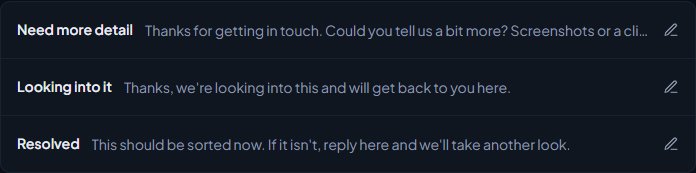
A canned reply has a title, which staff pick from a list, and the text that goes into the reply box. Staff can edit the text before sending, so it works well as a starting point.
You start with three: Need more detail, Looking into it and Resolved.
Add a canned reply#
- Open your control panel and click Support in the left sidebar.
- Click the Statuses, replies and settings tab.
- Under Canned replies, type a title, for example "Need more detail". Titles can be up to 80 characters.
- Type the reply in the box below. Replies can be up to 5,000 characters.
- Click Add canned reply.
Change or delete one#
- Click the canned reply in the list to open it.
- Edit the title or text and click Save, or click Delete and confirm.
Use one on a ticket#
- Open the ticket.
- Pick the reply from Canned reply… above the message box. Its text is put into the box.
- Change anything you need to, then click Send reply.
The Canned reply… box only shows when there's at least one canned reply. It also works for internal notes.
Ticket statuses#
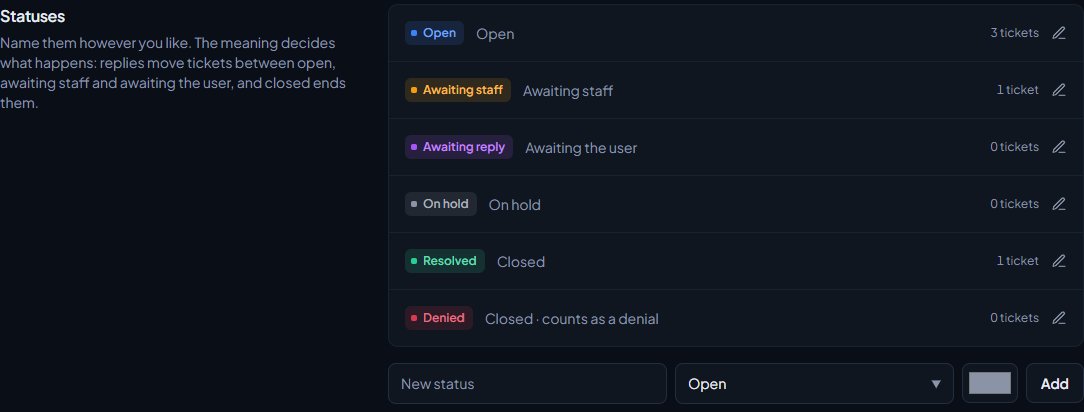
You can call statuses whatever you like. What matters is each status's meaning, because that decides what LonexOne does with it.
| Meaning | What it does |
|---|---|
| Open | New tickets start in the first Open status. |
| Awaiting staff | Tickets move here when the member replies. Counted in Awaiting staff on the queue. |
| Awaiting the user | Tickets move here when staff reply. Tickets in this status can close on their own if the category uses Close when the user goes quiet. |
| On hold | A staff reply doesn't move the ticket out of it. |
| Closed | Ends the ticket. Members can't reply, and they're asked to rate it if ratings are on. |
When more than one status has the same meaning, LonexOne uses the first one in your order. When it closes a ticket for you, like an auto-close or a merge, it uses the first closed status that isn't a denial.
You start with Open, Awaiting staff, Awaiting reply, On hold, Resolved and Denied.
Add a status#
- On the Statuses, replies and settings tab, find Statuses.
- Type a name in New status (up to 40 characters).
- Pick its meaning and a colour.
- Click Add.
Change a status#
- Click the status in the list to open it.
- Change the name, meaning, colour or the order number. Lower numbers come first.
- For a closed status, tick Counts as a denial (closed statuses only; starts a category's wait) if closing a ticket with it should start the category's wait before the person can open another.
- Click Save.
The denial box only has an effect on statuses that mean Closed.
Delete a status#
- Open the status and click Delete, then confirm.
You can only delete a status that no tickets are using. The list shows how many tickets each status has.
Keep at least one status for each meaning. Without an Awaiting the user status, tickets can't close on their own. Without a Closed status, merging and auto-closing have nothing to close tickets with.
Download a transcript#
A transcript is the whole ticket in one file: who opened it, the category, status, priority, who it's assigned to, the dates, any rating, the form answers and every message.
- Open the ticket in your control panel.
- At the top right, pick which copy you want:
- Staff copy, with notes has everything, including internal notes and the real name of the person who opened it.
- Member copy, safe to send leaves out internal notes. In categories that hide who opened the ticket, it shows them as "Reporter".
- Click HTML for a web page you can open in any browser, or PDF for a document.
The file downloads straight away, named after the ticket number and subject.
The staff copy includes internal notes, marked "internal note", and always shows the real name of the person who opened the ticket. Send members the member copy instead.
Attached files aren't included in the transcript. It lists their file names under each message, and you can open the files from the ticket itself.
Something not working?#
"3 tickets still use Awaiting reply. Move them to another status first." You tried to delete a status that tickets are using. Filter the queue by that status, tick them all, and use Set status to move them. Then delete it.
Staff don't see the Canned reply box. There are no canned replies yet. Add one on the Statuses, replies and settings tab.
I can't see the Statuses, replies and settings tab. Only people with the support setup permission see it. Ask your owner to add Set up support: categories, statuses, canned replies and settings, and see every ticket to your role.
Members can still open tickets after a denial. Check the status you closed with has Counts as a denial ticked, and that the category has a Wait after a denial (days) set.
See also
Reply to and close support tickets
Work the ticket queue, reply or leave internal notes, assign and tag tickets, add other members, merge duplicates and close tickets with the right status.
Set up support tickets
Turn on the Support page, build ticket categories with their own forms, choose who handles each one, and set the rules for guests, repeat tickets and closing.
Can't find what you need?
Open a ticket in our Discord and someone from the team will help. Found a bug, or missing a feature? Tell us on the feedback board.