Set up support tickets
Turn on the Support page, build ticket categories with their own forms, choose who handles each one, and set the rules for guests, repeat tickets and closing.
Support tickets give your members one place to ask for help, appeal a ban or report a player, instead of scattered Discord DMs. Members open a ticket on your community website, your staff answer it in the control panel, and everyone is notified as the conversation goes back and forth.
Each kind of ticket is a category, and every category has its own form, its own handlers and its own rules. This article covers turning support on, setting up categories, and the settings that apply to every ticket.
Before you start#
- The Community Site module needs to be installed. It's installed for every community by default.
- To set up support you need to be the owner or an administrator, or have a role with the Set up support: categories, statuses, canned replies and settings, and see every ticket permission.
- Staff who only answer tickets need the Work support tickets in the categories you can see permission. They see the Tickets tab but not the setup tabs.
What you start with#
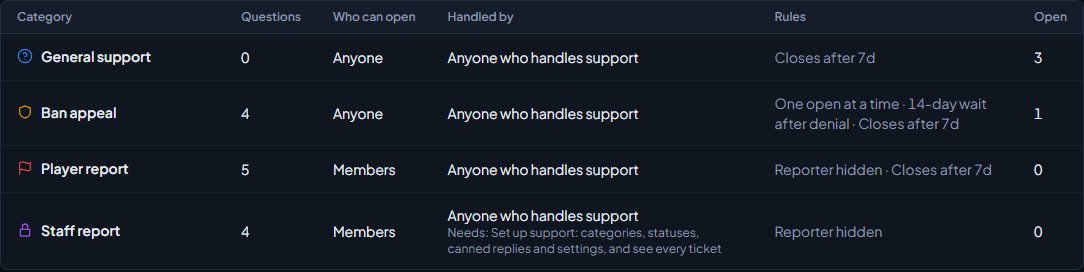
The first time anyone opens the Support page, LonexOne adds four starter categories, six statuses and three canned replies. You can rename, change or delete any of them, and once deleted they don't come back.
| Starter category | What it's set up for |
|---|---|
| General support | Open to guests. No extra questions. |
| Ban appeal | Open to guests. Asks when and why they were banned. One open at a time, and a 14-day wait after a denial. |
| Player report | Members only. Asks who, when, where and for evidence. Starts at High priority and hides the reporter. |
| Staff report | Members only. Only people with the support setup permission can see these. |
Turn on the Support page#
- Open your control panel and click Support in the left sidebar, under Community Site.
- Click the Statuses, replies and settings tab.
- Under Support on the site, tick Support page on the site. It's on by default.
- Optionally write an Intro. It shows at the top of the Support page. If you leave it blank, members see "Pick what you need help with and we'll get back to you."
- Click Save settings at the bottom of the page.
The Support page lives at your site's address with /support on the end. To put it in your header, open Navigation, click Add link, choose Built-in page and then Support, and click Save navigation. See Change your site's menu for more on the menu.
Create a category#
-
In Support, click the Categories tab.
-
Click New category.
-
Fill in the Name (up to 60 characters), and pick an Icon and Colour.
-
Add a Description. It's shown under the name on the Support page.
-
Under Questions, click Add question for each thing you want to ask. Every ticket already asks for a subject and lets people add a message and files, so only add what this category needs on top.
-
For each question, type the question, pick the answer type, add optional help text, and tick Required if it must be answered. Use the arrows to reorder questions and Remove to delete one.
-
Set Who, Rules and Discord in the right-hand column (see below).
-
Click Add category.
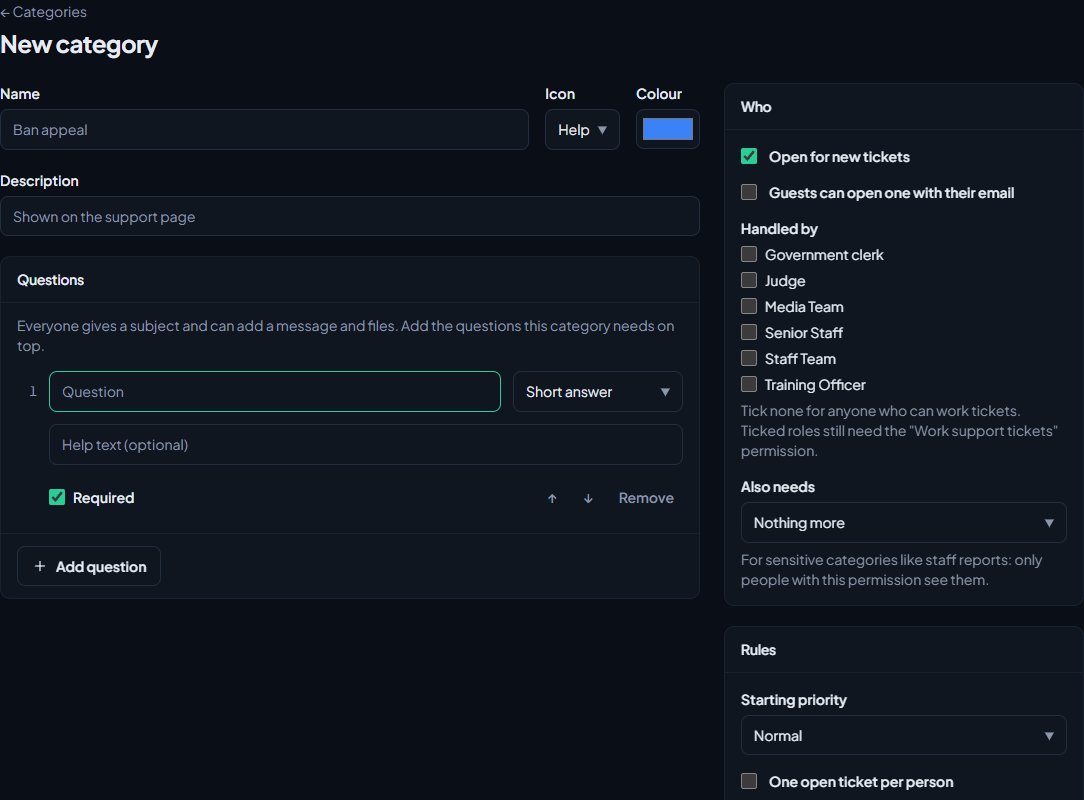
A form can have up to 25 questions. The answer types are Short answer, Paragraph, Dropdown, Tick box, Date and Link. For a dropdown, type the choices one per line.
Once a category is saved, View form at the top opens it on your site so you can check how it looks.
Who can open and handle it#
| Setting | What it does |
|---|---|
| Open for new tickets | Untick to stop new tickets in this category without deleting it. It disappears from the Support page. |
| Guests can open one with their email | Lets people who aren't signed in open a ticket by giving a name and email. They get an email with a private link back to the ticket. |
| Handled by | Tick community roles to limit the category to them. Tick none and anyone who can work tickets handles it. Ticked roles still need the permission to work tickets. |
| Also needs | A further permission someone must hold to see these tickets, for sensitive categories like staff reports. |
People with the support setup permission see every ticket in every category, whatever you tick here.
Rules#
| Setting | What it does |
|---|---|
| Starting priority | Low, Normal, High or Urgent. Tickets are listed with the most urgent first. |
| One open ticket per person | Someone can't open a second ticket in this category until the first is closed. |
| Wait after a denial (days) | After a ticket is closed with a status that counts as a denial, like Denied, the person has to wait this many days (1 to 365) before opening another. |
| Close when the user goes quiet (days) | If a ticket is waiting on the member's reply for this many days (1 to 90), it closes. They're sent a reminder a day before. |
| Hide who opened it | Members you add to the ticket, such as the person being reported, see "Reporter" instead of the opener's name. Staff always see who it is. |
Discord#
Pick a channel under Post new tickets to and each new ticket in this category is posted there, with its category, priority and who it's from, linking to the ticket in your control panel. You need your Discord server connected with the bot in it to pick from the list. See Connect your Discord server.
Staff who handle the category are also told about new tickets on the site, and by Discord DM if your notification settings allow it. See Choose what members are notified about.
Ticket numbers and attachments#
On the Statuses, replies and settings tab you can also change:
- Ticket numbers: a Prefix (up to 8 letters, numbers, # or -) and the number of Digits. The default looks like T-0001. The Looks like box shows the result.
- Attachments: Files per message (0 to 10, where 0 turns attachments off), Largest file (MB) (1 to 25) and which File types are allowed. Unticking every file type also turns attachments off, and the Attach button goes away. Files are private: only the people on the ticket and your staff can open them.
- Ask "How did we do?" when a ticket closes: lets the opener rate the ticket from 1 to 5 once it's closed. The rating shows on the ticket in your control panel.
Click Save settings when you're done.
Delete a category#
- Open the category from the Categories tab.
- Scroll to the bottom and click Delete category, then confirm.
The tickets in it stay, without a category, and only people with the support setup permission can see them after that. To stop new tickets but keep the category, untick Open for new tickets instead.
Something not working?#
Members see "Support isn't set up yet". There are no categories that are open for new tickets. Add one, or tick Open for new tickets on an existing one.
The Support page says "Page not found". Support page on the site is turned off. Your control panel also shows "Support is switched off, so nobody can open tickets" on the Tickets tab.
A member sees "You can't open another one yet". The category uses One open ticket per person or Wait after a denial. The message tells them which, and when they can open another.
"There is already a category with that name." Category names have to be different. Pick another name.
"That isn't a text channel in your Discord servers." The channel ID you typed isn't one the bot can see. Pick it from the list, or check the bot is in that server.
A staff member can't see a category's tickets. Check they have the permission to work tickets, that their role is ticked under Handled by (if any roles are ticked), and that they hold the Also needs permission if one is set.
See also
Reply to and close support tickets
Work the ticket queue, reply or leave internal notes, assign and tag tickets, add other members, merge duplicates and close tickets with the right status.
Canned replies, ticket statuses and transcripts
Save answers your staff send often, name your own ticket statuses and choose what each one means, and download a ticket as an HTML page or PDF.
Change your site's menu
Choose the links in your community site's header, put them in order, give them icons, move some into the Links menu and turn one into a button.
Choose what members are notified about
Pick which notifications go out on the site, by email and by Discord DM for each kind of update, see what members can turn off themselves, and check for Discord DMs that didn't arrive.
Create a role and choose what it can do
Make a role like Staff or Department command, tick the permissions it gives, hand it to people, and understand how roles work alongside ranks and administrators.
Can't find what you need?
Open a ticket in our Discord and someone from the team will help. Found a bug, or missing a feature? Tell us on the feedback board.