Reply to and close support tickets
Work the ticket queue, reply or leave internal notes, assign and tag tickets, add other members, merge duplicates and close tickets with the right status.
Once support is set up, your staff answer tickets from the Support page in the control panel. Members reply on your community website, staff reply in the panel, and both sides see new messages appear without refreshing.
This article covers the ticket queue, replying, internal notes, assigning, merging and closing.
Before you start#
You need the Work support tickets in the categories you can see permission, or the Set up support: categories, statuses, canned replies and settings, and see every ticket permission. Owners and administrators can do everything.
With the first permission you only see tickets in the categories you handle. A category can be limited to certain roles or need an extra permission, so two staff members can see different queues. See Set up support tickets.
Find a ticket#
-
Open your control panel and click Support in the left sidebar.
-
The Tickets tab shows open tickets, most urgent first, then by latest activity.
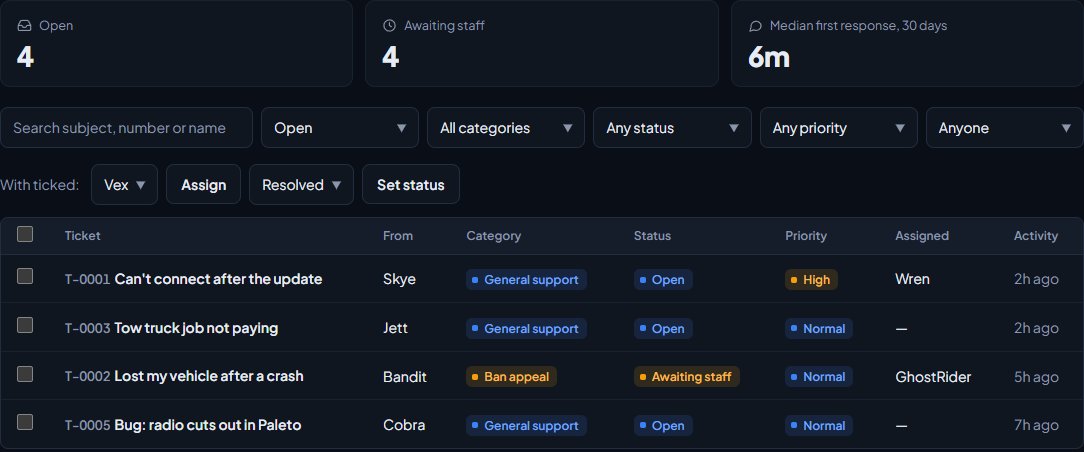
Along the top you'll see how many tickets are Open, how many are Awaiting staff, and the Median first response, 30 days: the typical time it took staff to send a first reply.
Use the filters to narrow the list:
- Search subject, number or name finds a ticket by its subject, number, the member's Discord name or a guest's name or email.
- The next box switches between Open, Closed and Open and closed.
- Filter by category, status, priority, or who it's assigned to. Mine shows tickets assigned to you and Unassigned shows the ones nobody has picked up.
Click a ticket to open it.
Reply to a ticket#
-
Open the ticket. Any answers from the category's form are shown first under Form answers, then the conversation.
-
Under the conversation, make sure Reply is selected.
-
Type your message. You can pick a saved answer from Canned reply… to start from.
-
To add files, click Attach.
-
Leave the status box on Status: automatic, or pick one, for example Then Resolved to reply and close in one go.
-
Click Send reply.
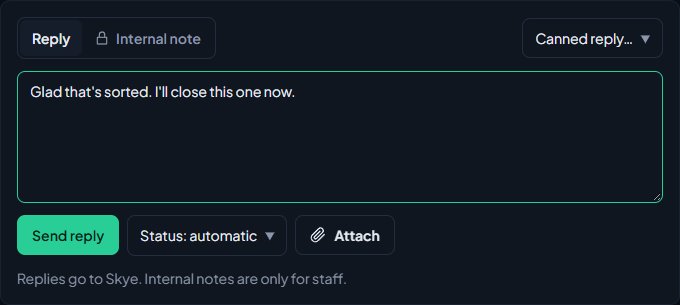
The opener, and anyone else added to the ticket, is notified of your reply. Guests get it by email with their link back to the ticket.
How statuses change on their own#
With Status: automatic:
- When staff reply, the ticket moves to the first status that means Awaiting the user (Awaiting reply, to start with).
- When the member replies, it moves to the first status that means Awaiting staff.
- A ticket that's On hold stays on hold when staff reply.
- If staff reply to a closed ticket, it reopens as awaiting the user. Pick a closed status in the box if you want it to stay closed.
Members can't reply to a closed ticket. They see "This ticket is closed." with a link to open a new one.
Leave an internal note#
Internal notes are for staff only. Members never see them, or any files attached to them.
- On the ticket, click Internal note instead of Reply.
- Type the note and attach any files.
- Click Send reply.
Notes are marked Internal note in the conversation. Adding a note doesn't change the status or notify the member.
Status, priority, assignee and tags#
The Ticket box on the right of a ticket has:
- Status: move the ticket to any status.
- Priority: Low, Normal, High or Urgent.
- Assigned to: anyone who can handle this ticket's category, or Nobody.
- Tags: short labels separated by commas, like refund or bug. Up to 10, and each tag is cut to 30 characters.
Change what you need and click Save.
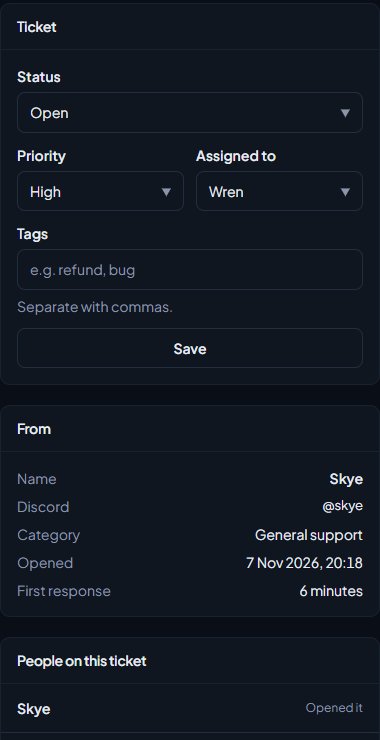
When you assign someone else, they're notified. When a member replies to an assigned ticket, the assignee is told. On an unassigned ticket, everyone who can handle its category is told. Status changes are shown in the conversation and the member is notified. Priority and assignment changes are only shown to staff.
On the queue, tags show next to the ticket's subject.
Change lots of tickets at once#
- On the Tickets tab, tick the tickets, or tick the box in the header to tick them all.
- Next to With ticked:, pick a person and click Assign, or pick a status and click Set status.
The status box starts on your first closed status that isn't a denial, so ticking tickets and clicking Set status closes them. If you assign tickets to someone who can't see one of the categories, those tickets are left as they were.
Add someone to a ticket#
Use this to bring in a second member, for example the player a report is about.
- In People on this ticket, type their Discord username or Discord ID.
- Click Add.
They're notified and can read and reply to the ticket on the site. If the category uses Hide who opened it, they see "Reporter" instead of the opener's name. Click Remove next to someone to take them off. You can't remove the person who opened it.
Their other tickets lists up to eight other tickets from the same person, so you can see if they've been in touch before.
Merge a duplicate#
If someone opens the same problem twice, merge one into the other.
- Open the ticket you want to get rid of.
- Under Merge a duplicate, type the number of the ticket to keep, for example T-0012.
- Click Merge and confirm.
The messages, files and people move to the ticket you're keeping, and the duplicate closes with a note pointing to it. Members who open the old ticket see "This ticket was merged into" with a link.
Close a ticket#
Set the status to a closed one, either from the Ticket box, with Then Resolved when you reply, or in bulk. The starter closed statuses are Resolved and Denied.
Closing with a status that counts as a denial, like Denied, starts the category's wait, if it has one. The member is notified either way, and if ratings are on they're asked "How did we do?" on the ticket.
Tickets can also close on their own when a category uses Close when the user goes quiet: the member gets a reminder a day before (halfway through, for a one-day limit), then the ticket closes with a note saying how many days it waited.
Something not working?#
"They can't handle tickets in this category." The person you picked for Assigned to can't see this category. Check their role and permissions.
"No member with that Discord username or ID." The person isn't a member of your community, or the name is spelled differently. They become a member the first time they sign in on your website.
"Pick another ticket you can handle." The ticket number you typed to merge into doesn't exist, is the same ticket, was already merged, or is in a category you can't see.
"Attachments are turned off." Your community has turned attachments off under Settings, so files can't be added. Send the reply without the file.
"Write something or attach a file." A reply needs a message or at least one file.
"Tick the tickets first." You clicked Assign or Set status without ticking any tickets.
A ticket I can see in a notification won't open. It's in a category you don't handle, or its category was deleted. Tickets without a category are only shown to people with the support setup permission.
See also
Set up support tickets
Turn on the Support page, build ticket categories with their own forms, choose who handles each one, and set the rules for guests, repeat tickets and closing.
Canned replies, ticket statuses and transcripts
Save answers your staff send often, name your own ticket statuses and choose what each one means, and download a ticket as an HTML page or PDF.
Choose what members are notified about
Pick which notifications go out on the site, by email and by Discord DM for each kind of update, see what members can turn off themselves, and check for Discord DMs that didn't arrive.
Can't find what you need?
Open a ticket in our Discord and someone from the team will help. Found a bug, or missing a feature? Tell us on the feedback board.