Carry out fire inspections
Set up inspection checklists, record an inspection of a business or address in the CAD, and close the follow-ups that failed items leave behind.
Fire inspections let your fire department check businesses and buildings against a checklist, the way a real fire marshal would. Each item is marked pass, fail or N/A. Every failed item becomes a follow-up that stays open until someone marks it fixed, so nothing gets forgotten before the re-inspection.
Inspections are recorded in the CAD while on duty. Staff can see all of them, correct them and close follow-ups from the control panel.
Before you start#
- Fire inspections needs to be turned on under Modules on the CAD settings page. It's on to start with. See Turn CAD features on and off.
- You need at least one checklist that's in use.
- To set up checklists, you need the Set up the CAD: call types, statuses, penal code, designs and AOP permission.
- To record inspections, you need to be on duty as a fire unit. Anyone else on duty can record them too if their role has the Carry out fire inspections of businesses and buildings, and close their follow-ups permission, for example a fire marshal who signs on as police.
Set up your checklists#
-
Open your control panel and click CAD settings in the left sidebar.
-
Click Services along the top, then Inspection checklists.
-
If you have no checklists yet, click Load starter to add two to start from: General building and Restaurant and kitchen.
-
To add your own, fill in the New checklist form. Give it a Name, for example "Night club".
-
Under Items, one per line, type each thing the inspector checks, for example "Fire extinguishers in date".
-
Click Add checklist.
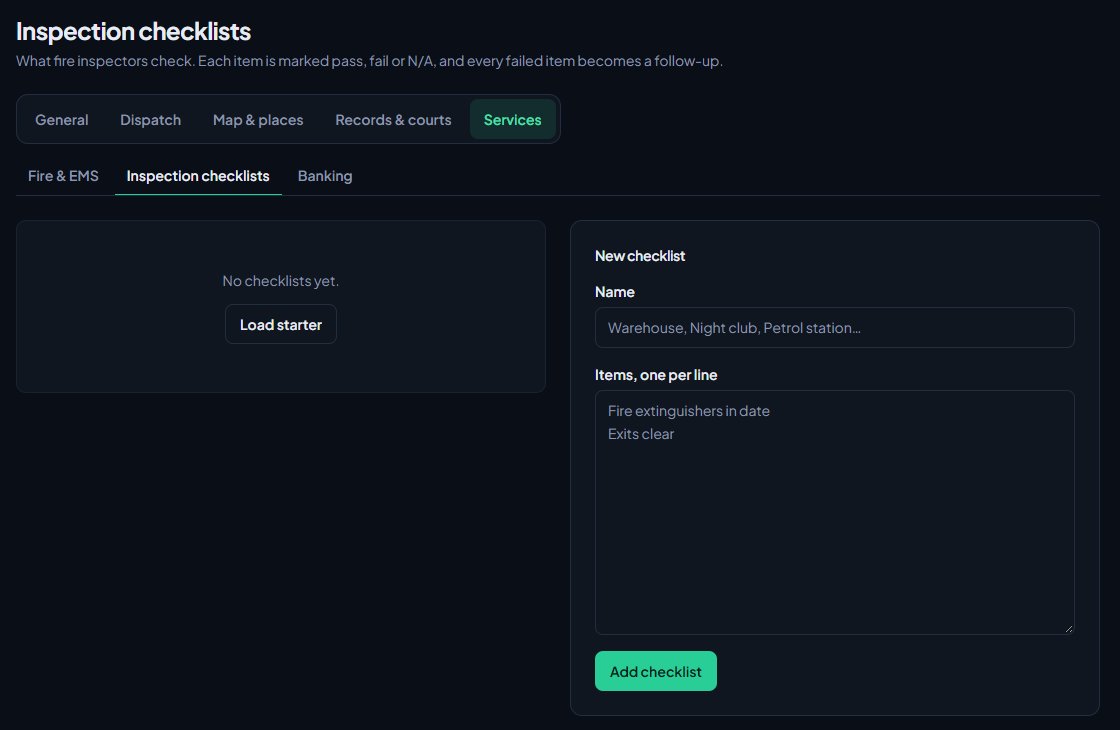
A checklist can have up to 40 items, each under 160 characters.
To change a checklist, edit its name or items and click Save. Untick In use to stop inspectors picking it without deleting it. Use Move up and Move down to set the order inspectors see. Past inspections keep the items they were done against, even if you change or delete the checklist later.
Record an inspection#
- In the CAD, open Inspections. In Modern it's a tab above the board, in Classic it's a button in your unit bar, and in Realistic it's in the toolbar or the Tools menu.
- Click New inspection.
- Under Business, search by business name, owner or address and pick the business. If it's not a registered business, leave this empty and fill in the Address.
- Add the Postal if you know it.
- Pick the Checklist. Changing the checklist clears any items you've already marked.
- Check the Inspected on date. It's today to start with and can't be in the future.
- Mark every item Pass, Fail or N/A. When you mark one Fail, a box appears for what needs fixing.
- Leave Result on From the items. The inspection fails if any item failed, and passes if none did. You can pick Pass or Fail to set it yourself.
- If anything failed, set Re-inspect on.
- Add any Notes.
- Click Save inspection.
The inspection gets a number like INS-0012, and you'll see a message saying it was saved with its result.
Follow-ups#
Every failed item becomes a follow-up, due on the re-inspection date. You'll find them under Open follow-ups on the Inspections screen in the CAD, with the soonest due at the top.
When the problem is fixed, click Fixed next to it and confirm.
What everyone else sees#
- When police or dispatch run a business search, the result shows the business's last inspection, its result and the re-inspection date, or none on file.
- If your community posts CAD events to Discord, a failed inspection is posted to the channel you pick for Failed fire inspections. So is one you set to Pass by hand while some items failed. See Post logs to Discord channels.
Inspections in the control panel#
Staff with the inspections permission, or the CAD settings permission, see Inspections under CAD in the left sidebar. It lists every inspection, newest first.
- Search by business, address or inspector.
- Filter by Result, or tick Open follow-ups only.
- Close follow-ups from the list on the right with Fixed.
- Click an inspection to see every item, the business and its owner.
Correct or delete an inspection#
The inspector who did it can correct or delete it. So can anyone with the inspections permission or the CAD settings permission.
- In the CAD: open the inspection from Recent and click Edit or Delete.
- In the control panel: open the inspection and click Correct or delete.
When you correct one, follow-ups that were already closed stay closed. Open ones are replaced by whatever fails now. Deleting an inspection removes its follow-ups too. Both are recorded in your activity log.
Something not working?#
I can't see Inspections in the CAD. You need to be on duty as a fire unit, or have the inspections permission. Also check Fire inspections is turned on in CAD settings.
It says "Mark every item pass, fail or N/A." One or more items haven't been marked. The message names the first few that are missing.
It says "Set when to re-inspect, since it failed." Something failed, so pick a Re-inspect on date. It has to be on or after the inspection date.
It says "Pick a business or enter the address." Either pick a business from the search or type an address.
It says "Pick a checklist." when I save. The checklist you picked has been deleted or set to not in use. Pick another one. When you correct an old inspection, its own checklist stays in the list marked (no longer in use), so you can keep it.
Inspections has gone from the sidebar, or the page says "Fire inspections are switched off in the CAD settings." Fire inspections is turned off under Modules on the CAD settings page. Turn it back on and everything you recorded before is still there.
See also
Set up stations, apparatus, hydrants and hospitals
Add your fire stations, the engines and ambulances that run from them, hydrants and hospitals, and see how units use them on duty and in incident command.
Register businesses, aircraft, boats and property
How civilians register businesses and hire staff, register aircraft, boats and serial-numbered property, and how the DMV licenses them when your community uses one.
Turn CAD features on and off
Switch off the parts of the CAD your community doesn't use, from the DMV and courts to ride-alongs and Signal 100, and set the options that go with them, like quiet call closing, warrant approval and alert tones.
Post logs to Discord channels
Choose which Discord channel each event goes to, give departments their own channels, filter and colour CAD posts, and send a test message.
Can't find what you need?
Open a ticket in our Discord and someone from the team will help. Found a bug, or missing a feature? Tell us on the feedback board.