Set up stations, apparatus, hydrants and hospitals
Add your fire stations, the engines and ambulances that run from them, hydrants and hospitals, and see how units use them on duty and in incident command.
Fire and EMS work better in the CAD when it knows your stations, your apparatus, your hydrants and the hospitals EMS take patients to. Units pick the apparatus they're riding when they sign on, hydrants show up on fire calls, and hospitals are the destinations on patient care reports.
This article covers setting these up in the control panel, and how units use them on duty, including incident command on fire calls.
Before you start#
- The CAD module needs to be installed.
- You need a role with the Set up the CAD: call types, statuses, penal code, designs and AOP permission.
Open the Fire & EMS page#
- Open your control panel.
- Click CAD settings in the left sidebar.
- Click Services along the top, then Fire & EMS.
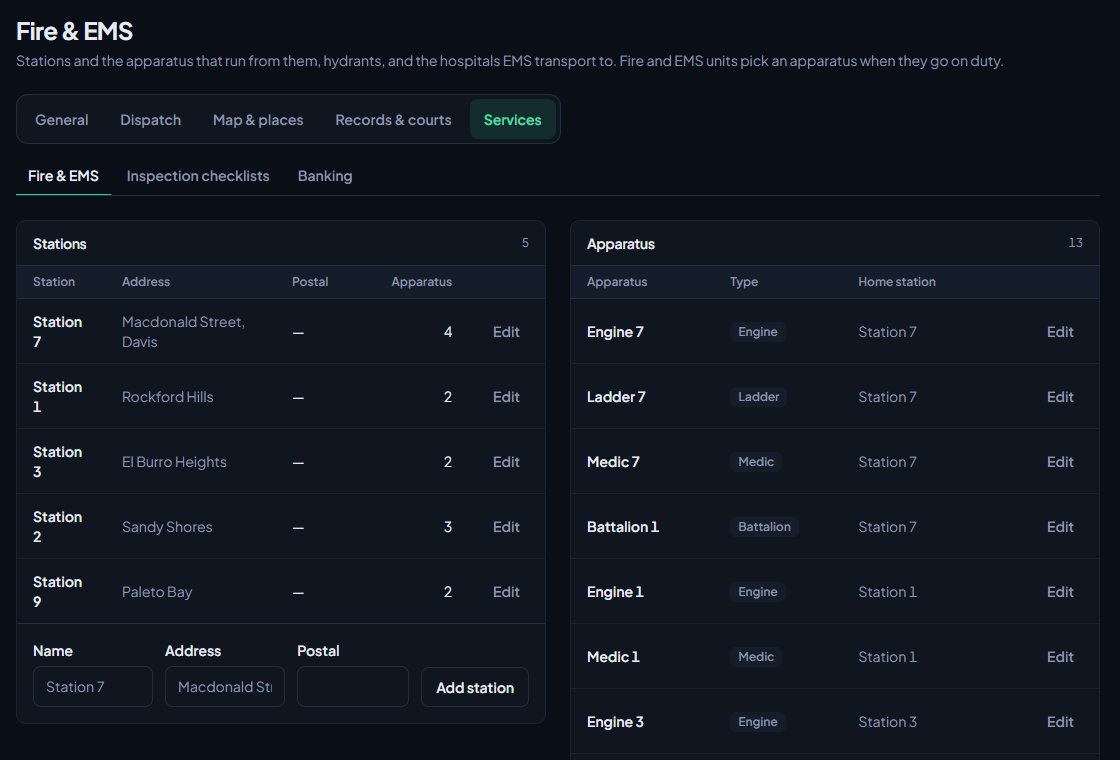
The page has four lists: Stations, Apparatus, Hydrants and Hospitals. Each one has an add form at the bottom and an Edit button on every row.
Start from the starter set#
If any of the four lists is empty, you'll see Load starter at the top of the page. Click it to fill the empty lists with a starter set of stations, apparatus, hydrants and hospitals from around the map, like Station 7 in Davis and Pillbox Hill Medical Center. Lists that already have entries aren't touched.
Once every list has something in it, the button goes away. Edit or delete the starter entries to match your community.
The starter hydrants have no postal, because postal codes depend on your map. Edit each one and add its postal, or they won't show on fire calls.
Add a station#
- Under Stations, fill in the Name, for example "Station 7".
- Fill in the Address and Postal if you want them. Both are optional.
- Click Add station.
The list shows how many apparatus each station has.
Add apparatus#
- Under Apparatus, fill in the Name, for example "Engine 7".
- Pick the Type.
- Pick its Home station, or leave it on None.
- Click Add apparatus.
| Types you can pick |
|---|
| Engine, Ladder, Rescue, Medic, Battalion, Brush, Tanker, Hazmat, Squad, Other |
Add a hydrant#
- Under Hydrants, fill in the Number, for example "H-101".
- Fill in the Location, for example "Macdonald Street outside Station 7".
- Fill in the Postal. This is what links the hydrant to calls, so don't skip it.
- Click Add hydrant.
New hydrants are in service. To mark one out of service, click Edit, untick In service, add a note if you like, and click Save. The list header counts how many are out of service.
The starter hydrants don't have postals. Edit each one and add its postal, or they won't show on calls.
Add a hospital#
- Under Hospitals, fill in the Name.
- Fill in the Address and Postal if you want them.
- Click Add hospital.
EMS can't pick a destination on a patient care report until you've added at least one hospital.
Edit or delete#
Click Edit on a row, change what you need, and click Save. To remove it, click Edit, then the delete button at the bottom, and confirm.
| When you delete | What happens |
|---|---|
| A station | Its apparatus stay, with no home station. |
| An apparatus | Units riding it carry on without one. |
| A hospital | Reports that name it keep the name. |
Every add, change and delete is recorded in your activity log.
How units use apparatus#
When a fire or EMS unit goes on duty, they can pick an Apparatus on the sign on form, or leave it on Not riding an apparatus. The list shows each apparatus with its type and home station. Police and dispatch don't see this box.
The apparatus name then shows next to the unit's callsign on the board and on calls, so dispatch can see who's on Engine 7. More than one unit can ride the same apparatus. Apparatus on a call are also filled in for you on the fire incident report.
Incident command on fire calls#
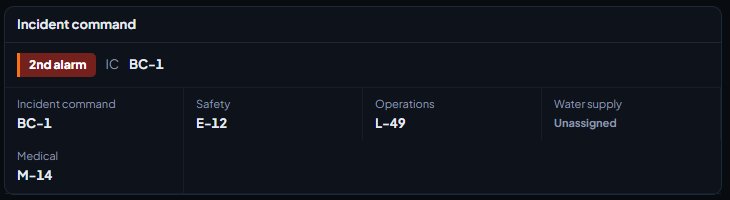
A call shows an Incident command box when it has a fire call type, a fire unit attached, an alarm above 1st, or anyone holding a role.
The box shows:
- The alarm level, from 1st alarm to 5th alarm.
- Who is in command (IC), or Nobody in command.
- Who holds each role: Incident command, Safety, Operations, Water supply and Medical.
- Hydrants at postal with the call's postal, each marked In service or Out of service. Up to 8 are listed.
Take command#
If nobody is in command, any fire or EMS unit attached to the call can click Assume command. You'll see You are in command of call with the call number.
Run the incident#
Dispatchers, and the unit in command, can:
- Change the alarm level from the alarm list, or click Raise alarm to go up one. It can't go above 5th alarm.
- Give a unit a role by picking it from the list next to their callsign. Pick No role to take it away.
Each role is held by one unit at a time. Giving it to another unit takes it from whoever had it. Every change is added to the call's notes, for example "Raised to 2nd alarm" or "E7 in command".
Something not working?#
There's no Load starter button. It only shows while at least one of the four lists is empty.
Hydrants don't show on a fire call. The hydrant's postal has to match the call's postal exactly. Check both, and remember the starter hydrants have no postal.
A unit can't see the Apparatus box when signing on. It only shows for fire and EMS panels, and only once you've added at least one apparatus.
It says "Pick one of your apparatus." The apparatus was deleted while the unit was signing on. Ask them to refresh and pick again.
It says "Give the hydrant a number." or "Say where the hydrant is." Both Number and Location are needed for every hydrant.
I can't see Assume command. You need to be a fire or EMS unit attached to the call, and nobody else can already be in command.
See also
Write fire and patient care reports
Fill in a patient care report for each patient you treat, write a fire incident report after a fire call, and send both for review.
Carry out fire inspections
Set up inspection checklists, record an inspection of a business or address in the CAD, and close the follow-ups that failed items leave behind.
Go on duty in the CAD
Sign on with your department and callsign, skip the panel screen with a default, go off duty, and fix the messages that stop you signing on.
Set up the CAD for your community
Install the CAD, set up the departments that sign on to it, give your staff access, and work through the CAD settings in the order that gets you running fastest.
Can't find what you need?
Open a ticket in our Discord and someone from the team will help. Found a bug, or missing a feature? Tell us on the feedback board.