Log evidence and keep the chain of custody
Log evidence against a record, report or call, add photos from the web or the game, and run the evidence room: transfers, check outs, releases and destruction, all in the chain of custody.
Evidence lets officers log the items they seize, with photos, against the record, report or call they came from. Every move after that, from the evidence room to the lab and back, is written into the item's chain of custody: who did it, when and why. Entries are never changed afterwards, so the history always holds up.
Officers log evidence on duty. Custodians, the people who run the evidence room, move it, hand it out, release it and destroy it, in the CAD or the control panel.
Before you start#
- Evidence needs to be turned on under Modules on the CAD settings page. It's on to start with.
- Police units on duty can log evidence and see the items they logged themselves. No extra permission is needed.
- To see every item and its chain of custody, a role needs See evidence and its chain of custody.
- Custodians need Act as evidence custodian: transfer, check out, release and destroy evidence. Custodians can also log evidence against anything.
Set up evidence#
- Open your control panel and click CAD settings in the left sidebar.
- Click Records & courts along the top, then Evidence.
- Check the switches: Evidence, and Evidence photos for up to 12 photos per item. Click Save.
- Edit the list of evidence types, for example Weapon, Drugs or Document, and click Save list.
- Edit the list of storage locations, for example Evidence room or Crime lab, and click Save list.
The first entry in each list is what the log form starts on.
Log an item#
You can log evidence from three places, and it's linked to whatever you started from:
- A report: open the report and click Evidence.
- A record: on a person's file, click Evidence next to the record.
- On its own: open Evidence. In Modern it's a tab above the board, in Classic it's a button in your unit bar, and in Realistic it's in the Tools menu. If you're attached to an open call, you can tick Link to call on the form.
Officers can log against their own records and reports, and any call. Then:
-
Click Log evidence.
-
Pick the Type and set the Quantity.
-
Write a Description: what it is, markings, serial numbers and condition.
-
Check Where it was found and Postal. They're filled in from your call if you're on one.
-
Check Collected. It can't be in the future.
-
Pick where it's Stored at.
-
Under Owner or taken from, search for the person and pick them, or type a name if they aren't on file.
-
Click Log evidence.
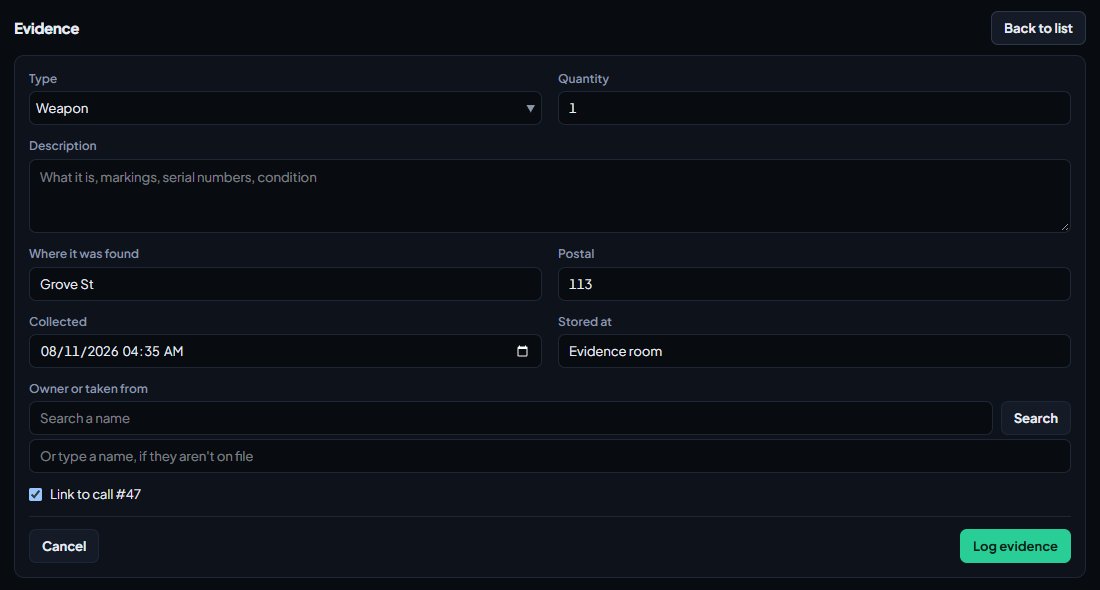
The item gets an evidence number, and the first entry in its chain of custody says it was logged and what it was logged against.
Add photos#
If Evidence photos is on, open the item and use Add photo to upload a JPG, PNG or WebP under 4 MB, with an optional caption. Custodians can add photos to any open item. Officers can add them to items they logged.
From the game: if your community uses the LonexOne FiveM resource, take a photo in game with /photo. Add the evidence number to the command and it goes straight onto that item. Without a number, it waits under Your game photos on the item screen in the CAD. Click Add to put it on the item you have open, or Delete to throw it away.
Run the evidence room#
Custodians open an item and pick an Action:
| Action | What it does |
|---|---|
| Transfer | Moves it to another storage location. It has to be checked in first. |
| Check out | Hands it to someone for a while, like a lab or a court. Fill in Given to. |
| Check in | Brings it back. Pick where it's stored now, or leave it where it was. |
| Change status | Sets it to In custody, Released, Destroyed or Submitted to court. |
-
Pick the Action and fill in what it asks for.
-
Write the Reason. It goes in the chain of custody.
-
Click Record and confirm.
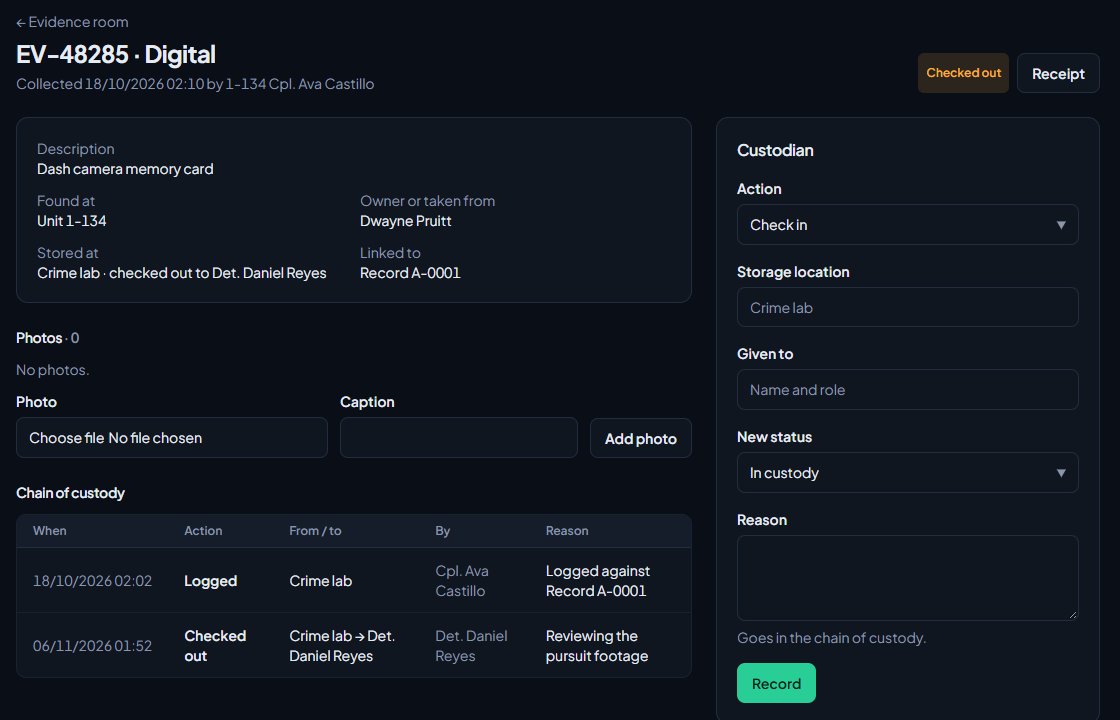
Released and Destroyed close the item for good. Its chain of custody can't be added to after that.
Correct an item, remove a photo or link a court case#
On an open item in the control panel, custodians also have these boxes. Each one adds a line to the chain of custody.
- Correct the details: change the type, description, quantity, where it was found or who it belongs to. Write a Reason and click Save details.
- Remove a photo: type a reason under the photo and click Remove.
- Link to a court case: type the case number, like CR-0012, and click Link. The item then shows the case under Linked to.
The evidence room in the control panel#
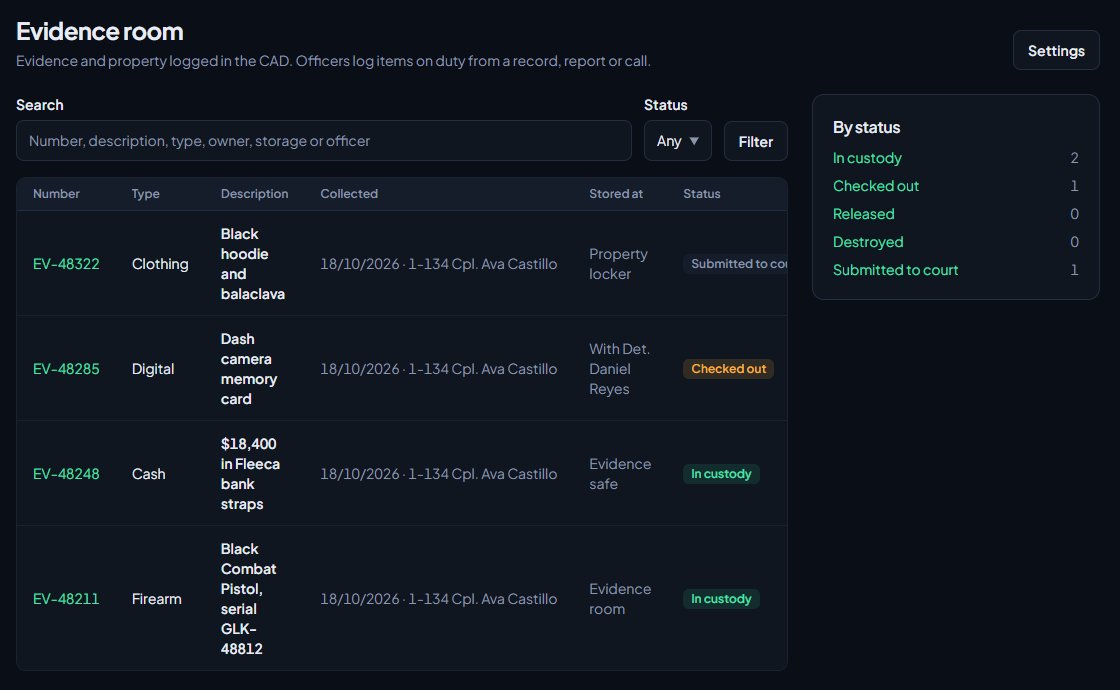
Staff with either evidence permission see Evidence under CAD in the left sidebar. It lists every item, newest first, with a count by status.
- Search by number, description, type, owner, storage or officer, and filter by Status.
- Open an item to see its photos, what it's linked to and the full Chain of custody, with when, the action, from and to, and the reason.
- Custodians can add photos and record actions from the Custodian box on the item.
- Click Receipt for a printable evidence receipt.
Something not working?#
I can't see Evidence in the CAD. You need to be on duty as a police unit, or have one of the evidence permissions. Also check Evidence is on in CAD settings.
I can only see my own items. Officers see what they logged. To see everything, your role needs See evidence and its chain of custody.
It says "Say why. It goes in the chain of custody." Every custodian action needs a reason.
It says "Check it back in first." A checked-out item has to be checked in before it can be transferred.
It says "Only items in custody can be checked out." The item is already checked out, or has been submitted to court.
It says "No court case with that number." Use the case's CR number from the Courts page, like CR-0012.
It says the item's "chain of custody is closed." The item was released or destroyed. Nothing more can be recorded on it.
It says "An item can have up to 12 photos." The item already has as many photos as it can hold.
See also
Run an investigation
Open a case, pin suspects, vehicles, evidence and paperwork to the board, connect them, keep notes and a timeline, assign detectives, and keep sensitive cases confidential.
Write a report and send it for review
Start a report from one of your community's templates or straight from a call, fill it in, save it as a draft, submit it and fix it if it comes back.
Run a court case
Set up courts for your community, send arrests, citations and warrants to court, and run a case as a judge: hearing, plea, verdicts, sentence and fines.
Photos, headshots and mugshots from the game
Take evidence and scene photos with /photo, ID photos with /headshot and booking photos with /mugshot, and show an ID card with /showid.
Can't find what you need?
Open a ticket in our Discord and someone from the team will help. Found a bug, or missing a feature? Tell us on the feedback board.