Run an investigation
Open a case, pin suspects, vehicles, evidence and paperwork to the board, connect them, keep notes and a timeline, assign detectives, and keep sensitive cases confidential.
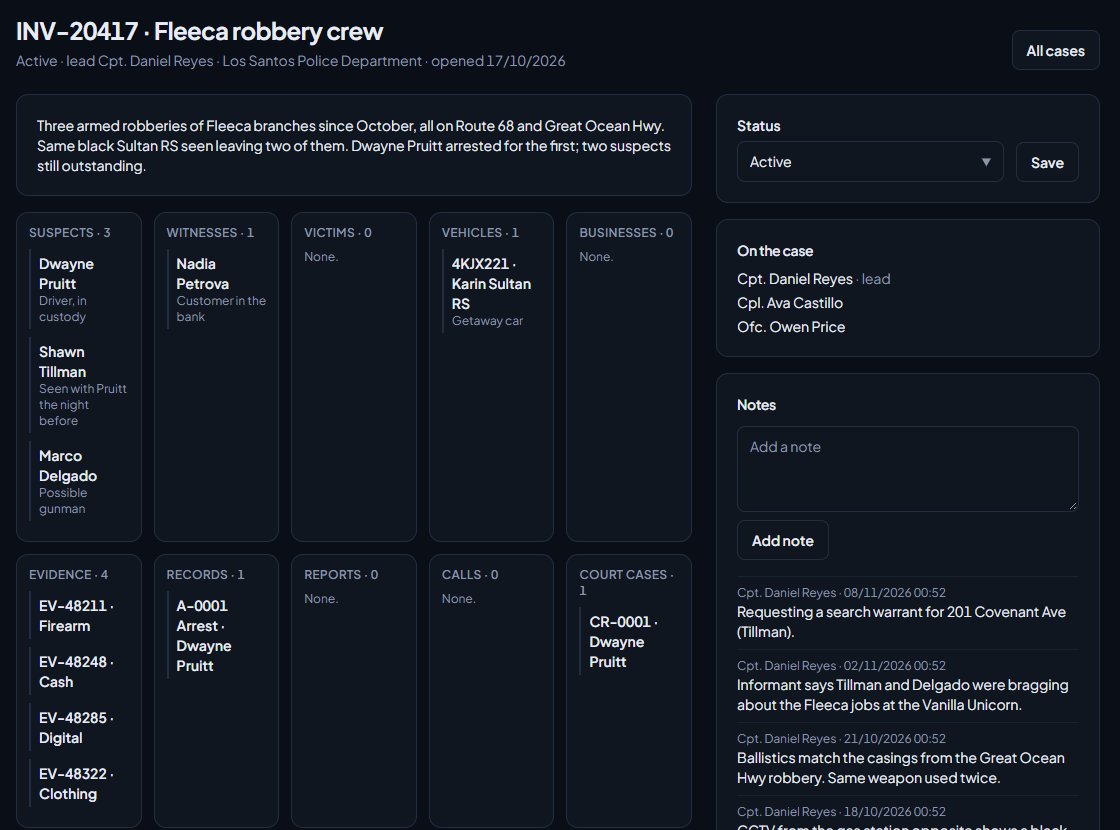
Investigations give your detectives a case board in the CAD. Open a case, then pin everything that matters to it: suspects, witnesses and victims, vehicles, businesses, evidence, records, reports, calls and court cases. Draw lines between the cards to show how they're connected, and keep notes and a timeline as the case builds.
When an officer runs a person, plate or business that's on a case, they can see the case exists and who's leading it, so they know who to call.
Before you start#
- Investigations needs to be turned on under Modules on the CAD settings page. It's on to start with.
- Detectives need a role with Work investigations: open cases and see the ones you lead or are assigned to.
- Supervisors who should see and run every case, including confidential ones, need See and run every investigation, including confidential ones.
- Cases are worked in the CAD while on duty. They can also be read in the control panel.
Who can do what#
| Person | Can |
|---|---|
| Anyone on the case | Add and remove cards, connect them, add notes and timeline events. |
| The lead | Everything above, plus change the status, edit the details and assign or remove people. |
| Members with the see-and-run-every-case permission | Open and run every case, confidential or not. |
Open a case#
- In the CAD, open Investigations. In Modern it's a tab above the board, in Classic it's a button in your unit bar, and in Realistic it's in the Tools menu.
- Click New case.
- Give it a Title, for example "Vinewood burglaries".
- Write a Summary if you want.
- Tick Confidential if the case should be hidden from lookups and lists for anyone not on it.
- Click Open case.
You're the lead. The case gets a case number, and its timeline starts with who opened it.
Build the board#
- Open the case.
- Pick what you're adding from the list: Suspects, Witnesses, Victims, Vehicles, Businesses, Evidence, Records, Reports, Calls or Court cases.
- Search by name, plate, business or a number, and add a Note if you want.
- Click Find, then Add next to the right result.
The card goes into its column on the board. Each thing can only be on a case's board once. Evidence that isn't linked to another case yet gets linked to this one too, so it shows the case on its record. To take a card off, click its remove button and confirm.
Reports still in draft can't be added.
Connect cards#
- Under Connect two cards, pick one card in From… and another in To….
- Describe the link, for example "owns" or "seen with".
- Click Connect.
The line appears on the board. Two cards can only be connected once.
Notes and timeline#
- Notes: type in Add a note and click Add. Notes are for anything the team should know.
- Timeline: set When, write What happened, and click Add. Use it to build the story of the case in order.
The timeline also records changes automatically: cards added and removed, people assigned, the status changing and the case being marked confidential.
Assign detectives#
If you're the lead:
- Pick someone from Assign someone…. Only members who can work investigations are listed.
- Click Assign.
They can now open the case and work the board. To take someone off, click the remove button next to their name and confirm.
Change the status#
The lead can set the status from the list at the top of the case: Open, Active, Cold or Closed. Click Edit details to change the title, summary or confidential setting.
What other officers see#
When police or dispatch run a person, vehicle or business that's on a case, the result shows the case number, title, status and lead. Fire and EMS only see cases they're on. Confidential cases don't show at all to anyone who isn't on the case.
Investigations in the control panel#
Members with either investigations permission see Investigations under CAD in the left sidebar. It lists the cases you lead or are assigned to, or every case if you can see them all. Search by case number, title or lead, and filter by status.
Open a case to see the board, the connections, the timeline and who's on it. The lead can change the status there, and anyone on the case can add notes. Building the board is done in the CAD.
Something not working?#
I can't see Investigations in the CAD. You need to be on duty and have one of the investigations permissions. Also check Investigations is on in CAD settings.
I can't see a case someone told me about. You can only open cases you lead or are assigned to. Ask the lead to assign you.
I can't change the status or assign people. Only the lead, or someone who can run every case, can do that.
It says "That is already on the board." That person, vehicle or item is already pinned to the case.
It says "Pick someone who works investigations." The person needs one of the investigations permissions before they can be assigned.
It says "Give the case a title." Every case needs a title.
It says "Set when it happened." Timeline events need a date and time.
See also
Log evidence and keep the chain of custody
Log evidence against a record, report or call, add photos from the web or the game, and run the evidence room: transfers, check outs, releases and destruction, all in the chain of custody.
Run name, plate and serial lookups
Search people, plates, firearm serials and businesses while on duty, read what comes back, and know which units can search what.
Write a report and send it for review
Start a report from one of your community's templates or straight from a call, fill it in, save it as a draft, submit it and fix it if it comes back.
Can't find what you need?
Open a ticket in our Discord and someone from the team will help. Found a bug, or missing a feature? Tell us on the feedback board.