Post CAD announcements to the duty screens
Put a notice on the duty screens for everyone or chosen departments, make people acknowledge it, schedule it, and see who has read it.
Announcements are notices that sit on the duty screens while they run, like a road closure, a change to the AOP or a reminder about a new SOP. You can aim one at certain departments, keep it up until a set time, and ask everyone to acknowledge it so you know it's been read.
You can post them from the control panel or from the CAD while you're on duty. The panel has a few more options, like a start time and a list of who has acknowledged.
Before you start#
- Your community needs the Announcements module switched on in the CAD settings. It's on unless someone has turned it off.
- In the control panel, you need a role with Post and remove CAD announcements or Set up the CAD: call types, statuses, penal code, designs and AOP.
- In the CAD, you need to be on duty with Post and remove CAD announcements or Supervise on duty: sign units off, set a Signal 100 and read private messages.
Post an announcement from the control panel#
-
Open your control panel and click Announcements under CAD in the sidebar.
-
Click New announcement.
-
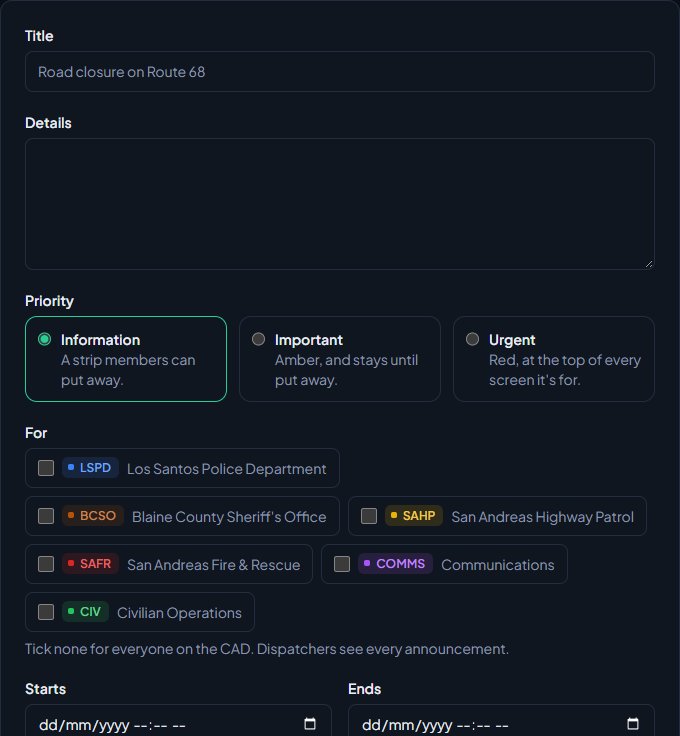
Give it a Title, for example "Road closure on Route 68". Add more in Details if you need to.
-
Pick a Priority:
Priority How it shows Information A plain strip, shown after the others. Important Amber, shown before information. Urgent Red, shown first on every screen it's for. -
Under For, tick the departments it's for. Leave them all unticked for everyone on the CAD. Dispatchers see every announcement, whoever it's for.
-
Set Starts to schedule it, or leave it blank to start now. Set Ends to take it down automatically, or leave it blank to run until you end it.
-
Tick Needs acknowledging if everyone it's for has to confirm they've read it.
-
Click Post announcement.
Post one from the CAD#
- Open the notices:
- Modern: click Notices in the tabs above the right-hand column.
- Classic: click Notices in the top bar.
- Realistic: click Notices on the toolbar.
- Click New notice.
- Fill in the title, details, priority and departments, and an end time if you want one.
- Tick Everyone it's for has to acknowledge it if you need that.
- Click Post notice.
Notices from the CAD start straight away. To schedule one for later, use the control panel.
What people on duty see#
Live announcements show as strips under the top bar, most urgent first. Up to three show at once, with a link to the rest.
- Announcements that don't need acknowledging have a Dismiss button (an × in Classic). That puts it away on that person's screen, and it stays put away when they reload the page.
- Announcements that need acknowledging have an Acknowledge button instead, and stay until it's clicked.
Everyone can see all live notices for them, acknowledged or not, under Notices.
See who has acknowledged#
- Open Announcements in the control panel.
- The Acknowledged column shows a count like "4 of 12" for announcements that need acknowledging.
- Click the announcement's title to see each person who acknowledged it and when.
The "of" number counts everyone in the departments it's for, or everyone in any department when it's for everyone.
End or delete an announcement#
- End now in the control panel, or End under Notices in the CAD, takes it off the screens straight away. It stays in the list with its acknowledgements.
- Delete in the control panel removes it and its acknowledgements for good.
You can also click an announcement's title in the control panel to edit it and click Save.
Something not working?#
I can't see Announcements in the control panel. Your role needs one of the permissions above. If nobody can open it, the Announcements module is switched off in the CAD settings.
I don't see New notice in the CAD. You need to be on duty with one of the CAD permissions above, and not on a read-only ride-along.
It says "Give it a title." Every announcement needs a title.
It says "It has to end after it starts." or "The end time has already passed." Check the Ends time is after Starts, and in the future.
A member says they can't see my announcement. Check For. If you ticked departments, only members of those departments (and dispatchers) see it. Also check it has started and hasn't ended.
See also
Send private messages and broadcasts in the CAD
Message another unit or a dispatcher privately, send a broadcast to every screen on duty or one department as dispatch, and know who can read what.
Supervise units on duty and sign them off
The tools supervisors get on duty: signing another unit off with a reason, checking on units whose status timer has run out, and reading every private message.
Turn CAD features on and off
Switch off the parts of the CAD your community doesn't use, from the DMV and courts to ride-alongs and Signal 100, and set the options that go with them, like quiet call closing, warrant approval and alert tones.
Can't find what you need?
Open a ticket in our Discord and someone from the team will help. Found a bug, or missing a feature? Tell us on the feedback board.