Run a live training session with a join code
Schedule a session, start it to get a six-digit code, teach section by section from the console while trainees follow on their own screens, and end it to work out the results.
A training session is a test on a date. You schedule it, people say whether they're coming, and when it's time you start it live. Trainees join on your community site with a six-digit code, and their screens follow along as you move through the test's sections and open its questions.
This article covers scheduling a session, running it from the console and ending it.
Before you start#
- You need Sign off training, run training sessions and decide results, or Create training programmes, their checklists and tests, in the test's department.
- The test has to be Ready to run. See Write a test.
Schedule a session#
- In the left sidebar, under Training, click Sessions.
- Click Schedule a session. You can also click Schedule a session on a test that's ready to run.
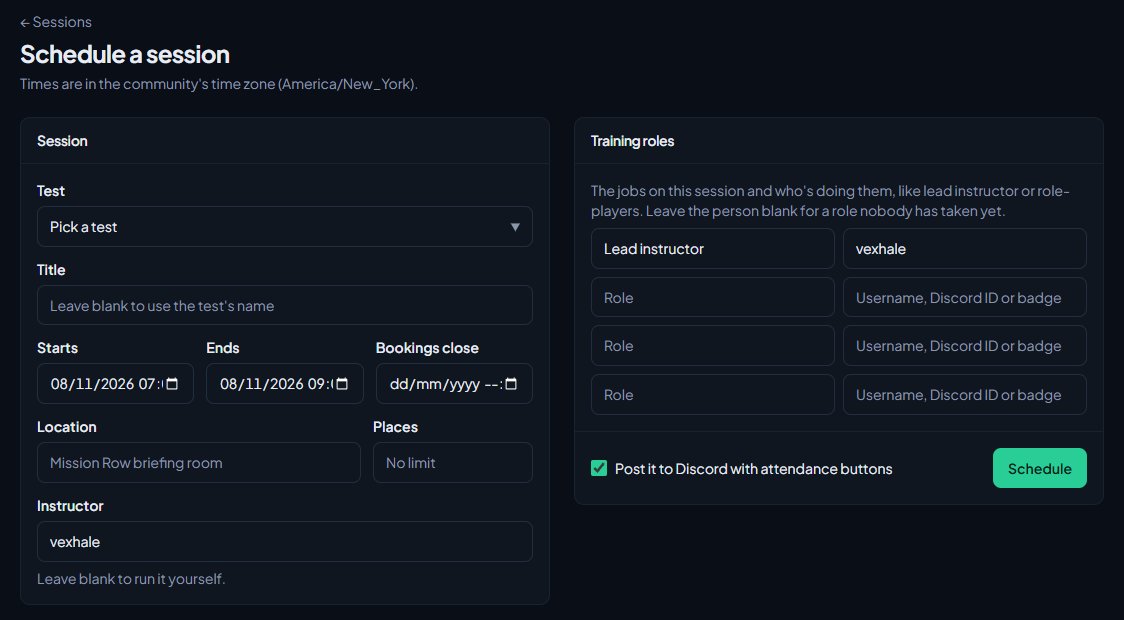
- Fill in the form. Times are in your community's time zone, which is shown at the top.
| Field | What it's for |
|---|---|
| Test | The test to run. Only tests that are ready to run are listed. |
| Title | Optional. Leave it blank to use the test's name. |
| Starts and Ends | When it runs. It starts filled in for 7pm tomorrow, for two hours. |
| Bookings close | Optional. After this, nobody can say they're attending or unavailable. |
| Location | Where to meet, like "Mission Row briefing room". |
| Places | Optional. Once this many people are attending, the session is full. |
| Instructor | Who's running it. Leave it blank to run it yourself. |
| Training roles | Up to 8 jobs on the session and who's doing them, like Lead instructor or Role-player. Leave the person blank for a role nobody has taken yet. |
-
Leave Post it to Discord with attendance buttons ticked to post it straight away. See Take attendance from Discord.
-
Click Schedule.
While it's still scheduled, you can click Edit on the session to change it, and the Discord post updates. To call it off, click Cancel session. The Discord post then says it was cancelled.
To run the same session again, open it and click Copy. The form is filled in with the same test, title, location, places, instructor and training roles, a week later. If that date has already passed, it moves on a week at a time until it's in the future. Check the details and click Schedule.
Start the session#
-
Open the session from the Sessions page.
-
Click Start session and confirm.
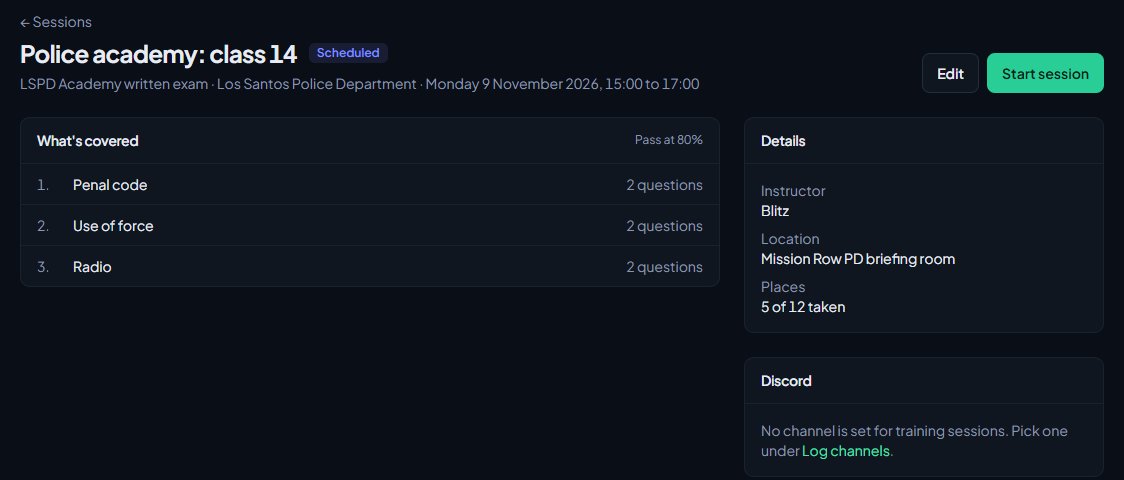
The session goes live and gets a six-digit code. The console opens on your community site. The session's page in the control panel also shows the code, with Open the console to get back to it.
Give trainees the code and tell them to go to your community site with /training/live on the end, for example yourcommunity.lonexone.com/training/live. They enter the code and click Join.
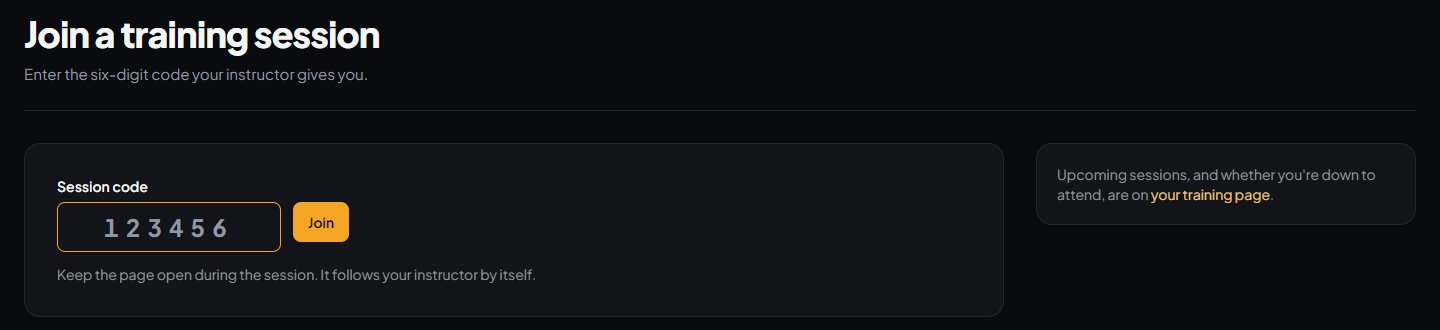
For a community-wide session, anyone signed in on your site who has the code can join, so share it only with the people taking part. A department's session only lets in members of that department, plus anyone who can run its sessions. Others see This session is only for members of and the department's name.
Other instructors who can run sessions for the department can open the console too. They're listed under Instructors and aren't marked as trainees.
Run it from the console#
The console has the test's sections down the left, what trainees see in the middle, and the trainees on the right.
- Everyone starts in the Waiting room. The right-hand list shows who has joined, with a green dot for anyone who's on the page right now.
- When everyone's in, click Start the first section. Every trainee's screen moves to it.
- Teach the section. Your instructor notes show above the material, marked so you know trainees can't see them.
- If the section has multiple choice or yes or no questions, click Open the questions. Trainees can now answer on their screens. You see how many have answered and how many got each answer right.
- Click Close the questions when you're done. Moving to another section closes them too.
- Click Next section to move on, or click any section on the left to jump to it. Previous goes back one.
Trainees can only answer questions while they're open, and only once each. They never see the right answers.
Practical questions#
Practical questions show every trainee with a box for marks and notes. Type the marks, add a note if you like, and click Mark. You can mark practical questions now, or after the session on the results page.
End the session#
When you're done, click End session in the console (or on the session's page in the control panel) and confirm.
- The code stops working.
- Every trainee's marks are added up against the test's pass mark.
- You're taken to the session's results, where you mark any practical questions and decide each result. See Decide results and sign trainees off.
- The Discord post says the session has finished.
Trainees are the people who joined with the code. Someone who said they were attending but never joined isn't in the results.
Something not working?#
Starting says "... isn't ready to run. Set it to ready on the test first." The test was changed back to a draft or archived after you scheduled it. Open the test and mark it ready to run.
Starting says "... has no sections yet." Add at least one section to the test before you start a session of it.
There's no Schedule a session button. You'll see There are no tests ready to run. Build a test and mark it ready to run first.
A trainee gets "No session is running with that code." Check they typed all six digits, and that the session is still live. The code stops working when the session ends.
A trainee gets "Enter the code your instructor gave you to join." They opened the session's live link without joining first. They need to go to /training/live and enter the code.
A trainee gets "That question isn't open." or "You've already answered that one." The questions were closed, or you moved to another section. Each question can only be answered once.
I closed the console by mistake. Go to /training/live on your site. Under Sessions you're running, click Console. Or click Open the console on the session in the control panel.
Scheduling says "The end has to be after the start." or "Bookings have to close before it starts." Check the times. Bookings can't close after the session starts.
Scheduling says "Nobody in this community is called ..." A person in Training roles couldn't be found. Use their username, Discord ID or badge number.
See also
Write a test for your training sessions
Build a test in sections, with material trainees read, notes only instructors see, and multiple choice, yes or no and practical questions. Then mark it ready to run.
Take attendance for training sessions from Discord
Post a session to Discord with Attending and Unavailable buttons, see who's coming, set places and a booking deadline, and remind people before it starts.
Decide results and sign trainees off
After a session, mark practical questions, decide who passed, post the results to Discord, and sign off checklist steps by hand until the certification is awarded.
What trainees see on the community site
A guide for staff to the trainee's side of Training: their Training page, booking sessions, the live classroom, results, and the notifications and Discord messages they get.
Can't find what you need?
Open a ticket in our Discord and someone from the team will help. Found a bug, or missing a feature? Tell us on the feedback board.