Take attendance for training sessions from Discord
Post a session to Discord with Attending and Unavailable buttons, see who's coming, set places and a booking deadline, and remind people before it starts.
When you schedule a training session, LonexOne can post it to your Discord with Attending and Unavailable buttons. Members click one, the post updates with their name, and you know who's coming before you start. They can answer on your community site too.
This article covers posting a session, how members answer, who can book, and the reminder before a session starts.
Before you start#
- Set a Sessions channel under Training Settings, for the community or the session's department. See Set up Training and its Discord channels.
- Members can book sessions needs to be on in Training Settings. It's on to begin with.
- Members need to have signed in to your site with Discord, so the buttons know who they are.
Post a session#
When you schedule a session, leave Post it to Discord with attendance buttons ticked and it's posted straight away.
If you didn't post it, or want to post it again:
- Open the session from Training then Sessions.
- In the Discord box on the right, click Post it now. If it's already posted, the button says Update the post.
The post shows the session's name, department and test description, when it starts and ends, when bookings close, the location, vehicle, instructor and training roles, and two lists: who's Attending and who's Unavailable. It also has a View on the site button.
People in the lists are shown as Discord mentions, but nobody is pinged.
The post is kept up to date by itself. It changes when someone answers, when you edit the session, when you start it (Running now), when it finishes and if it's cancelled.
How members answer#
On Discord, members click Attending or Unavailable on the post. If anything stops them, only they see the message. Clicking the same button again takes them off the list.
On your community site, members can answer:
- on the session's page, which the View on the site button opens, or
- in Training sessions on their Training page in the member area.
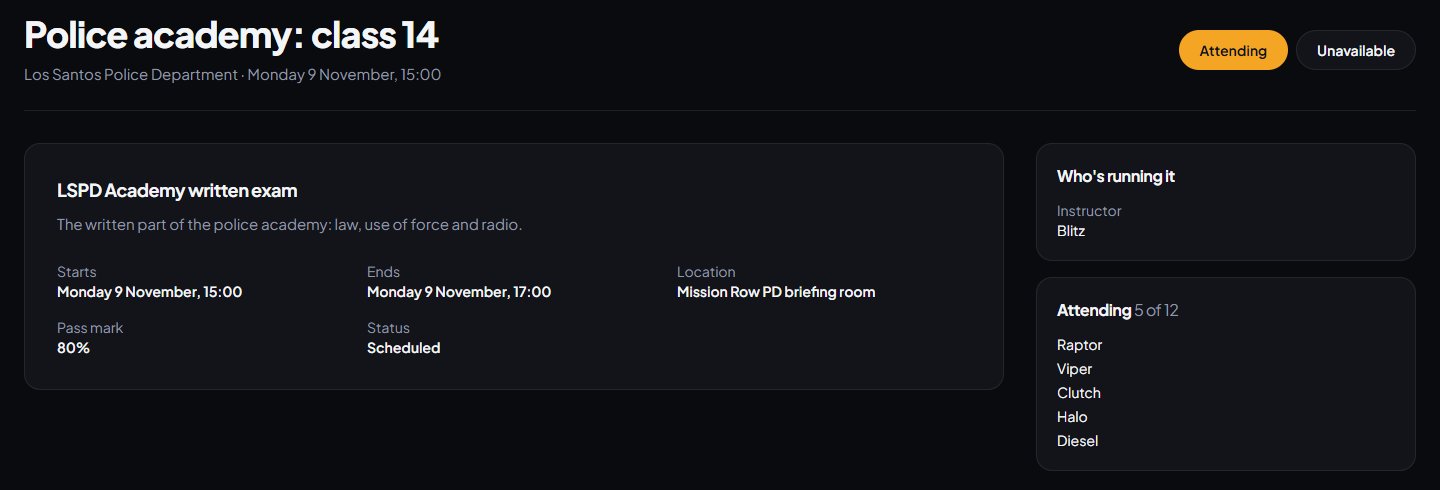
Their answer is the same in both places, so they can change it on either.
Who can book#
| Rule | What happens |
|---|---|
| Community members only | Someone who isn't a member of your community is told to join first. |
| Department sessions | Only members of the department can book, with the status Active, In training or Leave of absence. Instructors who can run sessions for that department can book too. |
| Places | Once that many people are attending, the session is full. People can still say they're unavailable. |
| Bookings close | After this time the buttons are greyed out and the post says Bookings are closed. |
Bookings also close once a session starts.
See who's coming#
- The Sessions page shows the number attending, and the places if you set them, for example "6 of 10".
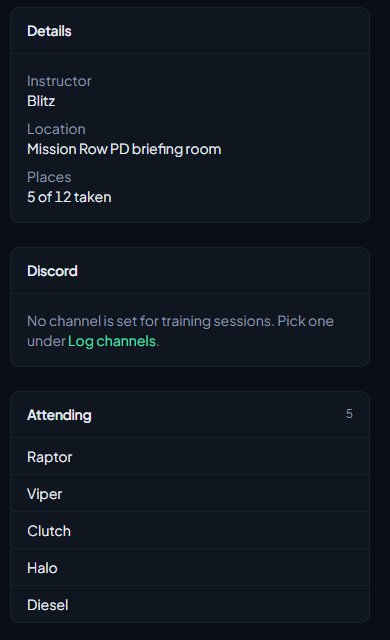
- On the session's page, Attending and Unavailable list everyone who answered, in the order they answered.
- The Places line in Details shows how many places are taken.
Remind people before it starts#
If Remind people before a session is on in Training Settings, everyone down as attending gets a reminder the set number of minutes before the session starts. It starts at 60 minutes.
The reminder is a notification on your site and a Discord direct message, with the session's date, time and location, and the link to join with a code. Each person is reminded once per session. People who book after the reminder time has passed are reminded within a few minutes.
Running sessions without bookings#
If you'd rather not take bookings, turn off Members can book sessions in Training Settings. Session posts then have only the View on the site button, members can't answer on the site, and instructors run sessions with whoever turns up.
Saying you're attending doesn't put you in a session's results. Only people who join the live session with its code are trainees. See Run a live training session with a join code.
Something not working?#
A member gets "Sign in to ... with Discord first". The button can't tell who they are, because their Discord account isn't linked to LonexOne. They need to sign in to your site with Discord once, then click the button again.
A member gets "This session is only for members of ...". It's a department session and they're not in that department, or their status is suspended or inactive.
A member gets "This session is full." Every place is taken. Raise Places by editing the session, or leave it as it is.
A member gets "Bookings for this session have closed." The Bookings close time has passed. Edit the session to move it if you want to take more bookings.
A member gets "Sessions aren't taking bookings. Ask an instructor." Members can book sessions is off in Training Settings.
A member gets "This server isn't connected to a LonexOne community with Training." The post is in a Discord server that isn't linked to a community with Training installed. Check your Discord servers in the control panel, and that Training is installed.
The session page says "No channel is set for training sessions." Pick a Sessions channel under Training Settings, then click Post it now.
See also
Set up Training and its Discord channels
Install Training, give your instructors the right permissions, choose how sessions are booked and results are shared, and pick the Discord channels Training posts to.
Run a live training session with a join code
Schedule a session, start it to get a six-digit code, teach section by section from the console while trainees follow on their own screens, and end it to work out the results.
What trainees see on the community site
A guide for staff to the trainee's side of Training: their Training page, booking sessions, the live classroom, results, and the notifications and Discord messages they get.
Connect your Discord server
Add the LonexOne bot to your main Discord server, put its role in the right place, and fix the messages you might see while connecting.
Can't find what you need?
Open a ticket in our Discord and someone from the team will help. Found a bug, or missing a feature? Tell us on the feedback board.