Set up Training and its Discord channels
Install Training, give your instructors the right permissions, choose how sessions are booked and results are shared, and pick the Discord channels Training posts to.
Training gives your departments a proper way to bring people up to standard. You set out what someone has to learn to earn a certification, build tests, schedule sessions that people book in Discord, run them live with a join code and hand out certifications that can expire and renew.
This article covers what to set up before your first session: the permissions your instructors need, the Training settings page, and the Discord channels sessions and results are posted to.
Before you start#
- Install the Training module. See Add or remove modules for your community.
- Create your certifications. Every training programme belongs to a certification, like Pursuit driving or Field training. Certifications are made under Certifications in the sidebar, and need the Edit departments, ranks, divisions and certifications permission.
- Connect your Discord server if you want sessions posted to Discord and trainees sent direct messages. See Connect your Discord server.
- To change the settings on this page you need the Change Training settings and the Discord channels it posts to permission. Owners and administrators already have it.
How the parts fit together#
Once Training is installed, it appears under Modules in the left sidebar. The Overview, Programmes, Tests and Sessions pages each start with a short How training works box, which stays open until your community has finished its first session.
| Part | What it is |
|---|---|
| Programmes | A checklist for earning a certification. Each step is signed off by an instructor, ticked by the trainee, or passed in a test. |
| Tests | What a session teaches: sections of material, notes for the instructor, and questions with marks. |
| Sessions | A test on a date. It's posted to Discord for people to say they're coming, then run live with a join code. |
| Results | After a session, instructors decide who passed. A pass signs off the programme step tied to the test. |
Give your instructors permissions#
Training has three permissions. Add them to a role under Roles & permissions.
| Permission | What it lets someone do | Can be limited to a department |
|---|---|---|
| Create training programmes, their checklists and tests | Edit programmes, build tests, and everything an instructor can do. | Yes |
| Sign off training, run training sessions and decide results | Enrol people, sign off steps, schedule and run sessions, mark and decide results. | Yes |
| Change Training settings and the Discord channels it posts to | Use the Training Settings page. | No |
A permission limited to one department only works for that department's certifications, tests and sessions. Community-wide certifications and tests need the permission across the whole community. See Limit a permission to one department.
Choose your Training settings#
- Open your control panel.
- In the left sidebar, under Training, click Settings.
- Change the settings you need (they're listed below).
- Click Save settings.
You'll see Training settings saved. at the top of the page.
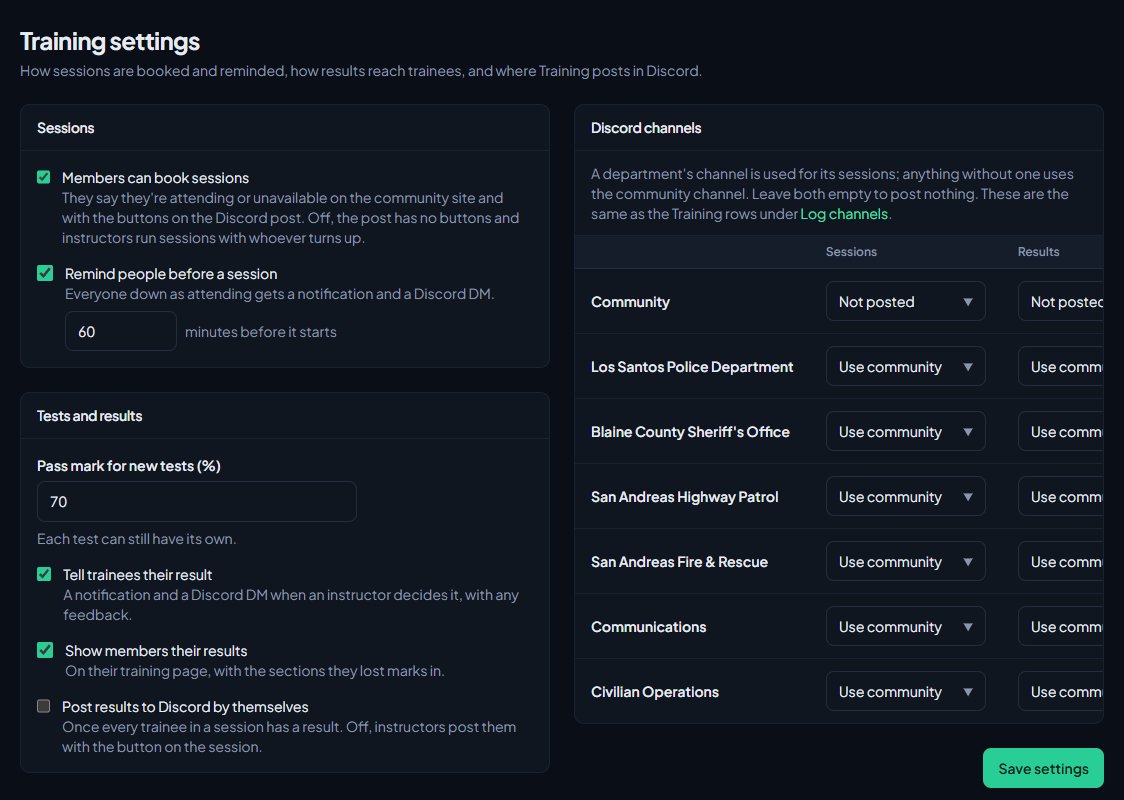
| Setting | What it does | Starts as |
|---|---|---|
| Members can book sessions | Members say they're attending or unavailable on the community site and with buttons on the Discord post. Turned off, the post has no buttons and instructors run sessions with whoever turns up. | On |
| Remind people before a session | Everyone down as attending gets a notification and a Discord direct message this many minutes before it starts. You can pick from 5 to 1,440 minutes (24 hours). | On, 60 minutes |
| Pass mark for new tests (%) | The pass mark a new test starts with. Each test can still have its own. | 70% |
| Tell trainees their result | Trainees get a notification and a Discord direct message when an instructor decides their result, with any feedback. | On |
| Show members their results | Results show on the member's Training page, with the sections they lost marks in. | On |
| Post results to Discord by themselves | Results are posted once every trainee in a session has a result. Turned off, instructors post them with a button on the session. | Off |
Pick the Discord channels#
The Discord channels box on the same page has a row for Community and one for each department, with a Sessions, a Results and a Requests to join column.
- Sessions is where new sessions are posted, with their attendance buttons.
- Results is where the results of a finished session are posted.
- Requests to join is where instructors hear about members asking to join a training programme, so they can approve or decline it under Trainees.
A department's channel is used for that department's sessions, results and requests. Anything without its own channel uses the community channel. Leave both empty and nothing is posted.
- In the Community row, pick a channel for each column. Leave a box on Not posted if you don't want that kind of post.
- If a department should post somewhere else, pick its channels in its row. Leave them on Use community to share the community channels.
- Click Save settings.
These are the same channels as the Training sessions, Training results and Requests to join training rows under Log channels, so you can change them from either page. See Post logs to Discord channels.
If Discord's channel list can't be loaded, you'll see text boxes instead of drop-downs. Type the channel ID: in Discord, turn on Developer Mode, right-click the channel and choose Copy Channel ID.
A session's post stays in the channel it was first posted to. If you change the channel later, sessions that are already posted keep updating where they are, and new sessions go to the new channel.
Something not working?#
I can't see Settings under Training. Your role doesn't have Change Training settings and the Discord channels it posts to. Ask your community owner to add it.
It says "Channel IDs are long numbers, like 1234567890123456789." Something other than a channel ID was typed into one of the boxes. Copy the ID from Discord again, with Developer Mode on.
A session says "No channel is set for training sessions." There's no Sessions channel for the community or for the session's department. Pick one on this page, then open the session and click Post it now.
Posting results says "No channel is set for training results." Pick a Results channel on this page or under Log channels, then post the results again.
The session says "Couldn't post to Discord". The LonexOne bot couldn't post in that channel, and the message says why. Check the bot can see the channel and send messages in it, then click Post it now on the session.
Trainees aren't getting reminders or direct messages. Direct messages only reach people who signed in with Discord and allow messages from the server. Members can also turn off training notifications for themselves. See Choose what members are notified about.
See also
Create a training programme with a checklist
Turn a certification into a checklist of steps, decide who signs each step off, enrol trainees or let them ask to join, and assign their instructor.
Write a test for your training sessions
Build a test in sections, with material trainees read, notes only instructors see, and multiple choice, yes or no and practical questions. Then mark it ready to run.
Run a live training session with a join code
Schedule a session, start it to get a six-digit code, teach section by section from the console while trainees follow on their own screens, and end it to work out the results.
Take attendance for training sessions from Discord
Post a session to Discord with Attending and Unavailable buttons, see who's coming, set places and a booking deadline, and remind people before it starts.
Connect your Discord server
Add the LonexOne bot to your main Discord server, put its role in the right place, and fix the messages you might see while connecting.
Can't find what you need?
Open a ticket in our Discord and someone from the team will help. Found a bug, or missing a feature? Tell us on the feedback board.