Create a training programme with a checklist
Turn a certification into a checklist of steps, decide who signs each step off, enrol trainees or let them ask to join, and assign their instructor.
A training programme is the checklist someone works through to earn a certification. Each certification has one programme. When every step on the checklist is signed off, the certification is awarded to the trainee automatically.
This article covers building the checklist, enrolling people, letting members ask to join, and assigning instructors.
Before you start#
- The certification has to exist. Certifications are made under Certifications in the sidebar. See Create certifications.
- To build or change a programme you need Create training programmes, their checklists and tests, in the certification's department (or across the community for a community-wide certification).
- To enrol people, approve requests and sign off steps, Sign off training, run training sessions and decide results is enough.
Build the checklist#
-
In the left sidebar, under Training, click Programmes.
-
Find the certification and click Set up. If it already has steps, the link says Edit.
-
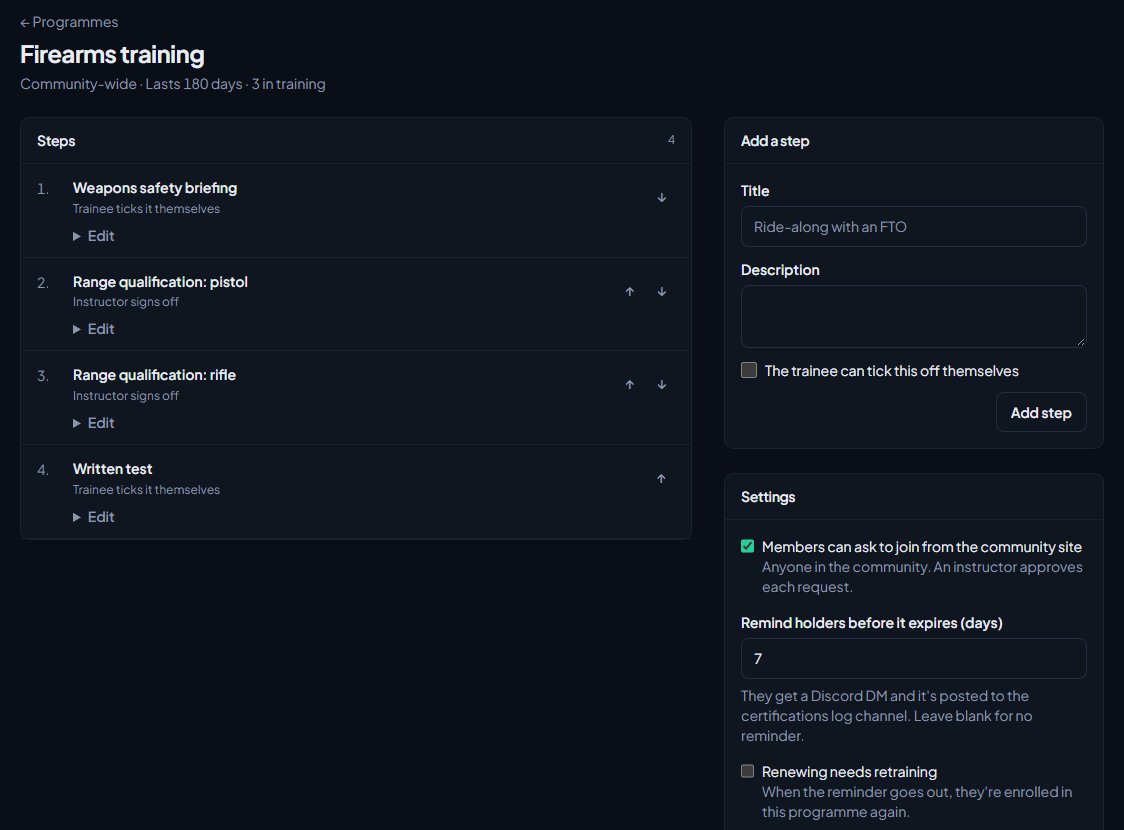
In Add a step, give the step a Title, like "Ride-along with an FTO". Add a Description if the trainee needs to know more.
-
Choose how the step is signed off (see the table below).
-
Click Add step.
-
Repeat for every step.
| How it's signed off | How to set it up |
|---|---|
| An instructor signs it off | Leave Signed off by passing a test on No, an instructor signs it off, and leave the tick box empty. |
| The trainee ticks it off themselves | Tick The trainee can tick this off themselves. Good for things like "Read the SOPs". |
| By passing a test | Pick the test under Signed off by passing a test. When the trainee's result in a session of that test is saved as passed, the step is signed off. |
The test list only appears once you have a test in the same department, or a community-wide one, that isn't archived. See Write a test. A step tied to a test is never ticked by the trainee, even if the box is ticked.
Change, reorder or remove steps#
- Use the arrows next to a step to move it up or down.
- Click Edit under a step to change it, then Save step.
- Click Remove step to delete it. Sign-offs for that step are removed too.
If you remove a step and a trainee has already passed every other step, their training completes and the certification is awarded straight away.
Programme settings#
The Settings box on the same page has:
- Members can ask to join from the community site. For a department certification, only members of that department can ask. For a community-wide one, anyone in the community can. An instructor approves each request.
- Two renewal settings, which only appear when the certification expires. See Certifications that expire and renew.
Click Save settings to keep your changes.
Enrol someone#
- In the left sidebar, under Training, click Trainees.
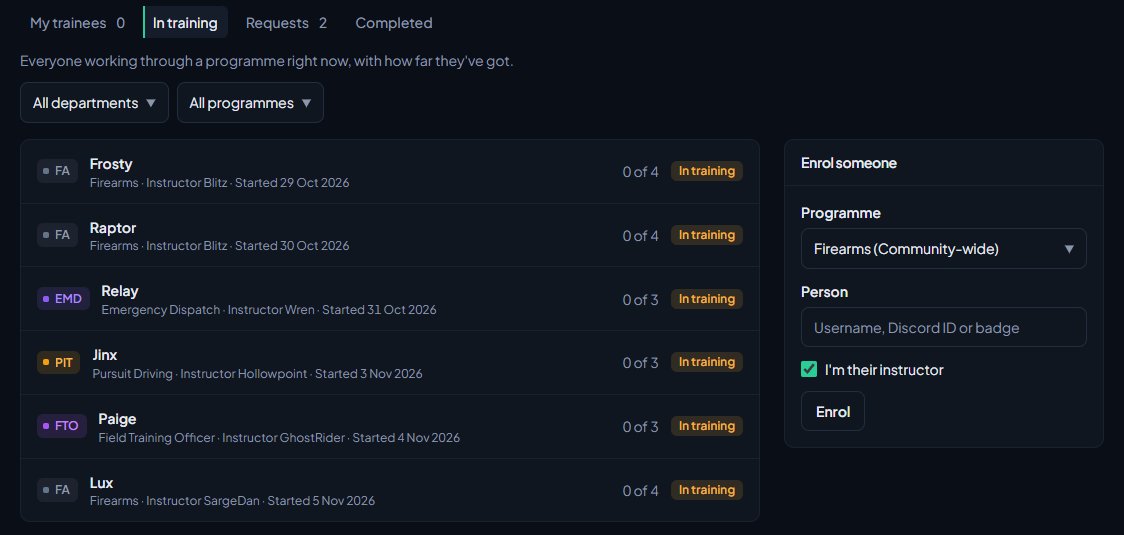
- In Enrol someone on the right, pick the Programme.
- Under Person, type their username, Discord ID or badge number.
- Leave I'm their instructor ticked if you're training them. Untick it to enrol them without an instructor.
- Click Enrol.
Their checklist opens, and the trainee gets a Discord direct message saying they've been enrolled and who their instructor is. Only programmes that have at least one step are listed.
Approve requests to join#
When a member asks to join from the community site, the request waits on the Requests tab of the Trainees page. The Asking to join number on the Training Overview counts them too.
-
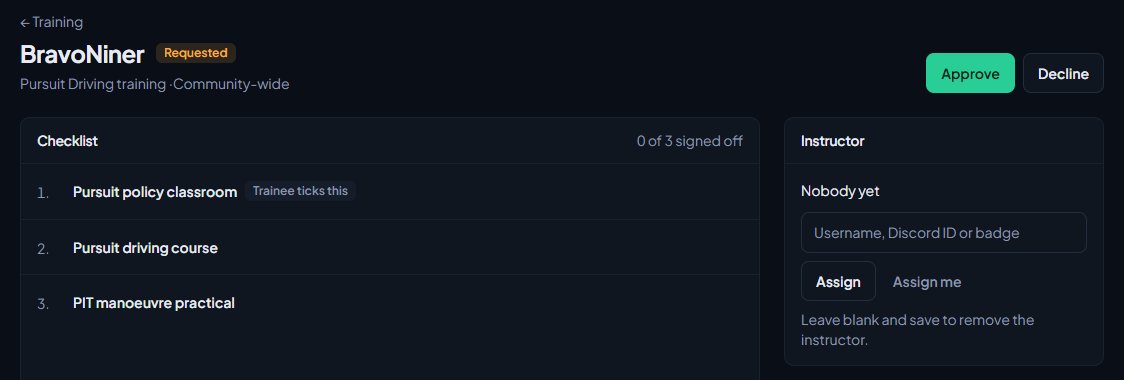
Open the request.
-
Click Approve to start their training. You become their instructor.
-
Or click Decline. They get a Discord direct message saying their request was declined.
The Trainees page#
| Tab | What it lists |
|---|---|
| My trainees | People in training with you as their instructor. |
| In training | Everyone working through a programme right now, with how far they've got. |
| Requests | Members who asked to join a programme from the community site. |
| Completed | People who finished a programme and were awarded its certification. |
Use the All departments and All programmes boxes to narrow the list.
Assign or change the instructor#
- Open the trainee from the Trainees page.
- Under Instructor, type the instructor's username, Discord ID or badge number and click Assign (or Change).
- To take the job yourself, click Assign me. To remove the instructor, clear the box and click Change.
The instructor needs permission to instruct that certification.
Cancel someone's training#
Open the trainee and click Cancel training at the bottom right, then confirm. Their training ends without the certification being awarded. Their past sign-offs stay on record.
Something not working?#
The Programmes page says "No certifications yet. Create one under Certifications first." Create the certification under Certifications in the sidebar, then come back to Programmes.
Enrol someone says "Add steps to a programme first." None of your programmes have any steps yet. Add at least one step.
It says "There's nobody in this community by that name, Discord ID or badge." Check the spelling. The person also has to be a member of your community, which happens the first time they sign in on your site.
It says "... is already enrolled in ... training." They already have an open enrolment or request for this programme. Find it on the In training or Requests tab.
It says "... already holds ...". They already hold the certification and it never expires, so there's nothing to train for.
It says "That person can't instruct ...". The person you picked doesn't have an instructor permission for that certification's department. Give their role Sign off training, run training sessions and decide results.
It says "Trainees can't instruct themselves." Pick someone else as the instructor.
It says "Pick a test from this department." The test belongs to another department, or it's been archived. Pick a test from the certification's department or a community-wide one.
See also
Set up Training and its Discord channels
Install Training, give your instructors the right permissions, choose how sessions are booked and results are shared, and pick the Discord channels Training posts to.
Write a test for your training sessions
Build a test in sections, with material trainees read, notes only instructors see, and multiple choice, yes or no and practical questions. Then mark it ready to run.
Decide results and sign trainees off
After a session, mark practical questions, decide who passed, post the results to Discord, and sign off checklist steps by hand until the certification is awarded.
Certifications that expire and renew
Give a certification an expiry, remind holders before it runs out, enrol them in retraining automatically, and let members ask to renew from the community site.
Create certifications
Set up the qualifications your members can hold, like pursuit driving or field training, for one department or the whole community, with an optional expiry, and see where they're used.
Can't find what you need?
Open a ticket in our Discord and someone from the team will help. Found a bug, or missing a feature? Tell us on the feedback board.