Write a test for your training sessions
Build a test in sections, with material trainees read, notes only instructors see, and multiple choice, yes or no and practical questions. Then mark it ready to run.
A test is what a training session teaches and marks. It's split into sections, like Introduction, Traffic stops and Radio. Each section has material trainees read along with on their own screens, notes that only the instructor sees, and optional questions that are marked as the session goes.
You build a test once, then run it in as many sessions as you like.
Before you start#
You need the Create training programmes, their checklists and tests permission. If it's limited to one department, you can build tests for that department only. Community-wide tests need the permission across the community.
Create the test#
- In the left sidebar, under Training, click Tests.
- In New test on the right, fill in the details:
| Field | What it's for |
|---|---|
| Name | What the test is called, up to 120 characters. |
| Department | Which department it belongs to. Community-wide is there if you can build community-wide tests. |
| Description | Shown on the Discord post for each session and to trainees. |
| Vehicle | Optional. Shown on the session, for practical training that needs a set vehicle. |
| Pass mark (%) | The percentage a trainee needs to pass. It starts at your community's default from Training settings. |
-
Click Create and build.
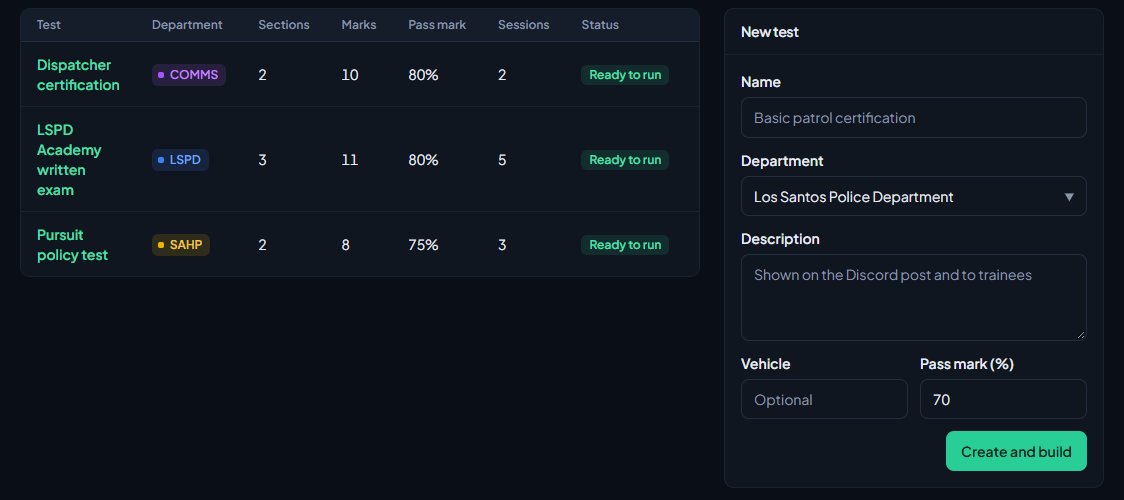
The test opens as a Draft, so it can't be scheduled until you've finished it.
Add sections#
-
Click Add section at the top right.
-
Give it a Section title and, if you like, a Subtitle.
-
Click Add section.
-
In the section, write the Material. Trainees see this on their screens while you teach the section.
-
Write your Instructor notes. These show only in your session console, never to trainees. Use them for what you read out or need to cover.
-
Click Save section.
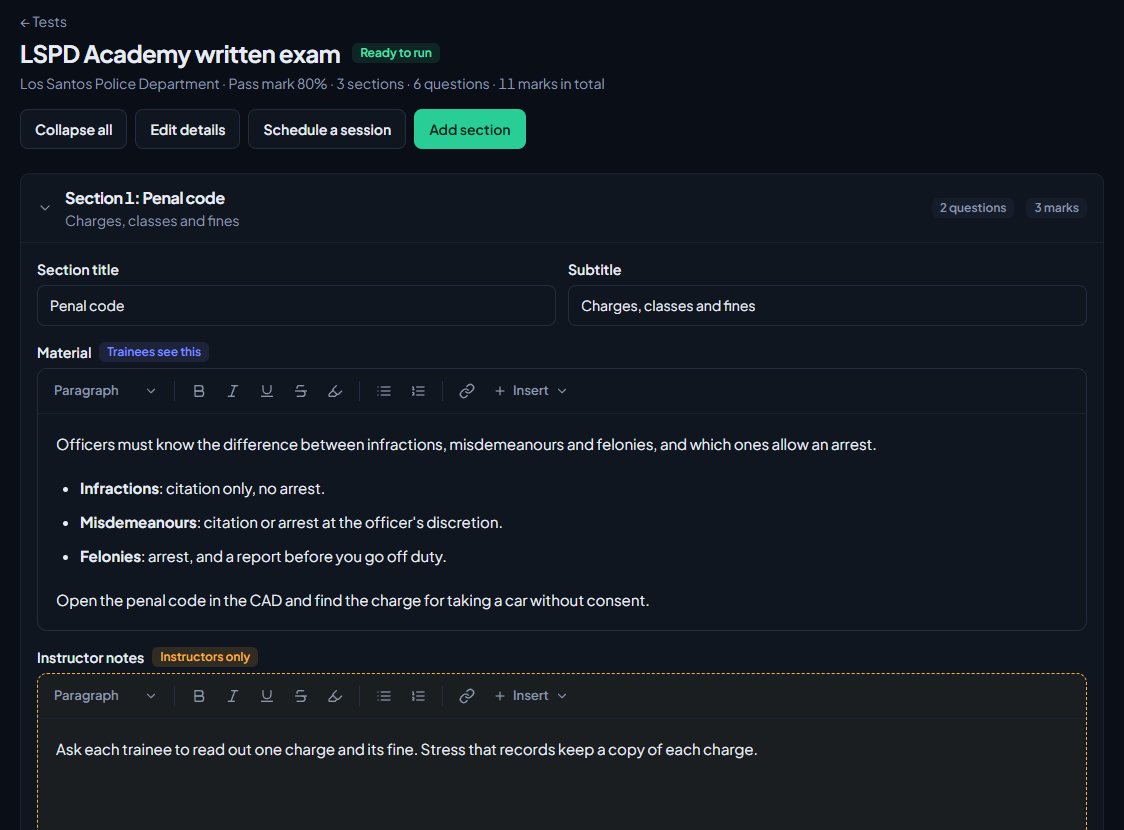
A section with no material shows No material yet. Use Move up, Move down and Delete section at the bottom of a section to rearrange it.
Deleting a section also deletes its questions, and any answers trainees gave to them in past sessions.
Add questions#
Questions are optional. A section can be teaching only.
-
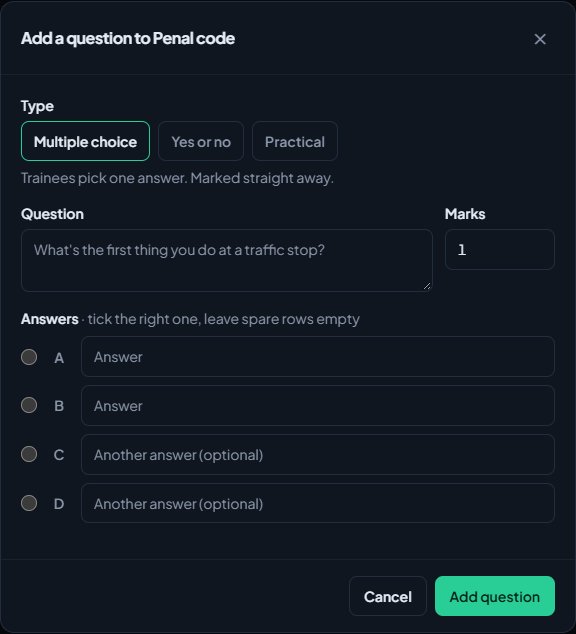
In a section, click Add question.
-
Pick the Type (see below).
-
Write the Question.
-
Set the Marks it's worth, from 1 to 100.
-
For multiple choice, type the Answers (up to 8) and tick the right one. Leave spare rows empty. For yes or no, pick the Right answer.
-
Click Add question.
| Type | How it works | How it's marked |
|---|---|---|
| Multiple choice | Trainees pick one answer. You need at least two answers. | Straight away. A right answer gets full marks, a wrong one gets none. |
| Yes or no | Trainees answer yes or no. | Straight away, the same way. |
| Practical | Something they do, like a radio call or a traffic stop. Trainees don't answer it on screen. | By the instructor, who gives marks during or after the session. |
Use Edit to change a question, the arrows to reorder it, and ✕ to delete it.
Mark it ready to run#
When you've finished, click Mark ready to run at the top. The button only appears once the test has at least one question. You'll see a message that the test is ready, and a Schedule a session button takes its place.
| Status | What it means |
|---|---|
| Draft | Still being built. It can't be scheduled. |
| Ready to run | Can be scheduled and started. |
| Archived | Hidden from scheduling and from programme steps. Its past sessions and results are kept. |
To change the status, the name or any other detail later, click Edit details, make your change and click Save details.
How the marks add up#
A trainee's score is every mark they got, out of the total marks in the test, as a percentage. If it's at or above the pass mark, the marks say they passed. The instructor still makes the final call on each trainee after the session. See Decide results and sign trainees off.
Copy a test#
To make a new test from one you already have, open it and click Copy at the top. The copy has all the same sections and questions, with "(copy)" after its name. It starts as a draft, so change what you need, then click Mark ready to run. The original isn't changed.
Delete or archive a test#
Click Edit details, then the button at the bottom left:
- Delete test appears if the test has never had a session. It's deleted for good.
- Archive test appears once it has sessions. The test is archived instead, so its results are kept.
To use an archived test again, open Edit details and change its Status back to Ready to run.
Something not working?#
It says "Add at least one question before it can be run." A test needs at least one question before it can be marked ready to run. Add one to any section.
It says "A session of this test is running. Remove it once the session has finished." You can't delete sections or questions while a session of this test is live, because trainees could be answering them. Wait until the session has ended.
It says "Pick the right answer." Tick the right answer for a multiple choice question, or pick yes or no.
It says "Give at least two answers to pick from." A multiple choice question needs two or more answers filled in.
New test says "You can't build tests in any department." Your permission doesn't cover any department. Ask your community owner to check your role.
I can't find my test when scheduling a session. Only tests that are Ready to run can be scheduled. Open the test and click Mark ready to run.
See also
Run a live training session with a join code
Schedule a session, start it to get a six-digit code, teach section by section from the console while trainees follow on their own screens, and end it to work out the results.
Decide results and sign trainees off
After a session, mark practical questions, decide who passed, post the results to Discord, and sign off checklist steps by hand until the certification is awarded.
Create a training programme with a checklist
Turn a certification into a checklist of steps, decide who signs each step off, enrol trainees or let them ask to join, and assign their instructor.
Set up Training and its Discord channels
Install Training, give your instructors the right permissions, choose how sessions are booked and results are shared, and pick the Discord channels Training posts to.
Can't find what you need?
Open a ticket in our Discord and someone from the team will help. Found a bug, or missing a feature? Tell us on the feedback board.