Choose which CAD designs members can use
The CAD comes in three designs, Modern, Realistic and Classic. Choose which ones your members can switch between, which one new members start on, and how members change design.
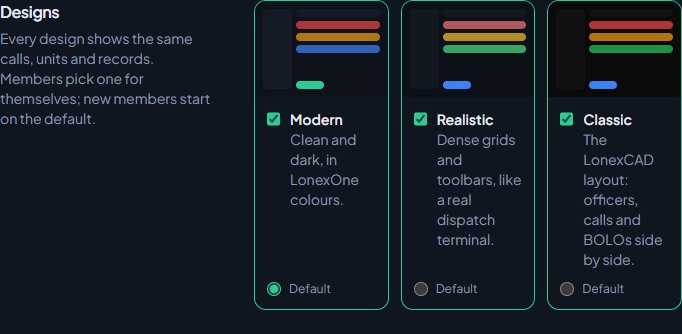
The CAD has three designs. They all show the same calls, units and records, so a dispatcher on Classic and an officer on Modern are working the same board. The only difference is the layout. You decide which designs your members are allowed to use and which one they start on, and each member then picks the one they like.
Before you start#
You need the Set up the CAD: call types, statuses, penal code, designs and AOP permission.
The three designs#
| Design | What it looks like |
|---|---|
| Modern | Clean and dark, in LonexOne colours. |
| Realistic | Dense grids and toolbars, like a real dispatch terminal. |
| Classic | The LonexCAD layout: officers, calls and BOLOs side by side. |
If your community moved over from LonexCAD, Classic will feel the most familiar.
Choose the designs#
-
Open your control panel and click CAD settings in the sidebar.
-
You're on the Settings page. Under Designs, tick each design members may use.
-
Under the design you want new members to start on, choose Default.
-
Click Save settings at the bottom of the page.
You'll see Saved the CAD settings. at the top of the page.
The default has to be one of the designs you've ticked. If you untick the design that's set as default, pick a new default before you save.
How members switch design#
When more than one design is allowed, members can change theirs at any time from inside the CAD. The choice is saved to their account in your community and only changes what they see.
- Modern: the design box in the bar along the top.
- Classic: the layout box in the top bar.
- Realistic: the View menu, under Layout.
If you only allow one design, the switch isn't shown and everyone uses that design.
What happens when you change the list#
- Members who have never picked a design use your default. If you change the default later, they move to the new one.
- Members who picked a design keep it, even if you change the default.
- If you stop allowing a design someone picked, they're moved off it the next time they open the CAD. They land on your default design. They can then switch to any design you still allow.
Other ways to change how the CAD looks#
- Area of patrol, on the same Settings page, is shown at the top of every CAD screen in every design. People who can change the AOP can click it there to change it. See Change the AOP and peacetime.
- The Branding page, under General, sets the accent colour on the CAD's way-in pages and whether your community logo shows in the top bar of every design.
Something not working?#
It says "Allow at least one design." Every design was unticked. Tick at least one, then save.
It says "The default design has to be one members may use." The design marked Default isn't ticked. Tick it, or choose Default under a design that is ticked.
A member says they can't find the design switch. You only allow one design, so there's nothing to switch between. Tick more designs on the Settings page if you want members to choose.
I changed the default but some members still see the old design. They picked a design themselves at some point, so their choice wins. They can switch from inside the CAD.
See also
Set up the CAD for your community
Install the CAD, set up the departments that sign on to it, give your staff access, and work through the CAD settings in the order that gets you running fastest.
Turn CAD features on and off
Switch off the parts of the CAD your community doesn't use, from the DMV and courts to ride-alongs and Signal 100, and set the options that go with them, like quiet call closing, warrant approval and alert tones.
Go on duty in the CAD
Sign on with your department and callsign, skip the panel screen with a default, go off duty, and fix the messages that stop you signing on.
Can't find what you need?
Open a ticket in our Discord and someone from the team will help. Found a bug, or missing a feature? Tell us on the feedback board.