Connect your Tebex store and set a goal
Show your Tebex packages on your own site, record payments with a webhook, run a monthly or dated goal bar, list recent supporters and post purchases to Discord.
If you sell packages through Tebex, you can show them on a Store page on your own community website instead of sending people off to a separate site. Tebex still takes the payment and delivers the package in game. LonexOne shows your categories and packages, starts the checkout, and records each payment Tebex tells it about.
Those payments drive a goal bar (for example "Server costs, $180 of $250"), an optional list of recent supporters, and a post in Discord for each purchase.
This is your community's own Tebex webstore. It has nothing to do with what you pay LonexOne.
Before you start#
- You need a Tebex webstore and access to its Tebex control panel.
- You need to be the owner or an administrator, or have a role with the Connect the Tebex store, set the goal and see payments permission.
- The Community Site module needs to be installed.
Connect Tebex#
-
Open your control panel and click Store in the left sidebar, under Community Site.
-
In Tebex, open Integrations, then API keys, and copy your public token.
-
Back in LonexOne, paste it into Public token. It looks like t1ab-0123456789abcdef.
-
Leave Private key (optional) blank. It isn't needed for the Store page.
-
Click Connect.
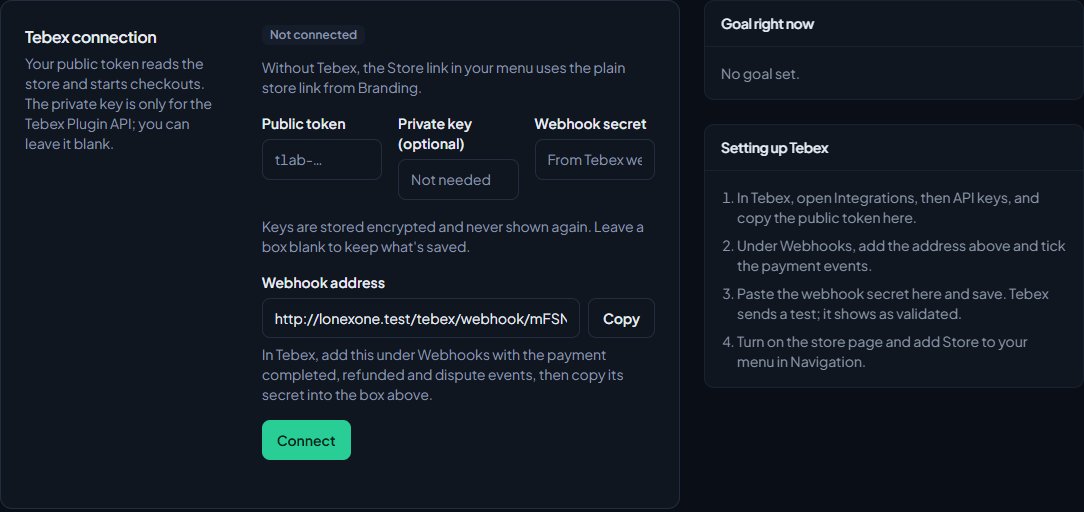
LonexOne checks the token with Tebex straight away. If it works you'll see "Connected to" with your webstore's name, and the status shows Connected with your store's currency.
Keys are stored encrypted and never shown again. To change one later, type the new value and click Save and check. Leaving a box blank keeps what's saved.
Set up the webhook#
The webhook is how Tebex tells LonexOne about payments, refunds and chargebacks. Without it the store page still works, but nothing is recorded, so the goal and supporters list stay empty.
- Copy the Webhook address from the Store page. Click Copy next to it.
- In Tebex, go to Webhooks and copy your webhook secret.
- Paste it into Webhook secret in LonexOne and click Save and check.
- In Tebex, add a webhook endpoint with the address you copied, and tick the payment completed, payment refunded and dispute events.
When Tebex sends its test after the secret is saved, the Store page shows "Tebex validated it" with how long ago.
You can add the endpoint in Tebex before the secret is saved here: its test still passes. Payments are only recorded once the secret is saved, so save it straight away. To see "Tebex validated it" on the Store page, send the validation again from Tebex after saving.
Turn on the Store page#
- Under Store page, tick Show the store page. You can only tick it once Tebex is connected.
- Optionally add an Intro, shown at the top of the page.
- Click Save at the bottom of the form.
The page is at your site's address with /store on the end. To add it to your header, open Navigation, click Add link, choose Built-in page and then Store, and click Save navigation.
Members click Buy on a package. Tebex may ask them to sign in with their FiveM account first so the package reaches the right player, then sends them to Tebex's checkout. When they come back they see "Thanks for your support. Your purchase is delivered in game, usually within a few minutes."
If you don't connect Tebex, the Store link in your menu uses the plain Store link from Branding & content instead, and goes straight to that address.
Set a goal#
- Under Goal, tick Show a goal.
- Give it a Name, like "Server costs". Without one it's called "Community goal".
- Set the Target. It's in your Tebex store's currency.
- Under Counts, choose Every month to start again on the 1st of each month, or Between two dates and set From and To.
- Optionally tick Also on the home page and Slim bar under the header on every page.
- Click Save.
Goal right now on the right shows the current total and percentage.
How the total is worked out:
- It adds up payments Tebex has reported through the webhook in the goal's period, using your community's time zone.
- Refunds and chargebacks come off. If a dispute is won, the payment counts again.
- Only payments in your store's currency count.
The goal only shows on your site while the Store page is on.
Show recent supporters#
- Under Recent supporters, tick Show recent supporters.
- Under Show buyers as, choose Their name, Initials only or Anonymous.
- Set How many to show, from 1 to 30.
- Click Save.
The list shows on the Store page. It's off unless you turn it on.
Post purchases to Discord#
- Under Discord, pick a Channel.
- Tick Include the amount if you want the price in the post.
- Click Save.
Each new purchase is posted as "New purchase", with the buyer named the same way as your supporters list and the packages they bought.
See payments#
Click the Payments tab to see every payment Tebex has reported: the date, buyer, packages, amount, status (Paid, Refunded or Chargeback) and transaction ID. You can filter by status or search by buyer name or transaction ID. By month totals the last twelve months, leaving out refunds and chargebacks.
Disconnect Tebex#
Click Disconnect and confirm. Your keys are removed and the Store page turns off. Payments already recorded stay, and the plain store link from Branding still works.
Something not working?#
"Tebex did not recognise that token." The public token is wrong. Copy it again from Integrations, then API keys, in Tebex.
"Public tokens are letters, numbers and dashes, like t1ab-0123456789abcdef." Something else got pasted in, like a space or the private key. Paste only the public token.
"Tebex could not be reached." Tebex didn't answer. Click Check connection in a minute.
"Connect Tebex before turning the store page on." Connect Tebex first, then tick Show the store page.
"Set a target for the goal." You ticked Show a goal without a Target.
"The goal has to end on or after the day it starts." For Between two dates, the To date is before the From date.
Members see "The store can't be reached right now". LonexOne couldn't load your packages from Tebex. It's usually brief. Check the connection status on the Store page.
The goal isn't going up. Check the webhook shows as validated, and that the payment was in your store's currency. Payments only count once Tebex has sent them through the webhook.
See also
Run a status page for your game servers
List your game servers with live player counts and a Connect button, pick your main server for the header, choose who sees each one, and switch on the public status page.
Change your site's menu
Choose the links in your community site's header, put them in order, give them icons, move some into the Links menu and turn one into a button.
Brand your site: logo, colours and home page
Set your community's name, logo, favicon and accent colour, choose how your home page looks to visitors, and add your Discord invite and social links.
Connect your Discord server
Add the LonexOne bot to your main Discord server, put its role in the right place, and fix the messages you might see while connecting.
Can't find what you need?
Open a ticket in our Discord and someone from the team will help. Found a bug, or missing a feature? Tell us on the feedback board.