Copy your CAD setup to another community
Export your CAD setup as one file, import it into another LonexOne community section by section, keep it as a backup, or put any section back to its starter set.
Getting a CAD set up just right takes time: statuses, call types, a full penal code, report templates, scripts and dozens of switches. If you run a second community, or you're starting a new server, you can copy all of that across in a few minutes instead of doing it again.
The Config page saves your setup as one file, then lets you load it into any LonexOne community. You choose, section by section, whether to merge it in, replace what's there, or skip it. The same page can also put a section back the way it started.
Characters, records, reports and calls are never part of the file. It's only the setup.
Before you start#
- You need the Set up the CAD: call types, statuses, penal code, designs and AOP permission in both communities.
- To switch between your communities in the control panel, see Switch between communities.
What's in the file#
| Section | What it holds |
|---|---|
| CAD settings and switches | The settings and switches on pages like Settings, Dispatch, Records, Court settings, Banking, Live map and Postals & streets. |
| Tones and keyboard shortcuts | The tone for each event and the default keys. |
| Unit statuses | Every status for law enforcement, fire and EMS. |
| Call types | Your call types and their priorities. |
| Penal code | Every charge. |
| Conviction rules | What a guilty verdict does to flags and licences. |
| Report templates | Every template and its fields. |
| Caution flags | Person and vehicle flags. |
| Licence types and Licence restrictions | Your licence lists. |
| Department divisions | Divisions, matched to departments with the same short name or name. |
| Caller scripts and Automations | Your scripts and rules. Call types and departments are matched by name. |
| Stations, apparatus and hydrants, and Hospitals | Your fire and EMS resources. |
| Inspection checklists | Fire inspection checklists. |
| Street names and Postals | Your places. |
Two settings stay out of the file because they belong to one community: the settings on the CAD Documents page, and which call types are posted to Discord.
Export your setup#
- Open your control panel and click CAD settings in the sidebar.
- Click Config along the top.
- Under Export, click Download export.
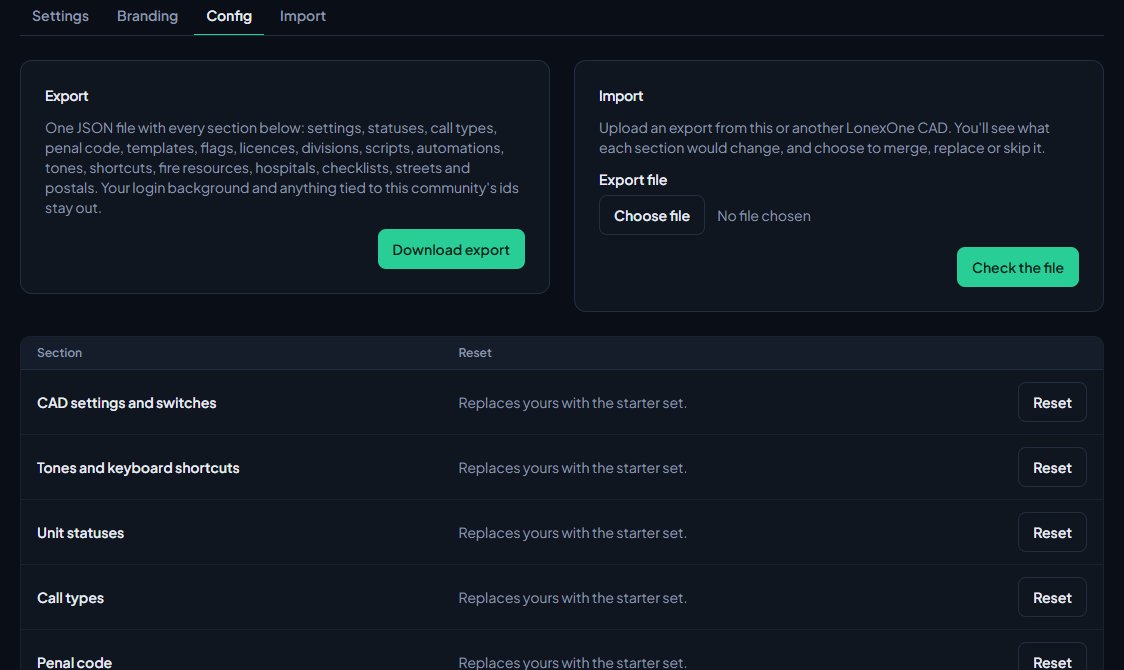
A .json file named after your community and today's date downloads. Keep it somewhere safe if you're using it as a backup.
Import a setup#
- Switch to the community you want to copy into, and open CAD settings, then Config.
- Under Import, choose the Export file.
- Click Check the file.
The next page shows each section in the file, how many entries are new here, how many match ones you already have, and any notes. Nothing has changed yet.
- For each section, pick what to do:
| Choice | What it does |
|---|---|
| Merge | Adds what's new and updates what matches by name or code. Everything else you have stays. This is the default. |
| Replace | Removes what you have in that section first, then adds what's in the file. |
| Skip | Leaves that section exactly as it is. |
- Click Import and confirm.
You're taken back to the Config page with a summary of what each section did.
Replace can't be undone. If you're not sure, export this community's setup first so you have a copy to go back to.
Your own uploaded map image and how it's lined up stay with each community. They're never part of an export, so after copying, upload this community's map image on its Live map page if it uses one. See Upload your own map image and postals.
Reset a section to its starter set#
The table at the bottom of the Config page lists every section with a Reset button.
- Find the section and click Reset.
- Confirm.
For most sections this replaces yours with the starter set, the same one a new CAD gets. Postals have no starter set, so resetting them clears the list. Resetting CAD settings and switches puts every setting back to its default, but leaves your tones and shortcuts alone. Department divisions can't be reset here, because they belong to your departments.
Reset can't be undone.
Rules and limits#
- The file can be up to 5 MB.
- After checking a file, you have two hours to import it before you'd need to upload it again. Only the person who uploaded it can see the check.
- Statuses can only be merged, not replaced or reset, while units are on duty.
- Divisions are skipped for any department that doesn't exist in this community. Create the department first, with the same short name or name.
- Entries in the file that can't be used are skipped, and the check page tells you how many.
Something not working?#
It says "That isn't a CAD config export. Export one from the Config tab of a LonexOne CAD." The file isn't a CAD config export, or it has been edited. Export a fresh one.
It says "That export is from a newer version of LonexOne." The file was made by a newer version than this community can read. Message us in the LonexLabs Discord.
It says "Units are on duty, so statuses can only be merged until everyone signs off." Choose Merge for statuses, or wait until everyone has signed off and try again.
The check page says "No department called ... here, so its divisions are skipped." Create that department in this community first, then import the file again.
I get a "page not found" when I go back to the check page. The check has expired after two hours, or it was started by someone else. Upload the file again.
See also
Set up the CAD for your community
Install the CAD, set up the departments that sign on to it, give your staff access, and work through the CAD settings in the order that gets you running fastest.
Import records into the CAD
Bring characters, vehicles, firearms, charges, flags, call types and statuses in from a spreadsheet, or move a whole LonexCAD v3 community across. Check every row before it's saved, and undo an import for 24 hours.
Switch between communities
Run more than one community from the same account, and move between their control panels in one click.
Choose a map and postal set for the live map
Switch on the live map, pick a ready-made map that matches your server's postal script, load the matching postals, and decide how postals and street names work on calls.
Can't find what you need?
Open a ticket in our Discord and someone from the team will help. Found a bug, or missing a feature? Tell us on the feedback board.