Import records into the CAD
Bring characters, vehicles, firearms, charges, flags, call types and statuses in from a spreadsheet, or move a whole LonexCAD v3 community across. Check every row before it's saved, and undo an import for 24 hours.
If your community already keeps records somewhere else, you don't have to type them in again. The CAD's Import page reads a spreadsheet, matches its columns to the CAD's fields, shows you exactly what will be added, and only saves anything when you say so. If something goes wrong, you can undo the whole import for 24 hours.
There's also a separate importer for communities moving from LonexCAD v3, which brings across civilians, their records and your penal code in one go.
Before you start#
- You need the Set up the CAD: call types, statuses, penal code, designs and AOP permission.
- Save your spreadsheet as CSV, with the column headers in the first row. You can also copy the cells straight from your sheet and paste them.
What you can import#
| What's in it | Needs at least | Can also have |
|---|---|---|
| Characters | A first and last name (or a full name) and a date of birth | Gender, address, phone, height, weight, ID number, description and the extra details like eye colour and occupation |
| Vehicles | Plate, model and owner | Make, colour, year, registration, insurance, stolen, VIN, body type and fuel |
| Firearms | Serial number, type and owner | Stolen |
| Penal code charges | Code, name and class (infraction, misdemeanor or felony) | Category, fine, jail months, points and description |
| Caution flags | Name | Whether it's for a person or vehicle, colour, severity and icon |
| Call types | Name | Code, priority and who it's sent to |
| Unit statuses | Code and label | Meaning, which list it's for, colour and check-in timer |
For unit statuses, put leo, fire or ems in the "For" column, or leave it blank for law enforcement. Dispatchers don't have unit statuses, so a row marked dispatch is skipped with a message.
For vehicles and firearms, the owner is matched by the character's ID number or full name, so import characters first.
Click a name next to Templates at the bottom of the form to download a blank CSV with the right headers for that kind.
Import from a spreadsheet#
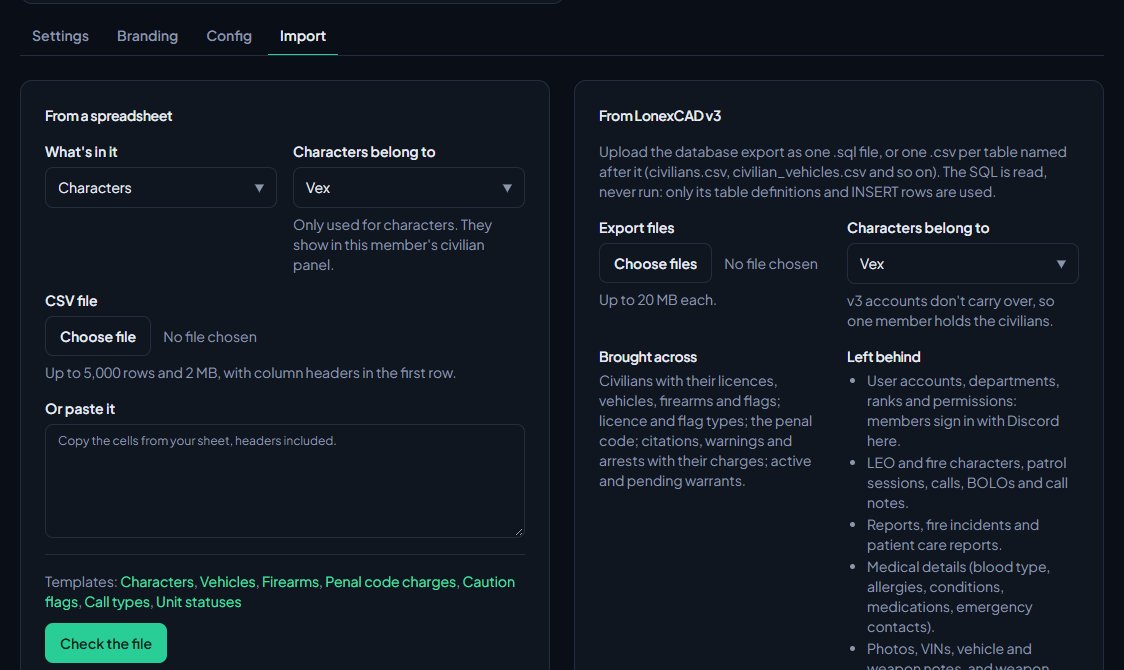
- Open your control panel and click CAD settings in the sidebar.
- Click Import along the top.
- Under From a spreadsheet, pick What's in it.
- If you're importing characters, pick who they belong to under Characters belong to. They'll show in that member's civilian panel.
- Choose your CSV file, or paste your rows into Or paste it.
- Click Check the file.
Match the columns#
The next page lists every field the CAD can fill in, with the column from your file that it guessed for each one. Headers like "DOB", "Surname" or "Licence plate" are matched for you.
- Check each field. Change the column where the guess is wrong, or pick Don't import to leave a field out.
- Every field marked (required) needs a column.
- Click Check again if you changed anything.
Check the dry run#
Once every required field has a column, the Dry run box shows what will happen:
- Will add: rows that will be saved.
- Already here, skipped: rows that match something you already have, like a plate that's already registered or a character with the same name and date of birth.
- Can't be imported: rows with a problem, listed underneath with the reason.
If it looks right, click Import with the number of rows. If not, click Discard, fix your sheet and upload it again.
The import runs in the background. The page shows a progress bar and updates by itself until it's done.
Undo an import#
- Open the import from the list at the bottom of the Import page.
- Click Undo import and confirm.
This removes every row the import added, and anything that has since been attached to them. You can undo for 24 hours after the import finishes.
Move from LonexCAD v3#
- Export your LonexCAD v3 database as one .sql file, or as one .csv per table named after the table, like civilians.csv and civilian_vehicles.csv.
- On the Import page, under From LonexCAD v3, choose the Export files.
- Pick who the civilians belong to under Characters belong to. v3 accounts don't carry over, so one member holds them all.
- Click Check the export.
- Check the summary of what will be added, then click Import.
The SQL file is read, never run. Only its table definitions and INSERT rows are used.
Brought across: civilians with their licences, vehicles, firearms and flags; licence and flag types; the penal code; citations, warnings and arrests with their charges; active and pending warrants.
Left behind: user accounts, departments, ranks and permissions; LEO and fire characters, patrol sessions, calls and BOLOs; reports; medical details; photos and VINs; licence numbers and suspension history; served, recalled and expired warrants; banking, businesses, DMV and other plugin data, settings, postals and road names. The full list is on the Import page.
Rules and limits#
- A spreadsheet can have up to 5,000 rows and be up to 2 MB.
- v3 export files can be up to 20 MB each, with up to 20 files at once. Upload a .sql dump on its own.
- Uploads that are checked but never imported are cleared after a day.
- The import never makes duplicates. Rows that match what you already have are skipped.
Something not working?#
It says "Nothing to import. The first row should be the column headers, with one row per item below it." The file has headers but no rows, or no headers at all. Add a header row and at least one row of data.
It says "That has ... rows. Import up to 5,000 at a time." Split the sheet into smaller files and import them one after another.
It says "Pick a column for every required field first." A required field is still on Don't import. The box on the right lists which ones.
It says "Each column can only fill one field." Two fields are pointing at the same column. Change one of them.
It says "This upload has expired. Upload the file again." The upload was more than a day old. Start again from the Import page.
It says "No LonexCAD v3 data found." Export the database with its INSERT statements, or name each CSV after its table, like civilians.csv.
Accented names came out wrong. Excel sometimes saves CSV in an older format. The CAD tries to correct this, but if it still looks wrong, save the file as "CSV UTF-8" and import again.
See also
Build your penal code
Set up the charges officers pick on citations, arrests and warrants, with fines, jail time and licence points. Load the starter penal code, add your own charges or import them from a spreadsheet.
Add your own call types
Set up the call types dispatchers and units pick from, with an optional code and a starting priority. Rename the starter set, add your own, change the order and delete what you don't use.
Set up unit statuses and 10-codes
Choose the statuses police, fire and EMS units set themselves to, with your own 10-codes, colours and status-check timers, and learn what each status meaning does.
Copy your CAD setup to another community
Export your CAD setup as one file, import it into another LonexOne community section by section, keep it as a backup, or put any section back to its starter set.
Import members from a spreadsheet
Bring a department's roster into LonexOne from a CSV file or a Google Sheet, match the columns, check the preview, and fix the rows that get skipped.
Can't find what you need?
Open a ticket in our Discord and someone from the team will help. Found a bug, or missing a feature? Tell us on the feedback board.