Find anyone on the People page
Search everyone in your community by name, username, badge, Discord ID or game identifier, filter by department and status, and open a profile to see their departments, certifications and history.
The People page lists everyone in your community: every member who has signed in on your community website, and anyone you've brought in with a roster import. It's where you look someone up, check which departments they're in, and open their profile to make changes.
Every department, rank, certification and note you keep on a person hangs off this one profile, so it's usually the quickest way to get to anything about them.
Before you start#
You can see the People page if your role has any of these permissions:
- View people and profiles
- Add members, change ranks, callsigns and status
- Award and revoke certifications
- With the Department Panel: Review, accept and deny applications, Approve and deny leave requests, Review letters of interest, View discipline records or Issue and revoke discipline
Owners and administrators can always see it. Every permission here except View people and profiles can be limited to one department, see Limit a permission to one department.
Open the People page#
-
Open your community's control panel at lonexone.com/panel.
-
Click People in the left sidebar. The number next to it is how many people are in your community.
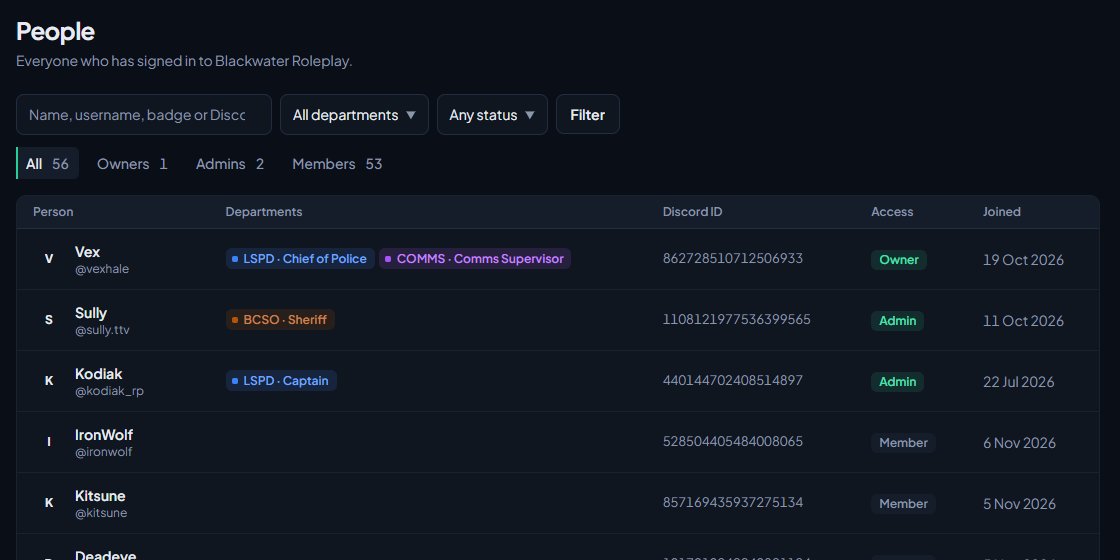
Each row shows:
| Column | What it shows |
|---|---|
| Person | Their display name, with their @username underneath. |
| Departments | A chip for each department they're in, with their rank. Hover over a chip to see the full department name, and their status if it isn't Active. |
| Discord ID | The ID of the Discord account they sign in with. |
| Access | Owner, Admin or Member. |
| Joined | The date they joined your community. |
The owner comes first, then administrators, then everyone else with the newest first. The list shows 50 people at a time. Use Previous and Next at the bottom to see more.
Search for someone#
- Type in the box that says Name, username, badge, Discord ID or game ID.
- Press Enter or click Filter.
| What you type | How it matches |
|---|---|
| A name or username | Any part of their Discord display name or username. |
| A badge number | The whole badge number, exactly. |
| A Discord ID | The whole ID, exactly. Part of an ID won't match. |
| A game identifier | The whole identifier you added on their profile, with or without its prefix, like license: or steam:. |
Filter by department and status#
- Pick a department from the All departments box. The list updates straight away.
- To narrow it down further, pick a status from the Any status box: Active, In training, Leave of absence, Suspended, Inactive or Left.
When you pick a department but leave the status on Any status, people who have left that department aren't shown. Pick Left to find former members.
Above the list there are also tabs for All, Owners, Admins and Members. They keep your search and filters, so you can, for example, see only administrators in one department. The numbers on the tabs count your whole community, not just the people matching your search.
If your role has View people and profiles, you can also find people from anywhere in the control panel with the search box at the top (or Ctrl K). See Search the control panel and pin favourites.
Open someone's profile#
Click a person's name to open their profile. At the top you'll see their name, their access, @username, badge number, Discord ID, the date they joined, and any community roles they hold.
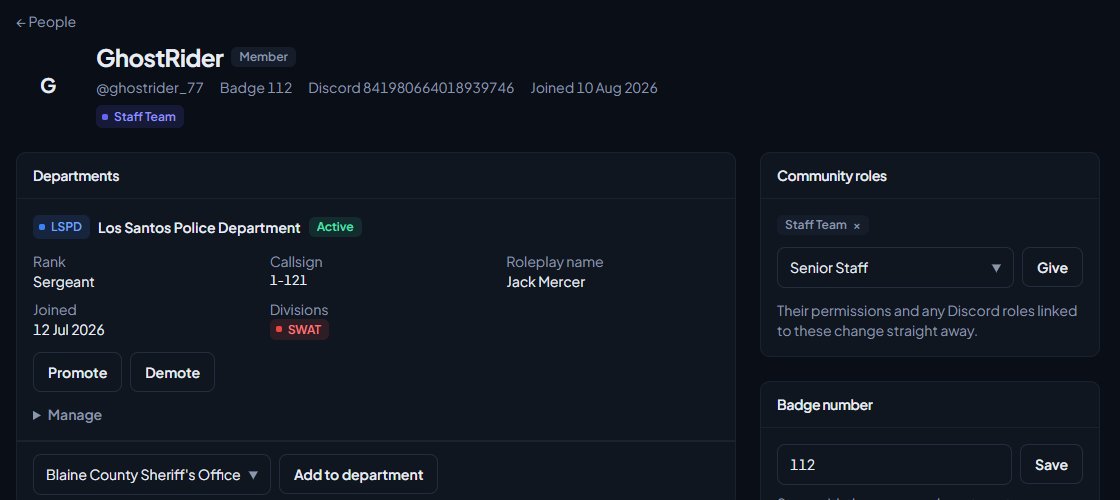
Below that:
| Section | What's in it |
|---|---|
| Departments | Each department they're in or have been in, with their status, rank, callsign, roleplay name, join date, divisions and any custom fields. If you manage that department's roster, Manage opens the controls to change them. |
| Certifications | The certifications they hold now, and any past ones. |
| Department Panel sections | Applications, leave, letters of interest, discipline, shifts, promotion progress and fleet, when the Department Panel is installed. Each one only shows if you have the permission for it. |
| Training | Their training, when the Training module is installed. |
| History | Joins, promotions, demotions, status and callsign changes and transfers, with who made each change and the reason they gave. |
| Community roles | The roles they hold. Only shows if you can manage roles. |
| Badge number | Their badge number. |
| Game identifiers | Their FiveM identifiers. |
| Notes | Private staff notes. Only shows if you can edit profiles. |
What you can do from a profile#
| To do this | See |
|---|---|
| Add them to a department, change their rank, callsign or status | Add someone to the roster and set their callsign |
| Give or take away a community role | Create a role and choose what it can do |
| Change their badge number | Set a member's badge number |
| Award or revoke a certification | Award a certification to a member |
| Keep notes and game identifiers | Keep notes and game identifiers on a member |
Something not working?#
I can't see People in my sidebar. Your role doesn't have any of the permissions listed under "Before you start". Ask your community owner to add one under Roles & permissions.
Someone isn't on the list. People join your community the first time they sign in on your community website. Signing in to lonexone.com isn't enough on its own. Send them Get your members signed in. You can also add people before they've signed in with Import members from a spreadsheet.
Searching for a Discord ID or badge finds nothing. These only match the whole value. Copy the full Discord ID or badge number and try again.
It says "No one matches." but I know they're there. Check the All departments and Any status boxes. They stay set while you search. Set them back, or click People in the sidebar to start again.
I can open a profile but can't change anything. Each section needs its own permission. For example, changing a rank needs Add members, change ranks, callsigns and status for that department, and notes need Edit profiles, notes and game identifiers. See Every permission explained.
See also
Keep notes and game identifiers on a member
Write private staff notes on someone's profile, record their FiveM identifiers like their Rockstar license or Steam, and see the game accounts the Staff Panel has matched to them.
Set a member's badge number
How badge numbers are handed out automatically, how to change or remove one, and where badge numbers show up, from Discord nicknames to the public roster.
Award a certification to a member
Give someone a certification from their profile, see when it expires, revoke it if you need to, and fix the problems that stop a certification showing in the list.
Add someone to the roster and set their callsign
Put a member into a department at a rank, give them a callsign and roleplay name, change those details later, and remove them from the department.
Can't find what you need?
Open a ticket in our Discord and someone from the team will help. Found a bug, or missing a feature? Tell us on the feedback board.